

Step 1: Create an Account and Organization
- Create a SaladCloud account or sign in to your existing account.
- Create an organization in the portal. If you need help, follow the account setup guide.
- Open the organization you want to use with Salad AI Gateway.
Gateway access is configured per user, per organization. If you use AI Gateway with more than one organization, create
a separate key for each organization.
Step 2: Add Credits to the Organization
AI Gateway pay-per-token usage draws from the selected organization’s SaladCloud credit balance. In the organization, select Billing & Usage from the left navigation and add credits. The organization must have a positive credit balance before it can process AI Gateway requests. See Billing for instructions on adding credits and configuring auto recharge.Step 3: Create an AI Gateway API Key
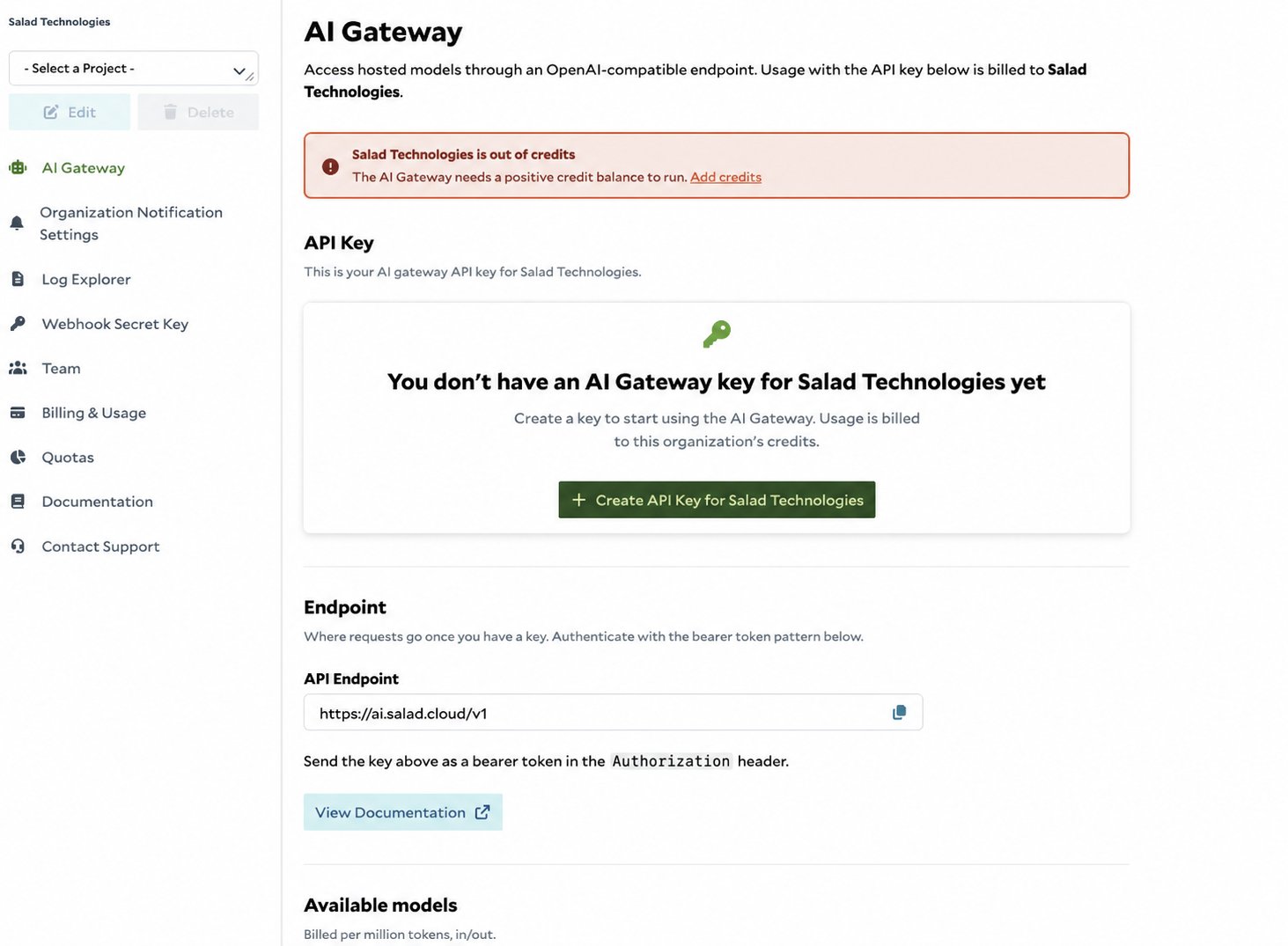
- Open the organization you want to bill for AI Gateway usage.
- In the left navigation, select AI Gateway.
- Click Create API Key for organization name.
Step 4: Retrieve and Copy the Key
- Select your username in the upper-right corner of the portal.
- Select API Access.
- Under AI Gateway Keys, find the organization you selected.
- Click the copy icon next to the masked key.
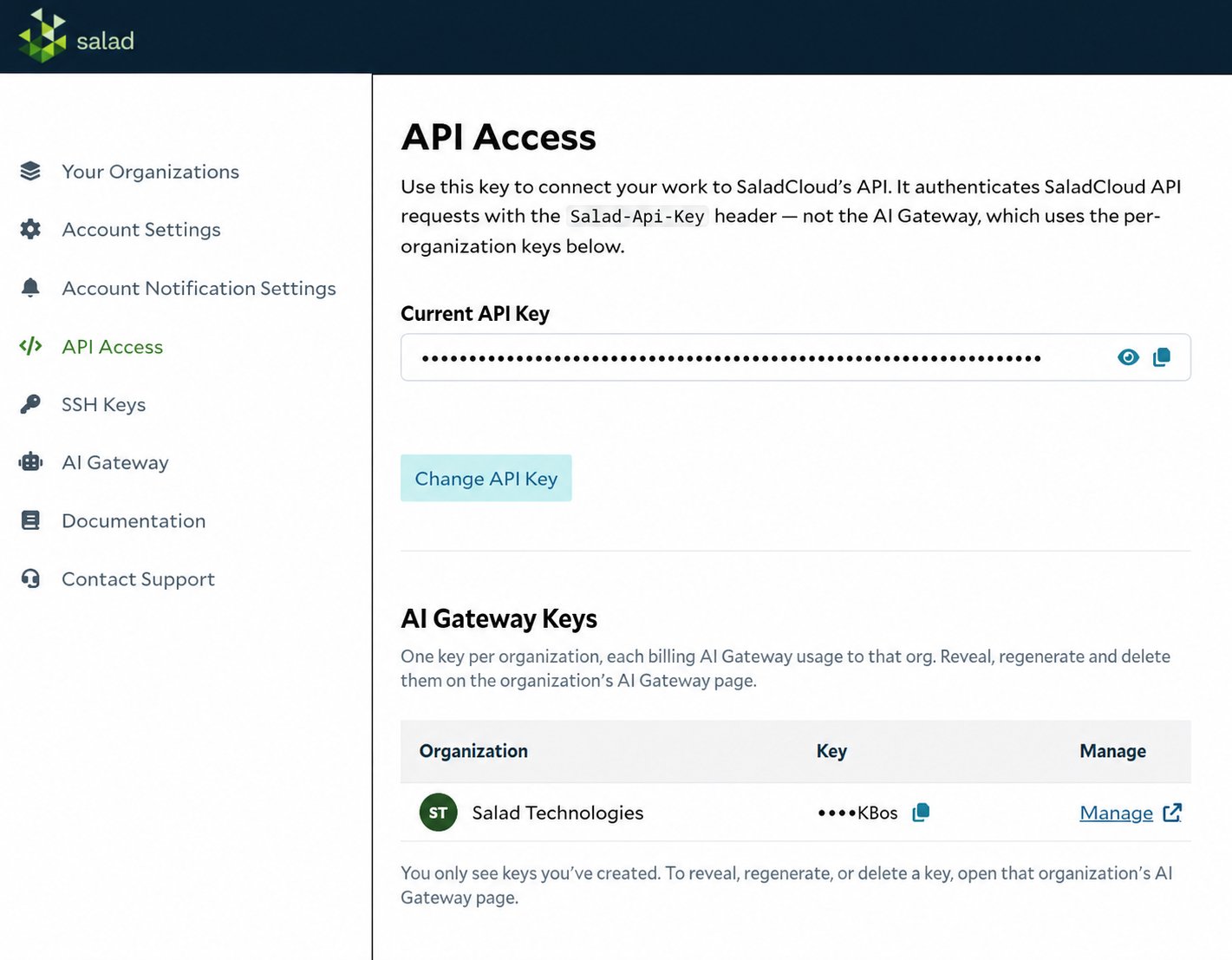
The Current API Key at the top of the page authenticates other SaladCloud APIs with the
Salad-Api-Key header. It
does not authenticate AI Gateway requests. Use the organization-specific key listed under AI Gateway Keys as a
Bearer token.Step 5: Store the Key Securely
Store the copied key in an environment variable instead of hardcoding it in your application:Step 6: Make Your First Request
Send the AI Gateway key as a Bearer token to the OpenAI-compatible endpoint:Next Steps
- Follow the Getting Started guide for Python, JavaScript, and streaming examples.
- Review the Models reference for model IDs and capabilities.
- Browse AI Gateway integrations for coding agents, IDEs, and frameworks.