

Authentication
Each API request is authenticated with an API access token that can be accessed via the Web Portal. Each user has a unique API token that grants API access to any Organization, Project, or Container group that the user has access to. If you need to get a new API Token, you are able to refresh API tokens directly from the Web Portal. This API token should be included in theSalad-Api-Key header of each request.
Get your SaladCloud API Key
Navigate to theAPI Access section under the account drop down
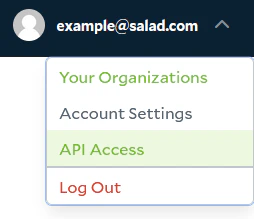
API Access page. Be sure to store this key securely, as it is the only way to access the
SaladCloud APIs.
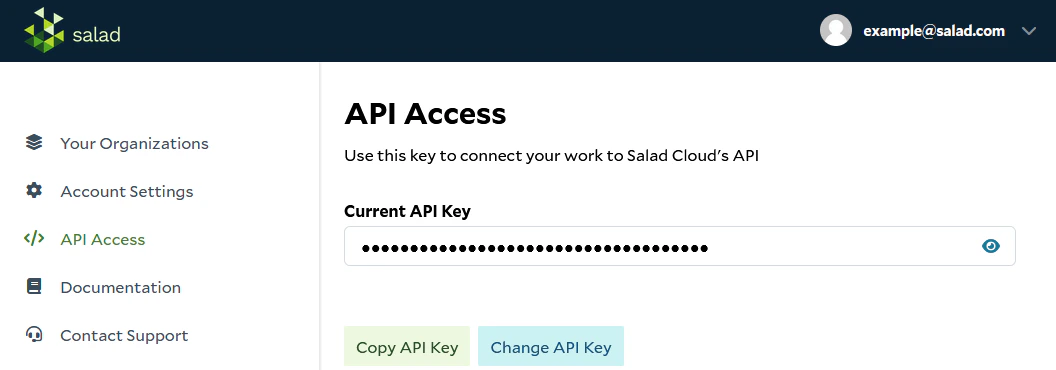
Get Your Salad AI Gateway API Key
Salad AI Gateway does not use the Current API Key or theSalad-Api-Key header. It uses a separate API key for each
user and organization:
- Create the key from the organization’s AI Gateway page.
- Select your username in the upper-right corner of the portal, then select API Access.
- Under AI Gateway Keys, find the organization and click the copy icon next to its masked key.
Authorization header. Follow
Pay-Per-Token Onboarding for the complete setup and first-request
workflow.
Refreshing API Keys
If you need to update your API key for any reason, you can refresh the API key from theAPI Access page. Select
Change API Key, then choose how long the previous key should remain valid.
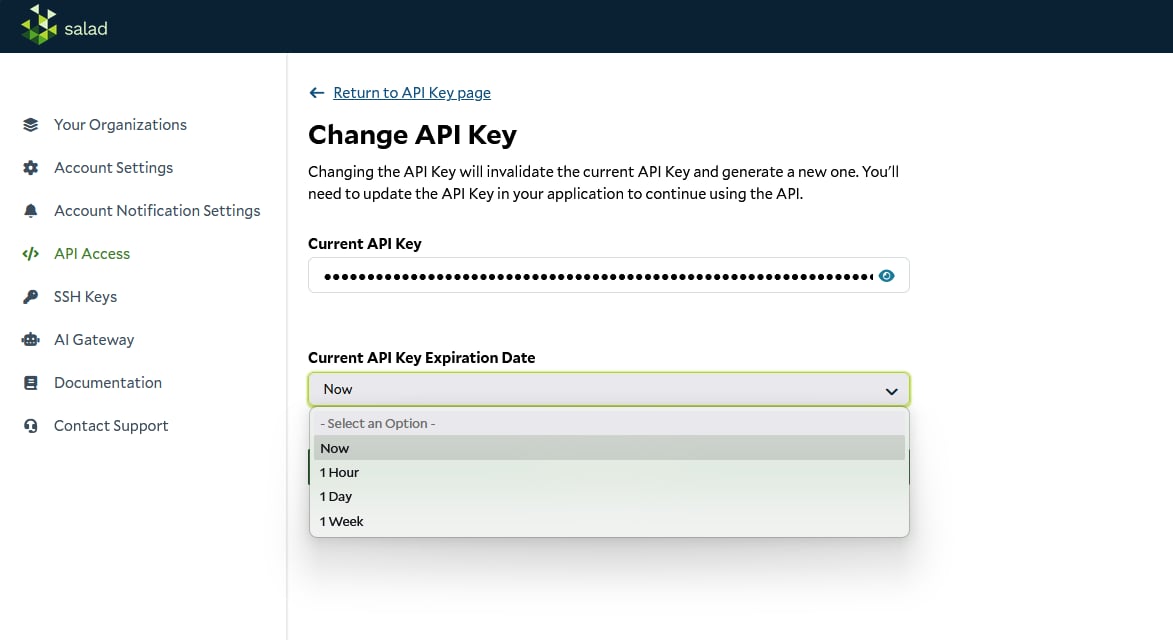
If you choose an overlap window, both the previous key and the new key authenticate successfully until that window
elapses. This lets you roll the new key out to your applications without downtime. Once the window elapses, the previous
key is permanently invalidated and cannot be recovered.
The default is Now. If you leave it selected, the previous token is invalidated immediately and will no longer
grant API access.
Rate Limits
SaladCloud’s servers enforce rate limits to ensure our APIs are responsive as we grow. The rate limit is tied to an individual API key and set to 240 requests per minute. If your team would like a higher rate limit, please reach out to our team.Errors
Errors from the SaladCloud API may come as HTML documents. Be sure to handle this case in your application.
- Codes in the 2xx range indicate success.
- Codes in the 4xx range indicate an error that failed given the information provided (e.g., a required parameter was omitted, a change failed, etc.).
- Codes in the 5xx range indicate an error with SaladCloud’s servers (these are rare).