

SSH Access
Use SSH to open a shell on a running container instance after adding your public key in the SaladCloud Portal.1. Create or Obtain an SSH Key
If you already have an SSH key pair, you can skip this step. To check for existing keys:id_ed25519.pub, id_rsa.pub, or similar .pub files.
To create a new SSH key:
~/.ssh/id_ed25519 (private key) and ~/.ssh/id_ed25519.pub (public key). Your public key will look
similar to this:
2. Copy Your Public Key
3. Add the Key in the Portal
There are two ways to access the SSH key settings:- Click your username in the upper-right corner and select SSH Keys, or
- Click SSH Keys in the left sidebar menu
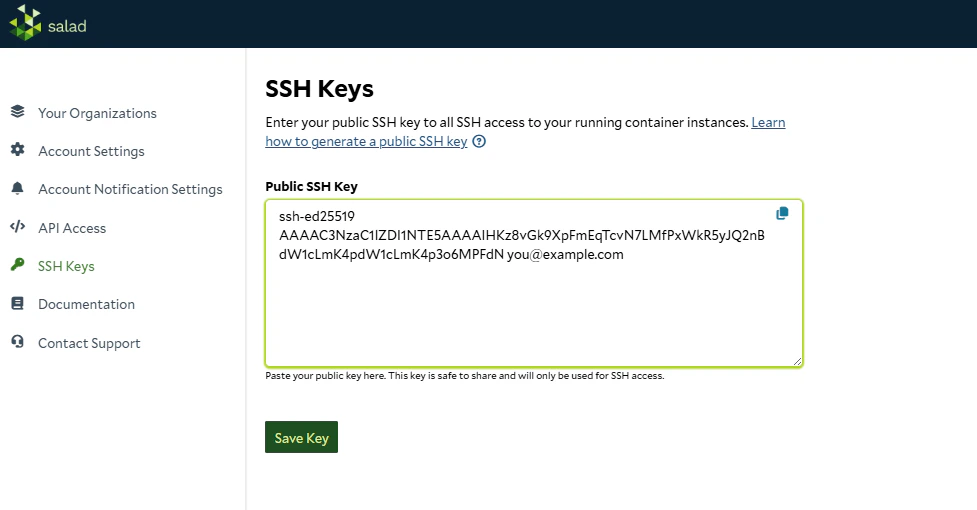
4. Connect to a Container Instance
- Open your container group in the Portal and click on a running instance.
-
You will see an SSH command displayed in a text box above the terminal. Command will look something like this:
- Copy the command and paste it into your terminal.
- The Portal also displays the key fingerprint for verification, so you can confirm you’re connecting with the correct key.
~/.ssh/ (such as id_ed25519, id_rsa, id_ecdsa), so the command
shown in the Portal works without modification for most users.
If your key has a custom name or is stored in a non-standard location, add the -i flag to specify your key name and
location:
Terminal Access
The web-based terminal provides quick access directly from your browser without any SSH setup.- Open the SaladCloud Portal and navigate to your container group.
- Click on a running instance.
- Click on the Terminal tab to open an interactive shell.