

My Container Group Can’t Pull My Image
If your container group is unable to pull your container image, try the following steps:- Verify the image url is correct. Check for typos in the image name and registry.
- If using a private registry, ensure that the credentials provided are valid and have the necessary permissions, including inspecting the manifest and downloading all of the layers. Ensure there are no leading or training whitespace characters in your credentials.
- If using a private registry, ensure your account level supports an adequate rate limit for the number of container groups you are deploying. This is especially important if you are using Docker Hub, and deploying many single-replica container groups.
- Ensure the image is in Docker/OCI format and built for AMD64 architecture. Salad does not support ARM64 images.
- Ensure the image size is <= 35GB (compressed). Larger images will fail to pull.
- If using a custom registry, ensure that the registry is publicly accessible from the internet.
My Container Group Loops Between Downloading and Allocating
If you see your container group repeatedly transitioning between “Downloading” and “Allocating”, this almost always indicates that the container is failing immediately when it starts. In this case, Salad will attempt to restart the container on the same machine to minimize downtime. After repeated failures we will reallocate the workload to a different node. To confirm this is what is happening, you can check the System Events tab for a container group, which will show things like when an instance started downloading, and exit codes. Alternately you can use the log explorer to search forresource.type=instance_controller.
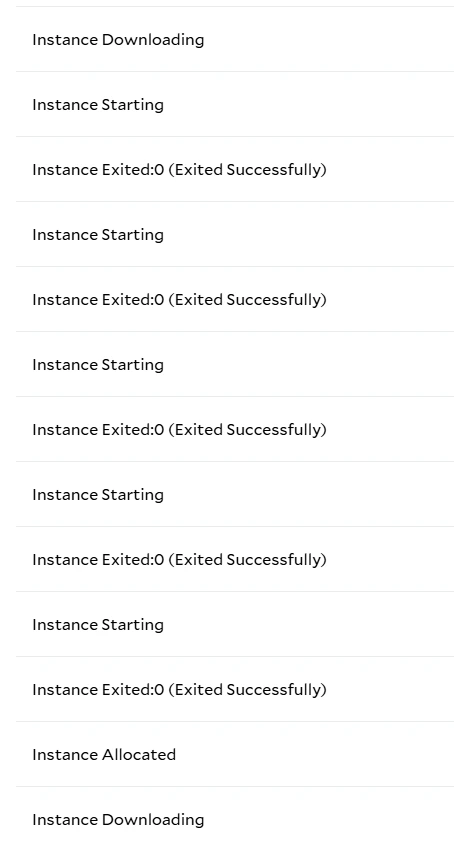
Container Exit Troubleshooting
Exited:0: Successful Exit
An exit code of 0 indicates the container process completed successfully. This is expected behavior for many base
images (for example, ubuntu) which exit immediately if no long-running command is specified. Containers, unlike VMs,
require a long-running process to stay alive.
Recommended action: If the container is intended to remain running, specify a long-running command such as:
sleep infinity, or a large integer value for distributions where sleep does not support infinity (e.g. Alpine
Linux).
Exited:137: Container Killed (SIGKILL)
Exit code 137 indicates the container was terminated with SIGKILL. This typically happens when the container exceeds
its memory limit, and is killed as OOM (out-of-memory). A 137 exit code can also be recorded if the container instance
was explicitly terminated (for example, via the IMDS endpoint).
Recommended actions: Verify whether a termination was requested intentionally. If not increase the memory allocated
to the container group if the exit is unexpected.
Exited:<other>: Application-Specific Exit
Exit codes other than 0 or 137 are typically returned by the application running inside the container. For example,
1 is a common exit code for general application errors, and 2 is a common exit code for invalid arguments or
configuration.
Recommended actions: Inspect the container logs immediately preceding the exit to determine the root cause. Validate
application configuration, input files, and environment variables.
StartFailure:-1: Container Failed to Start
A StartFailure indicates that the container runtime was unable to start the container. In these cases, the container
process itself never executed. Start failures may occasionally be caused by transient node-level issues. However,
repeated start failures typically indicate a problem with the container image or container group configuration.
Image and Runtime Issues
- Invalid or missing container entrypoint
- Image built for an incompatible architecture
- GPU images with missing or incompatible CUDA or ROCm/HIP libraries
Command and Argument Errors
- Incorrect command or arguments
- Referenced files or binaries do not exist in the image
- Incorrect assumptions about the working directory
GPU and Resource Mismatches
- Using a non-GPU container image with a GPU container group
- Using a GPU-dependent image in a CPU-only container group
- Using a CUDA image with an AMD GPU class
- Using a ROCm image with an NVIDIA GPU class
- An incompatibility between the image’s GPU runtime, the host driver, the GPU architecture, and the application build
Debugging Start Failures
To systematically debug start failures:- Verify the container image works locally with a similar runtime environment (e.g. Docker Desktop).
- Ensure the container image is intended for GPU workloads if deploying to a GPU container group, or vice versa.
- Start the container with a minimal long-running command such as
sleep infinityand connect via the terminal in the Portal or with SSH. Once connected, manually verify that the expected files, binaries, and environment variables are present and correct. Also verify that the intended entrypoint or command run successfully.
GPU Compatibility Checks
First, confirm the vendor of every GPU class selected for the container group. A vendor-specific image should select classes from only that vendor:- NVIDIA workloads need a compatible CUDA image.
- AMD workloads need a compatible ROCm image built for the selected GPU architecture. See AMD GPUs and ROCm.
- NVIDIA: Run
nvidia-smiand inspect the application logs for CUDA, cuDNN, NCCL, or kernel compatibility errors. - AMD: If the image includes them, run
rocminfoandamd-smi list, and inspect the application logs for ROCm, HIP, orgfxcompatibility errors.
My Container Group Is Stuck Downloading / Stuck at Downloading 99 Percent
First, check the instances are not looping between downloading and allocating as above. However, if a single node has been in the “Downloading” state for a long time (more than 2 minutes per GB of image size), you may have landed on a node with below-average network performance. This can happen because Salad nodes often run on residential internet connections, where other household devices may share the bandwidth. Many of these nodes will eventually become healthy, but if high network performance is essential to your application, try reallocating the node. It will be placed on a different machine, with different network conditions. Note that the progress bar is a conservative estimate — actual download time may vary.My Container Group Is Running But I Get 503 Errors With The Container Gateway
- Ensure your container is listening on the correct port. The port you specify in the Salad configuration must match the port your application is listening on inside the container.
- Ensure your container supports IPv6. Salad
Gateway uses IPv6 to route traffic to your container. Enabling IPv6 is typically as easy as setting your host to
::instead of0.0.0.0. - Ensure your readiness probe does not pass until the server is able to accept traffic. If the readiness probe passes before the server is ready, Salad Gateway will route traffic to the container, but the container may not be able to handle it yet, resulting in 503 errors.
- Ensure at least one node is running and “ready” in the Salad portal. If all nodes are down, or not ready, the gateway will return 503 errors.
My Container Group Is Running But I Get 403 Errors With The Container Gateway
- If your container group has Authentication enabled, ensure that your Salad API Key is valid, and included in the
Salad-Api-Keyheader of your requests. - If your container group does not have Authentication enabled but you are getting 403 errors, this issue can occur in rare cases due to an internal delay creating the necessary route tables. This usually resolves itself within a few minutes. If it does not, please contact support. In this scenario, duplicating the container group will almost always resolve the issue, but please contact support anyway, so we can track the issue and continue to improve.
My Container Group Is Running But I Can’t Access It With The Web Terminal
- Wait a few seconds after the terminal page loads, as it sometimes takes a moment to establish a connection.
- Refresh the page if it does not connect after a few seconds.
- You may also gain terminal access to nodes using tools like tailscale ssh, or even installing the VS Code server or JupyterLab in your container image.