

Listing your Container Deployments
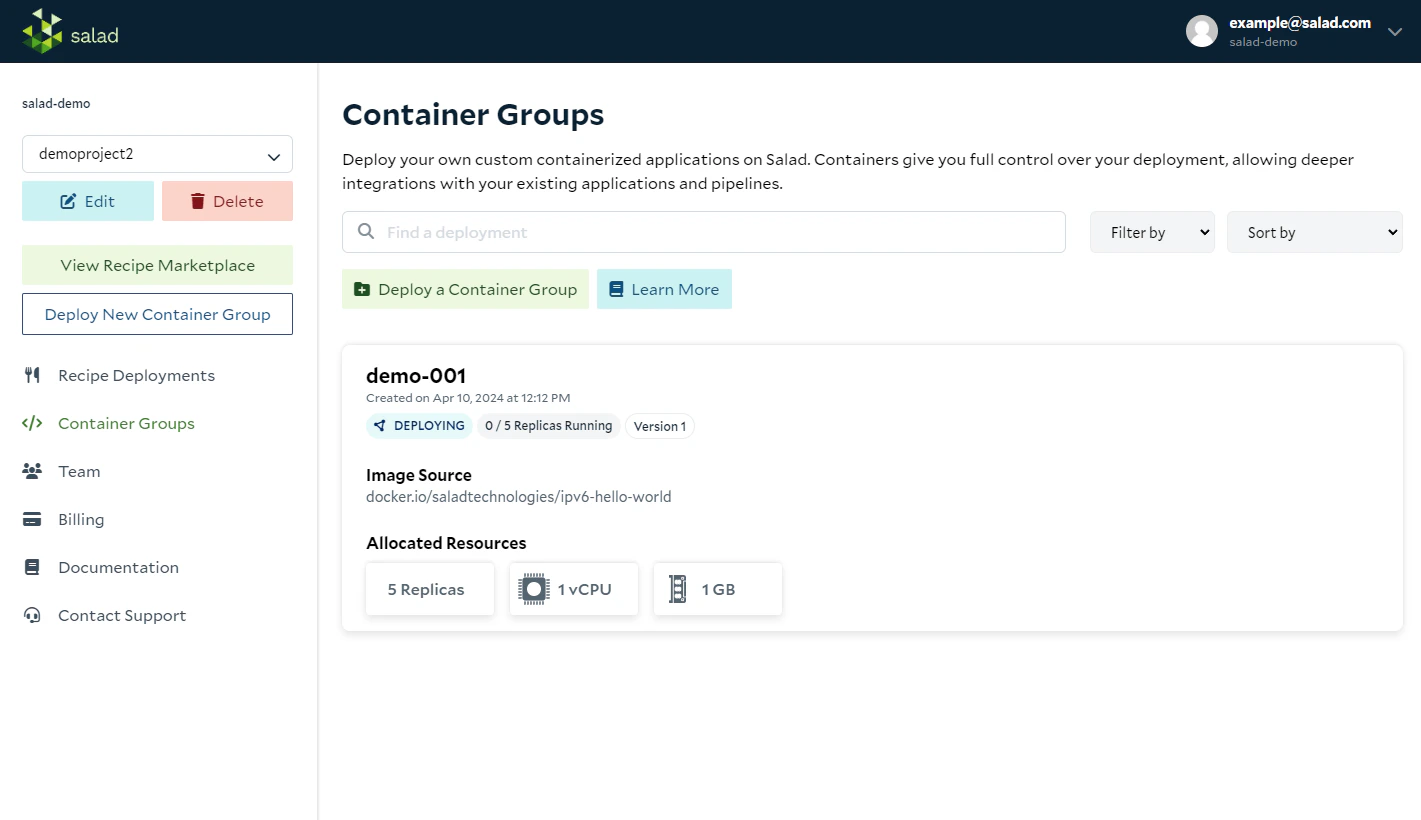
In the SaladCloud Portal, you’re able to see your deployments for each project on the Container Deployments List page. This page shows a high-level view for each of the container groups within the project, including:- Name of the deployment
- Date created
- Deployment status (Preparing, Stopped, Deploying, Running, Failed)
- Replicas running
- Version
- Container Gateway details (if enabled)
- Image source
- Allocated resources (total desired replica count and vCPUs, RAM and GPU(s) allocated to each replica)
Managing a Container Deployment
Click on any of your deployments to drill down to the Container Deployment Detail page. From here, you can start, stop, and delete your deployment, as well as edit the display name, replica count, image source, resource requirements, and other configuration settings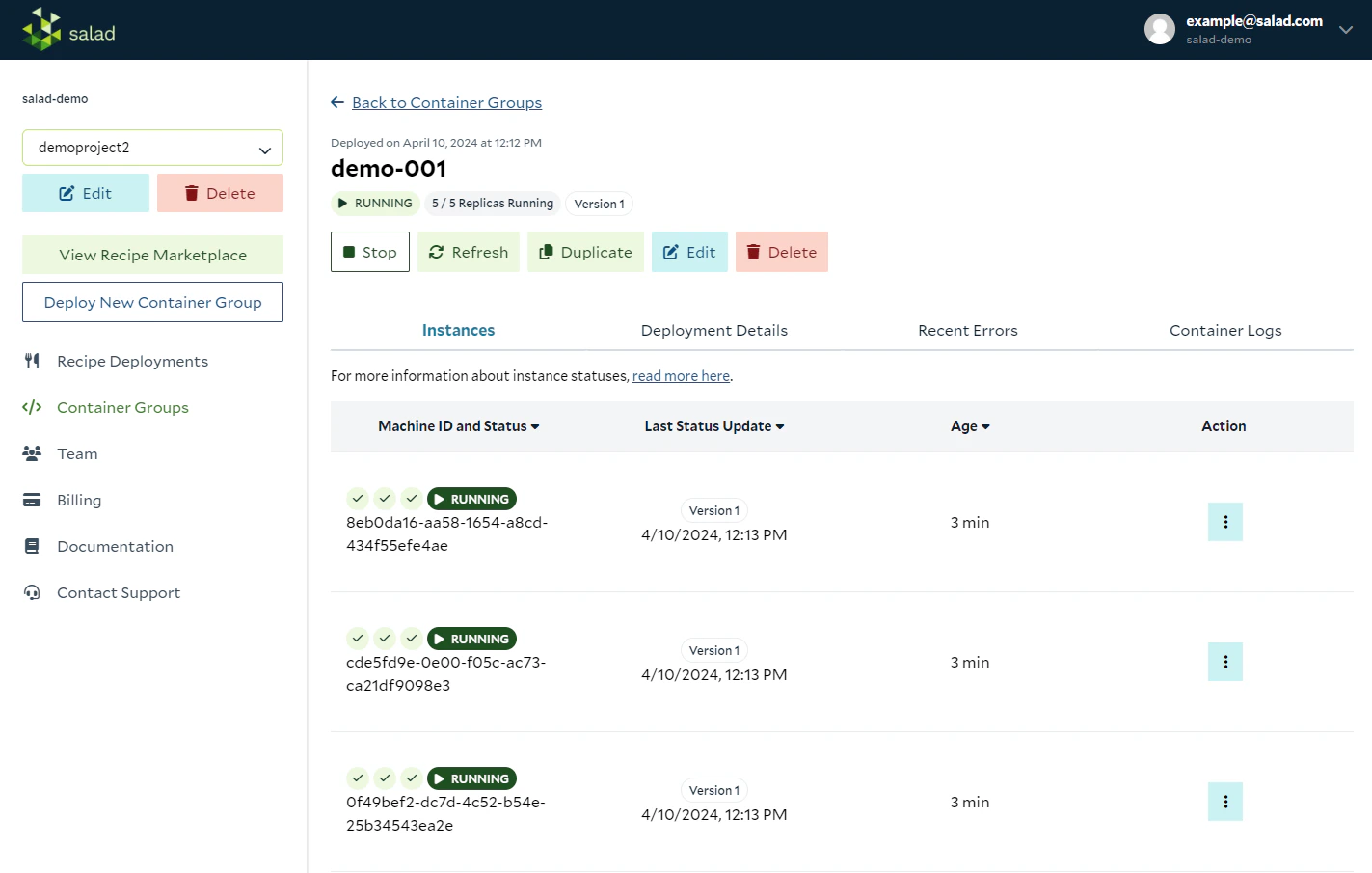
Managing Container Instances
On this page, you can also see a table of all instances of your container that have been allocated, are running, stopping, or failed. You can also manage these instances by clicking the action button next to an entry in the list of running instances. You can perform the following actions: Restart a container instance Occasionally, a workload may run for awhile on your node and then some part of the application might hang. In these cases, it’s typically faster to get back up and running by restarting the container on the same node, rather than searching for a new one. The Restart option allows you to restart your container on the node, with all settings and downloaded data intact. Recreate a container instance For a harder reset, the Recreate option allows you to rebuild the container from scratch on the node. These features are accessible from the actions dropdown next to each node on the container group detail page. Reallocate a container instance If a workload fails to run, SaladCloud will automatically reallocate your container to a new node that matches the requirements you specified. However, in some rare cases, a node has trouble running a container replica but doesn’t outright fail. If this happens, it’s helpful to be able to manually trigger a reallocation of the workload to a new node. View Container Logs Use this link to open the Container Logs tab with the Machine ID filter pre-filled.Failures
If container images exit with a 0 exit code, they may be restarted on the same node. If container images exit with a non-0 exit code, they will be blocked from the current node and reallocated to another node. Customization of this behavior is coming soon.Editing Your Container Group Deployment
Inside the “Edit” option on the Managing Deployments page in Salad, you have the flexibility to modify key parameters of your Container Group deployment.- You can change the Display Name to make deployments more descriptive and easily identifiable. Note: the Container Group Name, set upon creation, cannot be edited.
- You can update the Image Source URL. For private registries, re-enter authentication details. You’ll see the first 12 characters of the image digest hash after saving.
- You can adjust the replica count to scale your application up or down as needed.
- You can modify hardware resource requirements, such as the number of vCPUs, Memory (RAM), GPUs, and Disk Space.
- You can edit the Health Check Probes (Startup, and Liveness).
- You can edit the Command.
- If enabled, you can edit the Container Gateway Port. Note: the edit Container Group functionality doesn’t allow for the Container Gateway to be disabled, enabled, or authentication to be changed.
- You can modify or enable/disable the External Logging Services.
- You can edit the Environment Variables.
- When you save any change that produces a new container version—such as adjustments to the image, command, health probes, environment variables, or gateway settings—SaladCloud restarts every replica so the new configuration is applied consistently. If the update references a new image, the platform pulls the image first and then restarts the replicas when the download completes.
- Updating CPU, RAM, GPU class, or disk space settings keeps existing replicas running if their current nodes still satisfy the new requirements. Replicas that fall outside the updated limits are reallocated to compliant nodes, so only those instances restart.
- Display name edits, replica count adjustments, and autoscaler configuration updates apply without forcing a restart.
- Because restarts happen right away, plan rollouts carefully and consult Deployment Strategies on SaladCloud for approaches that maintain availability during updates.

