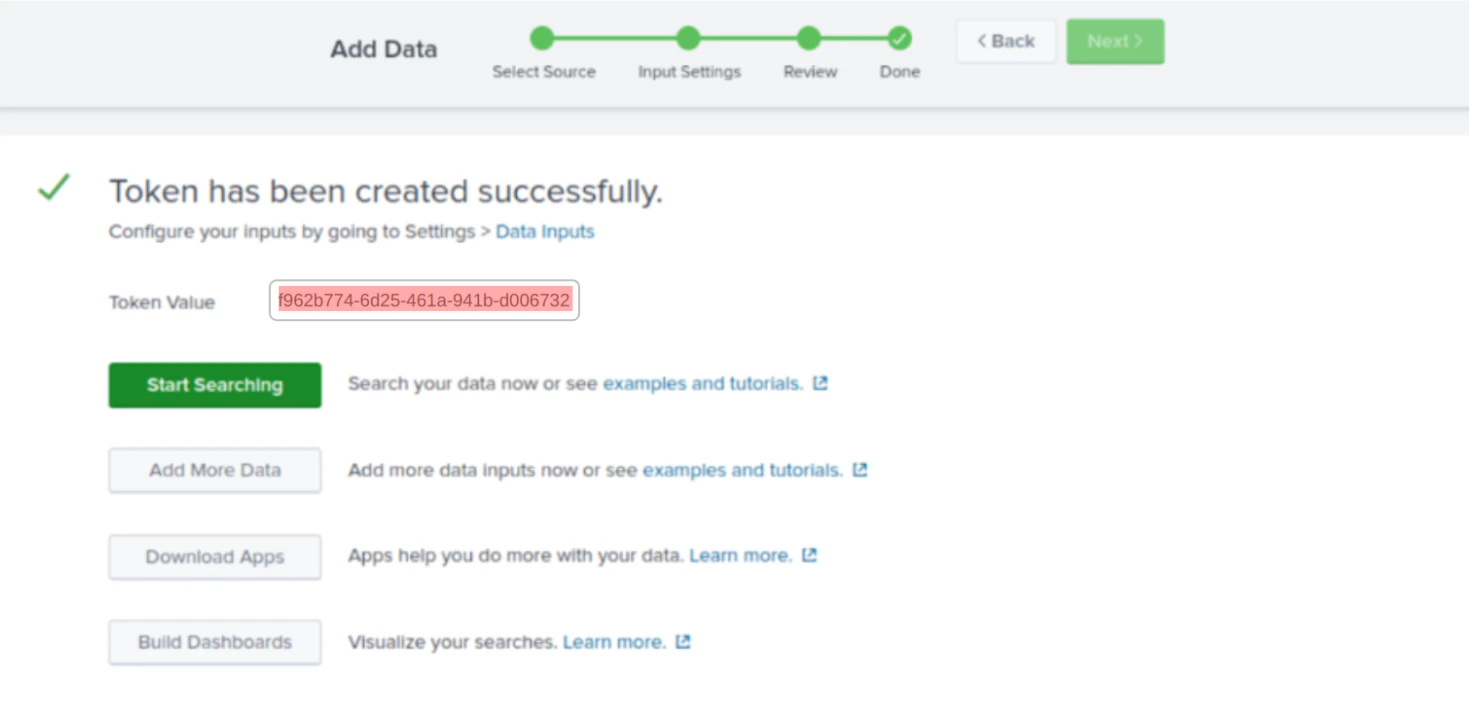
Step 1: Generate Credentials of Splunk
- Visit Splunk Cloud and login to the portal Logging in to the Splunk Cloud portal using your credentials. If you don’t have an account, sign up to get started.
- Visit a setting section and click on Data inputs.
- Select the Http Event Collector in the Local inputs section.
- Configure the Global settings enable(SSL and All tokens).
- Click on “New Token”, provide name, source name and description.
- Click on “Next”, will be prompted with “Token Value” and “Start searching” option.
Step 2: Configure credentials for SaladCloud Container
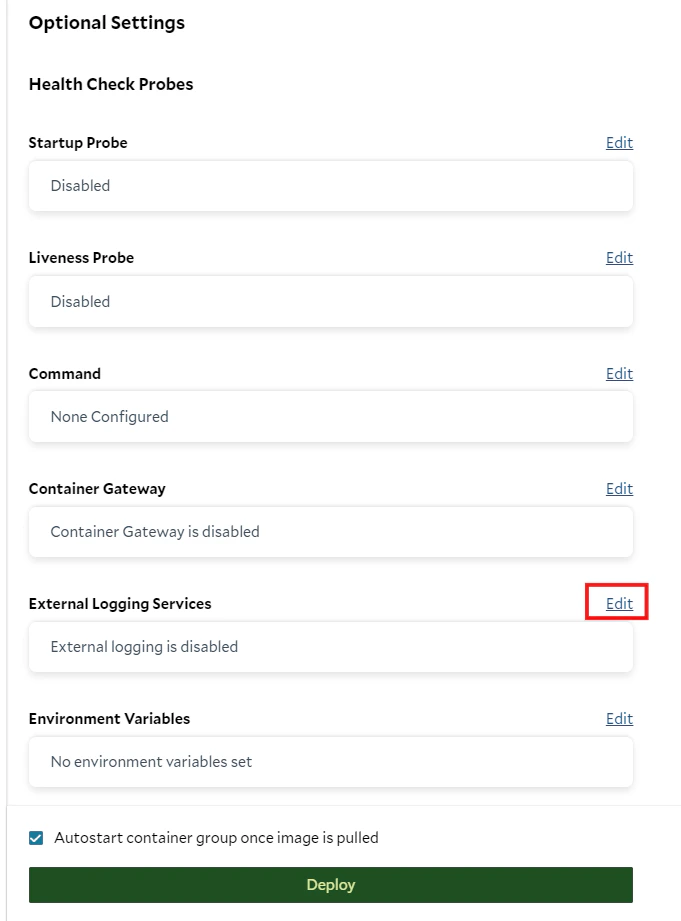
while container group creation or configuration process, locate the “External Logging Services” section in Optional Settings and click on the “Edit” button.- Click “Edit” on External Logging Services.
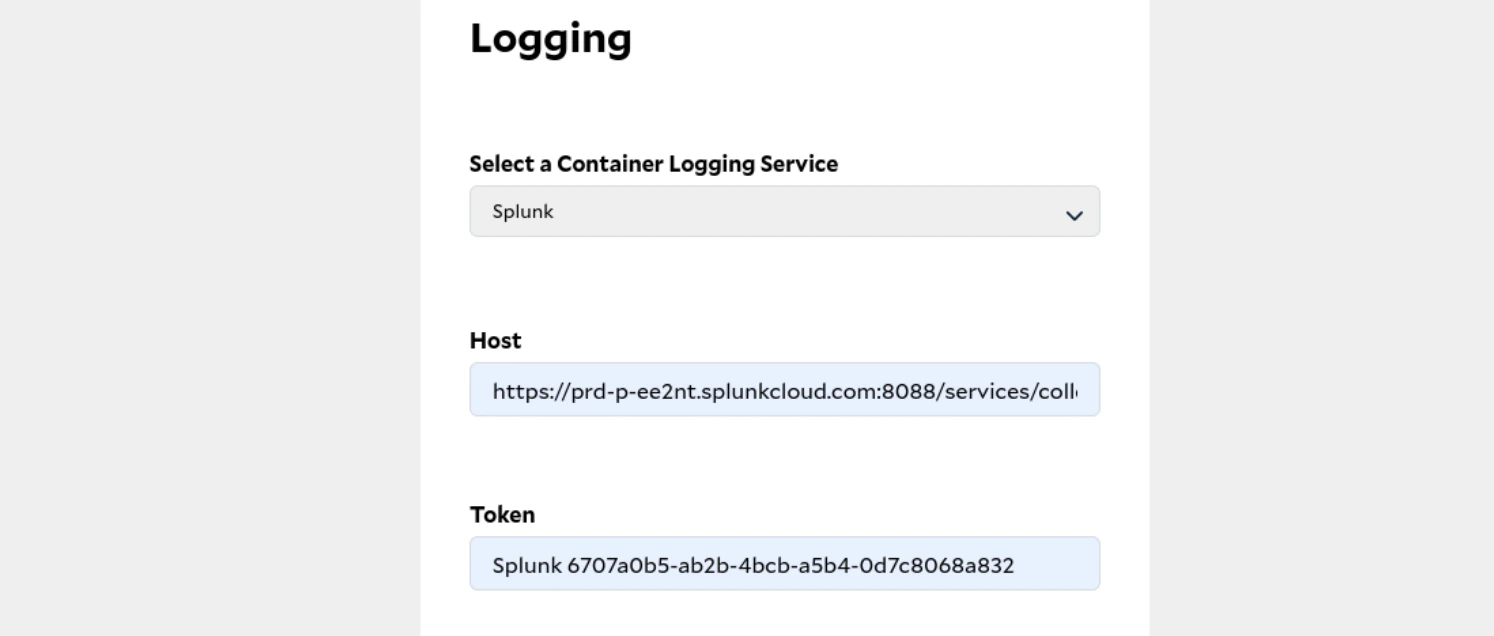
- In the sidebar appears at right, click on “Splunk” under the option of “Select a Container Logging Service”.
Finally past the Host URL and token that we generated from Splunk and simple click on “Configure”.