Documentation Index
Fetch the complete documentation index at: https://docs.salad.com/llms.txt
Use this file to discover all available pages before exploring further.
Initial Setup
To get started, follow the quickstart guide to create your Tailscale account
and tailnet, then add your first devices (e.g., your developer machine for accessing Salad GPU nodes). You can use
either of the interactive methods (Admin Console or CLI with the login process) to join your devices into the tailnet.
In the example below, two private, isolated devices are connected via the salad_demo tailnet and can securely
communicate with each other.
-
app-server (Linux): Simulates a private server hosting applications—such as client services, databases, queues,
proxies, or identity brokers—that securely interact with Salad nodes over the tailnet.
-
dev-vscode (macOS): Represents a developer laptop used for testing, debugging, and managing code running on Salad
nodes through the tailnet.
ubuntu@app-server:~$ tailscale status
100.88.37.62 app-server salad_demo@ linux -
100.87.65.60 dev-vscode salad_demo@ macOS -
Tailscale users must periodically reauthenticate on each device, with a maximum reauthentication interval of 180 days
(which can be adjusted in the Admin Console). If
reauthentication is not completed within this period,
the device’s keys will expire, causing connections to and from
the device to stop working. For devices that need to remain operational for extended periods on SaladCloud, such as
the app-server, you can disable key expiry to avoid the need for reauthentication. For detailed instructions, refer to
this link.
After successfully installing Tailscale, a virtual network interface (such as tailscale0 on Linux) is created on
each device. This interface is assigned a unique Tailscale IP address (consisting of both an IPv4 and an IPv6 address),
which is used for secure communication within the tailnet.
# Local Tailscale IP: IPv4 and IPv6
ubuntu@app-server:~$ tailscale ip
100.88.37.62
fd7a:115c:a1e0::7901:253f
# Test the connectivity from app-server (100.88.37.62) to dev-vscode (100.87.65.60)
ubuntu@app-server:~$ ping 100.87.65.60 -c 1
PING 100.87.65.60 (100.87.65.60) 56(84) bytes of data.
64 bytes from 100.87.65.60: icmp_seq=1 ttl=64 time=9.63 ms
--- 100.87.65.60 ping statistics ---
1 packets transmitted, 1 received, 0% packet loss, time 0ms
rtt min/avg/max/mdev = 9.632/9.632/9.632/0.000 ms
ubuntu@app-server:~$ tailscale ping 100.87.65.60
pong from dev-vscode (100.87.65.60) via 192.168.68.112:41641 in 9ms
Note: Not all devices with the tailscale0 interface can access their own Tailscale IPs locally. This behavior
depends on the operating system, network configuration, and firewall settings.
Enabling Tailscale SSH
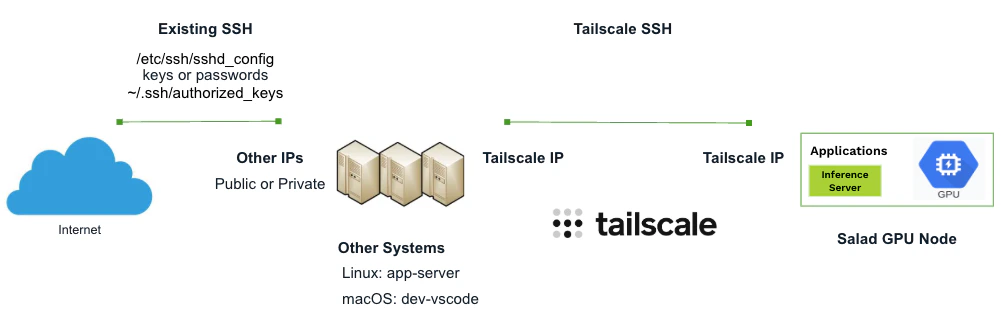
You can install and configure an SSH server on each device, manage authentication using keys or passwords, and enable
SSH access between devices within the tailnet using their respective Tailscale IPs.
However, Tailscale SSH offers a streamlined alternative by running its
own SSH server, which automatically takes over port 22 for connections originating from within the tailnet. It leverages
Tailscale keys for authentication and encryption, simplifying access without requiring additional SSH server setup.
Additionally, Tailscale SSH can operate seamlessly alongside any existing SSH server, ensuring that non-Tailscale SSH
connections to the same host are unaffected.
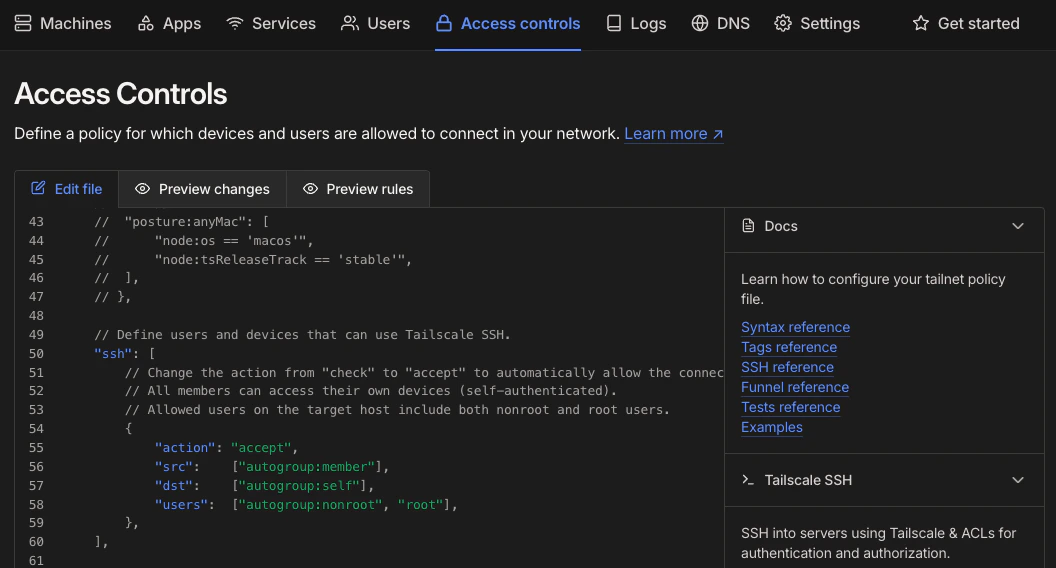
The default SSH policy in the Admin Console uses
the check mode, which requires users to periodically
reauthenticate on the source devices for accessing the target devices on a specified check period, but we can change it
to the accept action for simplicity.
With the above SSH policy, for example, if a Tailscale user adds 10 devices to the tailnet, they can access any of those
devices (either as a nonroot or root user on those devices) from any other device, regardless of whether the devices
were added interactively (via browser sign-in) or non-interactively (using generated
auth keys by the Tailscale user).
Now let’s run the Tailscale SSH server on the app-server and access it from
the dev-vscode:
ubuntu@app-server:~$ sudo tailscale set --ssh
admin@dev-vscode ~ % ssh root@100.88.37.62
Welcome to Ubuntu 24.04.2 LTS (GNU/Linux 6.8.0-56-generic x86_64)
* Documentation: https://help.ubuntu.com
* Management: https://landscape.canonical.com
* Support: https://ubuntu.com/pro
System information as of Thu Apr 10 12:14:03 AM UTC 2025
System load: 0.0 Processes: 129
Usage of /: 27.7% of 47.88GB Users logged in: 1
Memory usage: 6% IPv4 address for eth0: 192.168.68.180
Swap usage: 0%
root@app-server:~# env | grep SSH
SSH_CONNECTION=100.87.65.60 52099 100.88.37.62 22
SSH_CLIENT=100.87.65.60 52099 22
To disable the Tailscale SSH server on the device, run this command:
ubuntu@app-server:~$ sudo tailscale set --ssh=false
By default, SSH servers do not automatically pass all environment variables to SSH clients, but there are several ways
to manage this. On Linux, a common approach is to add the necessary environment variables to the /etc/environment
file. This file is read by the system on login, making the variables available to all processes, including SSH sessions.
Using Userspace Networking Mode
Tailscale must run in userspace networking mode on Salad nodes,
which differs from the default mode. In this mode, Tailscale does not create a virtual network interface. Instead, it
provides a local SOCKS5 and HTTP proxy for network communication. Outbound connections to other devices in the tailnet,
including other Salad nodes, must be explicitly configured to route through the SOCKS5 or HTTP proxy. In contrast,
inbound connections are automatically directed through the SOCKS5 proxy by Tailscale without requiring additional
configuration.
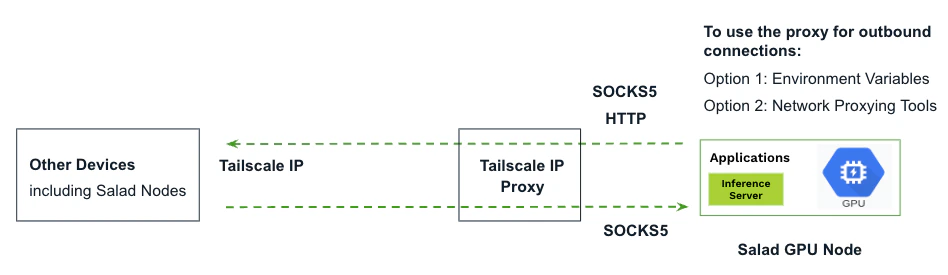
Many widely used networking tools, such as curl and wget, natively support proxy configuration by utilizing environment
variables like ALL_PROXY, HTTP_PROXY and http_proxy. You may need to experiment to see which ones your
application supports.
# Use the environment variables to manage outbound connections for applications
ALL_PROXY=socks5://localhost:1055/ curl http://100.88.37.62:8888/
http_proxy=http://localhost:1055/ curl http://100.88.37.62:8888/
Network proxying tools like proxychains offer more flexibility by forcing any
application to route its network traffic through a specified proxy server, including SOCKS5, HTTP, or even a chain of
multiple proxies. It achieves this by intercepting system calls and acting as a wrapper around the application,
redirecting its traffic to the configured proxies. This is particularly useful for applications that do not natively
support proxy settings through environment variables.
# Use the network proxying tools to manage outbound connections for applications
proxychains4 curl http://100.88.37.62:8888/
Here are some limitations of userspace networking mode:
- Salad nodes cannot access their own Tailscale IPs directly using any protocols.
- Salad nodes can communicate with each other using TCP and UDP. However, ping does not work due to the use of ICMP;
instead, you can use Tailscale ping.
Notes: The ping appears to work from devices in the default model with the tailscale0 interface to Salad nodes,
because ICMP packets are intercepted and responded by the Tailscale agent running on these nodes.
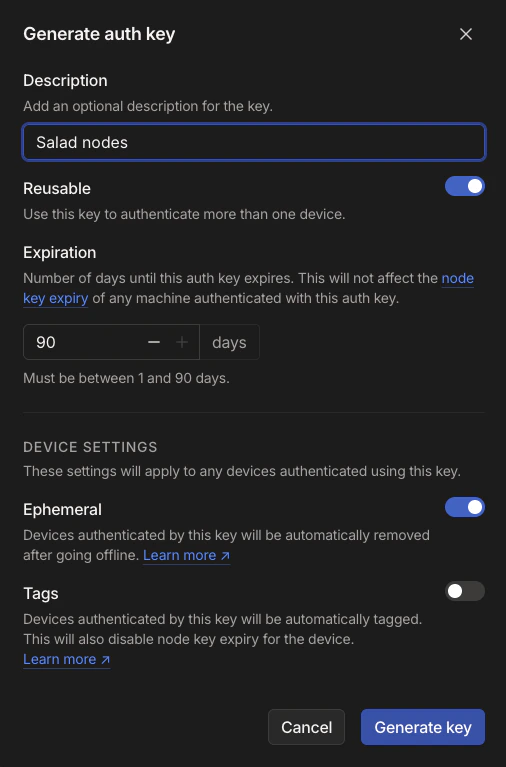
Generating an Auth Key
Auth keys allow you to add devices to a tailnet without requiring interactive
sign-in through a browser. They’re especially useful for automated workflows, such as spinning up containers or
provisioning devices programmatically.
You can generate a reusable and ephemeral key for a group of Salad nodes. The ephemeral option is ideal for
short-lived, interruptible devices, like Salad nodes, which typically run for a few hours to several days at a time.
Tailscale automatically removes ephemeral devices from the tailnet after 30 minutes to 48 hours of inactivity.
If the same device comes online again after removal, it will rejoin the tailnet as a new node.
An auth key automatically expires after the duration specified at the time of creation, with a maximum of 90 days (which
can be adjusted in the Admin Console). Devices added using the
expired key remain authorized, but they will require reauthentication once the configured reauthentication interval has
passed.
Embedding Tailscale in Container Images
Here is an example application to add
Tailscale support for container images running on SaladCloud.
The Dockerfile creates a
containerized environment by using a base image, then installing essential utilities and required dependencies. It also
copies the required Python code and startup script into the image.
# Select a base image
FROM docker.io/pytorch/pytorch:2.6.0-cuda12.4-cudnn9-runtime
# Install essential utilities
RUN apt-get update && apt-get install -y \
curl \
net-tools \
iputils-ping \
nano
# Install Tailscale
RUN curl -fsSL https://tailscale.com/install.sh | sh
# You can use either environment variables (e.g., ALL_PROXY and http_proxy) or tools like proxychains to manage outbound connections
# Optional: Install and configure proxychains4 to use Tailscale's SOCKS5 proxy
RUN apt-get install -y proxychains4
RUN sed -i 's/socks4[[:space:]]\+127\.0\.0\.1[[:space:]]\+9050/socks5 127.0.0.1 1055/' /etc/proxychains4.conf
# Upgrade pip and install Python packages
RUN pip install --upgrade pip
RUN pip install flask python-dotenv
RUN pip install jupyterlab ipywidgets
# Set working directory and copy application files
WORKDIR /app
COPY hello.py /app
COPY start.sh /app
RUN chmod +x /app/start.sh
# Default startup command
CMD ["./start.sh"]
When the image runs on a Salad node, the following steps are executed by the
startup.sh script:
-
Add the Salad node to the tailnet using a Tailscale auth key and its
SALAD_MACHINE_ID, and start the Tailscale SSH server.
-
Tailscale IP is retrieved and exported as an environment variable. All environment variables are then written to the
/etc/environment file.
-
Two applications are launched: a Python Flask web application listening on port 8888 and a JupyterLab instance running
on port 8889, both configured with dual-stack support (IPv4 and IPv6).
#!/bin/bash
# Start the Tailscale daemon with userspace networking mode in the background
tailscaled --tun=userspace-networking --socks5-server=localhost:1055 --outbound-http-proxy-listen=localhost:1055 &
sleep 5
# Disable DNS resolution through Tailscale (customize as needed)
tailscale set --accept-dns=false
# Bring up Tailscale using the provided auth key and SALAD_MACHINE_ID or 'LOCAL' as fallback
tailscale up --auth-key=$TAILSCALE_AUTH_KEY --hostname ${SALAD_MACHINE_ID:-LOCAL}
sleep 5
# Run the Tailscale SSH server on this device
tailscale set --ssh
# Retrieve and export the local Tailscale IP, making it accessible for local applications
export TAILSCALE_IP=$(tailscale ip | head -n 1)
# Capture and store all environment variables (you can filter specific variables to be saved)
printenv > /etc/environment
# Run the web application on port 8888 with dual-stack support (IPv4 and IPv6)
python hello.py &
# Run JupyterLab on port 8889 with dual-stack support (IPv4 and IPv6)
jupyter lab --no-browser --port=8889 --ip=* --allow-root --NotebookApp.token='' &
# Keeping the script running indefinitely. The containers running on SaladCloud must have a continuously running process and if the process completes, SaladCloud will automatically reallocate the instances to rerun the image.
sleep infinity
Once the containers are up and running on Salad nodes, you can securely access them from the dev-vscode or
app-server using:
-
Tailscale SSH and VSCode Remote - SSH for secure command-line access and seamless code editing and debugging.
-
JupyterLab for an interactive data science and notebook experience.
-
HTTP requests to interact with the web application, primarily for AI inference tasks.
Salad nodes can also initiate connections to any TCP or UDP-based applications on other devices within the tailnet,
including other Salad nodes, the dev-vscode, and app-server.
Tailscale Enterprise accounts support Access Control Lists (ACLs) for fine-grained
access control, allowing you to precisely manage which users, devices, and services can communicate.
Deploying SaladCloud Workloads and Joining Them to the Tailnet
Let’s create a container group with the following parameters using the SaladCloud Portal. For deployment using
SaladCloud APIs/SDKs, please refer to
this link.
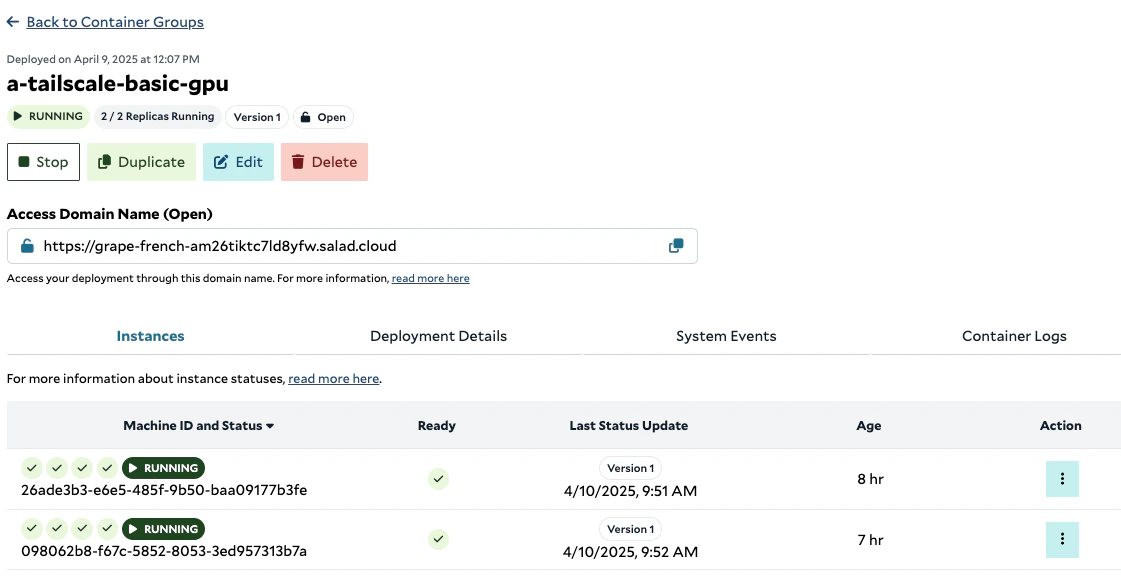
Image Source: docker.io/saladtechnologies/tailscale:0.0.1-basic-gpu
Resource: 4 vCPUs, 4GB Memory, Any GPU
Replica Count: 2 for testing
Environment Variable: TAILSCALE_AUTH_KEY, using the generated auth key in Tailscale
Container Gateway (Optional): IPv6 and Port 8888 for the Python Flask web application (not for the JupyterLab)
SaladCloud’s Container Gateway requires web servers to listen on an IPv6 port, while Tailscale supports both IPv4 and
IPv6. To ensure compatibility, we have configured the server to use a dual-stack setup.
if __name__ == '__main__':
# Listen on port 8888 with a dual-stack configuration across all interfaces, supporting both IPv4 and IPv6.
app.run(host="::", port=8888)
As mentioned earlier, Salad nodes are short-lived. When a node goes offline unexpectedly, SaladCloud automatically
allocates a new one. Therefore, you don’t need to disable key expiry to bypass the reauthentication requirement in
Tailscale for these nodes.
The maximum expiration time for an auth key in Tailscale is 90 days. If your container group on SaladCloud runs for
longer than that, you can generate a new Tailscale auth key every 60 days and update the corresponding environment
variable in the container group. During reallocation, the new nodes will automatically use the updated auth key to
join the tailnet.
Removing Inactive Devices Using Tailscale API
All Tailscale accounts support up to 100 devices by default. A device can run Tailscale logout to disconnect from the
tailnet and free up the device quota for that node. However, Salad nodes may unexpectedly go down without logging out,
and still count toward the quota until Tailscale finally removes them after 30 minutes to 48 hours of inactivity. This
temporary period of inactivity may reduce the number of usable devices in the account.
You can create a script using Tailscale API to proactively and regularly detect and
remove inactive devices after a specified period, such as 5 minutes. This can help maintain an efficient device quota in
your account. Please check
this example code for
more details.
Supported Use Cases and Validation
We now have 4 devices connected via the tailnet, including 2 running on SaladCloud:
ubuntu@app-server:~$ tailscale status
100.123.152.42 26ade3b3-e6e5-485f-9b50-baa09177b3fe salad_demo@ linux active; direct 5.88.74.183:1084, tx 788308 rx 1305356
100.80.204.14 098062b8-f67c-5852-8053-3ed957313b7a salad_demo@ linux -
100.88.37.62 app-server salad_demo@ linux -
100.87.65.60 dev-vscode salad_demo@ macOS -
Case 1: Access Salad nodes publicly from Internet via the Container Gateway
Only a single port can be exposed using this method. Client applications can publicly send HTTP requests using the
generated access domain name and interact with the backend AI inference services hosted on Salad nodes.
curl https://grape-french-am26tiktc7ld8yfw.salad.cloud/hc
{"STATUS":"salad_machine_id:26ade3b3-e6e5-485f-9b50-baa09177b3fe, hc:8, prediction:4"}
curl https://grape-french-am26tiktc7ld8yfw.salad.cloud/hc
{"STATUS":"salad_machine_id:098062b8-f67c-5852-8053-3ed957313b7a, hc:6, prediction:3"}
curl https://grape-french-am26tiktc7ld8yfw.salad.cloud/hc
{"STATUS":"salad_machine_id:26ade3b3-e6e5-485f-9b50-baa09177b3fe, hc:9, prediction:4"}
curl https://grape-french-am26tiktc7ld8yfw.salad.cloud/hc
{"STATUS":"salad_machine_id:098062b8-f67c-5852-8053-3ed957313b7a, hc:7, prediction:3"}
Case 2: Access Salad nodes privately via the tailnet
Other systems (such as the app-server and dev-vscode) within the tailnet can access all TCP and UDP-based
applications on Salad nodes through CLIs, tools, web browsers, and custom applications.
SSH for Network Operators
Network operators can SSH into Salad nodes for configuration, management, and troubleshooting purposes.
ubuntu@app-server:~$ ssh root@100.123.152.42
Welcome to Ubuntu 22.04.5 LTS (GNU/Linux 5.15.167.4-microsoft-standard-WSL2 x86_64)
* Documentation: https://help.ubuntu.com
* Management: https://landscape.canonical.com
* Support: https://ubuntu.com/pro
Last login: Thu Apr 10 18:22:26 UTC 2025 from 100.88.37.62 on pts/0
root@45d32ff0-8ab4-4cc8-a475-97ded2de3378:~# echo $SALAD_MACHINE_ID
26ade3b3-e6e5-485f-9b50-baa09177b3fe
# The hostname is currently derived from the SALAD_CONTAINER_GROUP_ID
root@45d32ff0-8ab4-4cc8-a475-97ded2de3378:~# echo $SALAD_CONTAINER_GROUP_ID
45d32ff0-8ab4-4cc8-a475-97ded2de3378
root@45d32ff0-8ab4-4cc8-a475-97ded2de3378:~# tailscale ip
100.123.152.42
fd7a:115c:a1e0::9001:982a
root@45d32ff0-8ab4-4cc8-a475-97ded2de3378:~# exit
logout
Connection to 100.123.152.42 closed.
Note: All containers within a container group currently share the same hostname, based on the
SALAD_CONTAINER_GROUP_ID. This may be updated in the future to use the individual SALAD_MACHINE_ID for each container.
VS Code for Developers
AI Developers can use Visual Studio Code Remote - SSH extension to securely access Salad nodes via Tailscale SSH,
enabling you to fully leverage VS Code’s development features along with the power of SaladCloud GPUs.
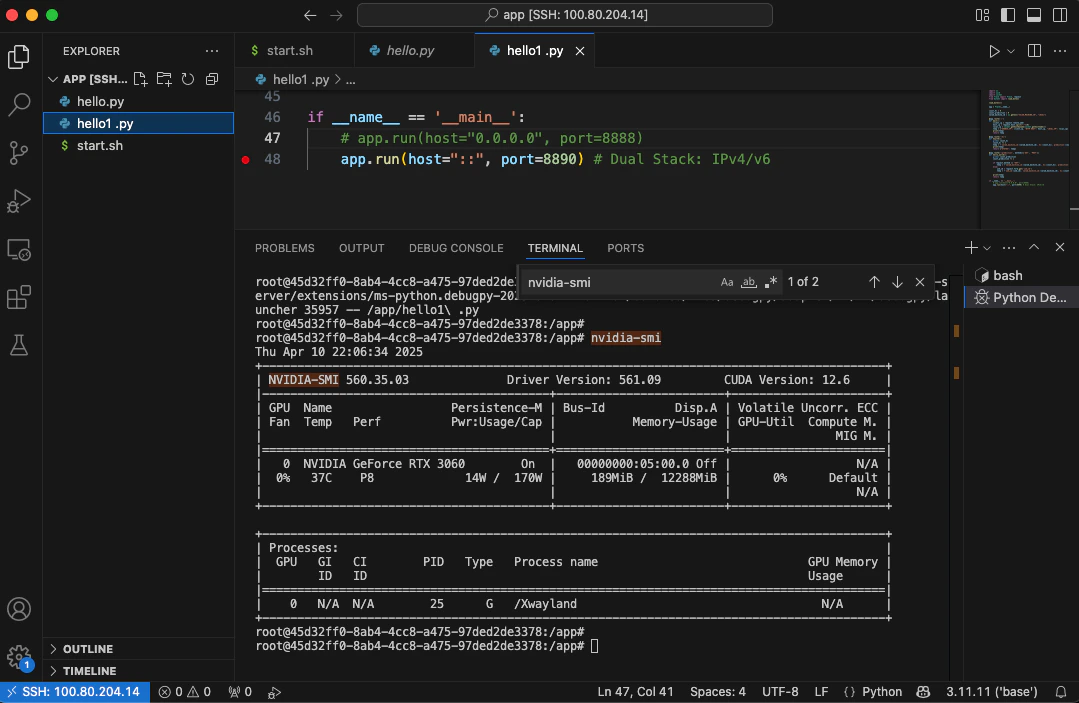
The VS Code Remote - SSH extension does not automatically forward all environment variables from the remote system to
the local instance. For configuration options and possible workarounds, refer to
its official documentation.
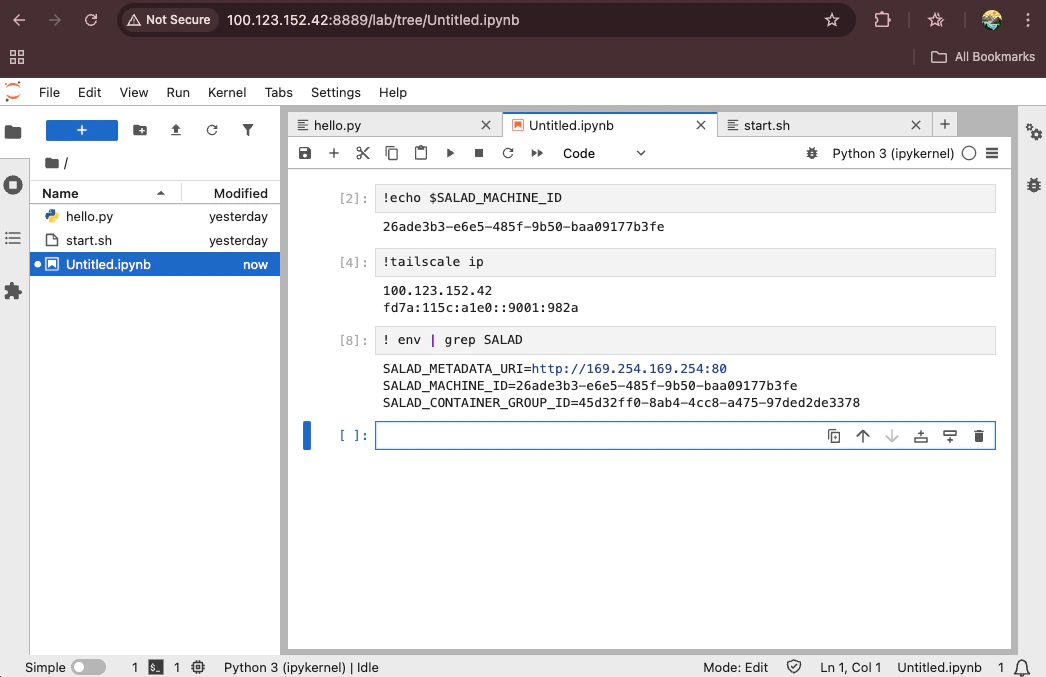
JupyterLab for Data Scientists
Data scientists can use JupyterLab with various GPUs on SaladCloud to explore and analyze data, run machine learning
models, and develop data-driven insights efficiently.
AI Inference for Client Applications
Client applications can privately send HTTP requests to interact with the backend AI inference services hosted on Salad
nodes.
ubuntu@app-server:~$ curl http://100.123.152.42:8888/hc
{"STATUS":"salad_machine_id:26ade3b3-e6e5-485f-9b50-baa09177b3fe, hc:10, prediction:4"}
ubuntu@app-server:~$ curl http://100.80.204.14:8888/hc
{"STATUS":"salad_machine_id:098062b8-f67c-5852-8053-3ed957313b7a, hc:8, prediction:3"}
Case 3: Salad nodes access other devices privately through the tailnet
Private Connections
Salad nodes can also initiate connections to other systems within the tailnet, such as the app-server (databases,
queues, proxies, or identity brokers), ensuring secure and seamless communication. You will need to explicitly
configure the environment variables or use network proxying tools to manage outbound connections in this case.
Salad Node to Other Systems
root@45d32ff0-8ab4-4cc8-a475-97ded2de3378:~# tailscale ping 100.88.37.62
pong from app-server (100.88.37.62) via 73.170.98.251:41642 in 65ms
root@45d32ff0-8ab4-4cc8-a475-97ded2de3378:~# ALL_PROXY=socks5://localhost:1055/ curl http://100.88.37.62:8888/hc
{"STATUS":"salad_machine_id:LOCAL, hc:1, prediction:0"}
root@45d32ff0-8ab4-4cc8-a475-97ded2de3378:~# http_proxy=http://localhost:1055/ curl http://100.88.37.62:8888/hc
{"STATUS":"salad_machine_id:LOCAL, hc:2, prediction:0"}
root@45d32ff0-8ab4-4cc8-a475-97ded2de3378:~# proxychains4 curl http://100.88.37.62:8888/hc
[proxychains] config file found: /etc/proxychains4.conf
[proxychains] preloading /usr/lib/x86_64-linux-gnu/libproxychains.so.4
[proxychains] DLL init: proxychains-ng 4.16
[proxychains] Strict chain ... 127.0.0.1:1055 ... 100.88.37.62:8888 ... OK
{"STATUS":"salad_machine_id:LOCAL, hc:3, prediction:0"}
Meshed Communication
Salad nodes can communicate with each other, enabling seamless and secure interactions. Similarly, the environment
variables or proxy tools must be configured explicitly to manage outbound connections between nodes.
root@45d32ff0-8ab4-4cc8-a475-97ded2de3378:~# tailscale ping 100.123.152.42
pong from 26ade3b3-e6e5-485f-9b50-baa09177b3fe (100.123.152.42) via 5.88.74.183:62624 in 202ms
root@45d32ff0-8ab4-4cc8-a475-97ded2de3378:~# ALL_PROXY=socks5://localhost:1055/ curl http://100.123.152.42:8888/hc
{"STATUS":"salad_machine_id:26ade3b3-e6e5-485f-9b50-baa09177b3fe, hc:11, prediction:4"}
root@45d32ff0-8ab4-4cc8-a475-97ded2de3378:~# http_proxy=http://localhost:1055/ curl http://100.123.152.42:8888/hc
{"STATUS":"salad_machine_id:26ade3b3-e6e5-485f-9b50-baa09177b3fe, hc:12, prediction:4"}
root@45d32ff0-8ab4-4cc8-a475-97ded2de3378:~# proxychains4 curl http://100.123.152.42:8888/hc
[proxychains] config file found: /etc/proxychains4.conf
[proxychains] preloading /usr/lib/x86_64-linux-gnu/libproxychains.so.4
[proxychains] DLL init: proxychains-ng 4.16
[proxychains] Strict chain ... 127.0.0.1:1055 ... 100.123.152.42:8888 ... OK
{"STATUS":"salad_machine_id:26ade3b3-e6e5-485f-9b50-baa09177b3fe, hc:13, prediction:4"}
Case 4: Salad nodes access Internet publicly
Without using the Tailscale proxy, Salad nodes can still access Internet. This allows them to interact with external
services, receiving requests or jobs, and delivering results, while remaining securely connected to the tailnet.
root@45d32ff0-8ab4-4cc8-a475-97ded2de3378:~# ping www.google.com -n 5
PING 5 (0.0.0.5) 56(124) bytes of data.
^C
--- 5 ping statistics ---
4 packets transmitted, 0 received, 100% packet loss, time 3119ms
root@45d32ff0-8ab4-4cc8-a475-97ded2de3378:~# ping www.google.com -c 5
PING www.google.com (142.250.180.164) 56(84) bytes of data.
64 bytes from mil04s44-in-f4.1e100.net (142.250.180.164): icmp_seq=1 ttl=111 time=22.7 ms
64 bytes from mil04s44-in-f4.1e100.net (142.250.180.164): icmp_seq=2 ttl=111 time=23.6 ms
64 bytes from mil04s44-in-f4.1e100.net (142.250.180.164): icmp_seq=3 ttl=111 time=22.7 ms
64 bytes from mil04s44-in-f4.1e100.net (142.250.180.164): icmp_seq=4 ttl=111 time=23.1 ms
64 bytes from mil04s44-in-f4.1e100.net (142.250.180.164): icmp_seq=5 ttl=111 time=23.1 ms
--- www.google.com ping statistics ---
5 packets transmitted, 5 received, 0% packet loss, time 4006ms
rtt min/avg/max/mdev = 22.688/23.054/23.591/0.330 ms
root@45d32ff0-8ab4-4cc8-a475-97ded2de3378:~#