Documentation Index
Fetch the complete documentation index at: https://docs.salad.com/llms.txt
Use this file to discover all available pages before exploring further.
Last Updated: April 2, 2026
Don’t want to manage infrastructure? Salad AI Gateway gives you direct access
to powerful open-source models through a single OpenAI-compatible endpoint - no container groups, no replicas, no cold
starts. It’s the fastest way to start using LLMs on SaladCloud.
Key Considerations
To run LLM on SaladCloud, several key decisions need to be made first:
Model: There are many LLM models available, open-source or proprietary, in various sizes, precisions and formats.
The LLM inference typically requires a significant amount of VRAM, not just for the model parameters, but also for the
KV-Cache during inference, which is heavily influenced by the batch size and context length. Models like 7B, 8B and 9B,
as well as quantized 13B and 34B, can run smoothly on a GPU with 24GB of VRAM on SaladCloud, while larger models are not
recommended.
Inference Server: Several inference servers are available for running LLM models, including vLLM, TGI, Ollama,
TensorRT-LLM, RayLLM, LMDeploy and llama.cpp. These servers differ in various aspects, including supported models, VRAM
usage and efficiency, performance, throughput and additional features; and you should choose one that best meets your
needs. Most of these servers provide container images that can be run directly on SaladCloud without modification.
However, you can also create a custom wrapper image based on official images to add features like an I/O worker or model
preloading. Alternatively, you can build your own inference server tailored to specific requirements.
Service Access: If you need to provide real-time and on-demand chat services, deploying a container group with a
container gateway is the easiest approach. However, if the requirement is to build a batch processing system where
millions of prompts are processed without the need for immediate responses, a container group integrated with a job
queue offers a more resilient and cost-effective solution.
VRAM Usage
LLM inference consists of two stages: prefill and decode. In the prefill stage, the model processes the input prompt,
computing their embeddings. In the decode stage, the model generates one token at a time conditioning on the prompt and
all previously generated tokens.
VRAM usage during LLM inference is primarily driven by the model parameters and the KV-Cache. The KV-Cache stores the
key/value embeddings of the input prompt and all previously generated tokens. These embeddings are computed once and
retained in memory for reuse during the decode stage of inference, which can significantly speed up the process. As the
context length (encompassing both the input prompt and generated text) and batch size (the number of input prompts
processed simultaneously) increase, the VRAM consumption of the KV-Cache can grow significantly.
For example, with LLaMA 3.1 8B Instruct in 16-bit
precision, the model parameters alone require approximately 16 GB of VRAM. The KV-Cache, for a batch size of 1 and a
context length of 4096, uses about 2 GB of VRAM. Therefore, a GPU with 24 GB of VRAM can handle batched inference with
around:
- A batch size of 16 and a context length of 1024
- A batch size of 8 and a context length of 2048
- A batch size of 4 and a context length of 4096
- A batch size of 1 and a context length of 16384
Processing too many requests simultaneously with excessively long context lengths can cause a node to run out of VRAM,
forcing the inference process to use RAM instead. This shift can significantly degrade performance or result in errors.
Most inference servers provide options to manage the VRAM usage, including MAX_INPUT_TOKENS (the maximum prompt
length that users can send), MAX_TOTAL_TOKENS (the maximum context length including both input prompt and generated
text) and MAX_BATCH_TOTAL_TOKENS (the maximum context length multiplied by the maximum batch size). Given the
sensitivity of LLM to VRAM, these parameters must be carefully planned, tested and configured to meet service
requirements and prevent VRAM exhaustion during inference.
Performance and Throughput
There are two key performance indicators for measuring the performance of LLM inference on a node:
Time to First Token (TTFT): the speed of prefill, as nothing can be generated before the embeddings of input prompt
is computed. This determines the waiting time for users to see the first generated token.
Time Per Output Token (TPOT): the decoding speed, the number of generated tokens per unit time after prefill. This
affects the overall processing time to provide the entire generated text.
Typically, the prefill stage is brief because the prompt is processed in parallel. However, the decode stage takes much
longer since tokens are generated one at a time. For the same context length, the longer the generated text, the greater
the total processing time.
Here is the test data for Llama 3.1 8B Instruct using Hugging Face’s TGI, from a PC equipped with an RTX 3090 running
Windows WSL:
- Processing Time = TPOT x Number of Generated Tokens
- Throughput = 1 / TPOT
- Total Time = TTFT + Processing Time
| Context Length: 16384, Batch Size: 1 | Prefill: TTFT | Decode: TPOT | Decode: Processing Time | Decode: Throughput | Total Time |
|---|
| Input Prompt: 1024, Generated Text: 15360 | 245.98 ms | 22.33 ms | 342955 ms | 44.78 tokens/sec | 343201 ms |
| Input Prompt: 4096, Generated Text: 12288 | 934.13 ms | 22.66 ms | 278377 ms | 44.14 tokens/sec | 279312 ms |
| Input Prompt: 8192, Generated Text: 8192 | 1943.71 ms | 23.06 ms | 188904 ms | 43.36 tokens/sec | 190848 ms |
Longer context lengths not only increase waiting time and negatively impact user experience, but may also lead to the
server response timeout errors at the load balancer in front of the inference servers, which has a maximum timeout limit
of 100 seconds. Enabling token streaming on the servers allows tokens to be returned one by one, rather than waiting for
the entire response to be generated. This feature shows the generation progress in real-time, significantly enhancing
the user experience, and helping to avoid the timeout errors.
When more VRAM is available, batched inference can significantly increase throughput by effectively leveraging GPU cache
and parallel processing, while only slightly increasing the processing time. Here is the test data from the same PC:
| Context Length: 4096 (2048+2048) | Prefill: TTFT | Decode: TPOT | Decode: Processing Time | Decode: Throughput | Total Time |
|---|
| Batch Size 1 | 459.07 ms | 21.15 ms | 43288 ms | 47.29 tokens/sec | 43746 ms |
| Batch Size 2 | 882.91 ms | 22.35 ms | 45756 ms | 89.47 tokens/sec | 46639 ms |
| Batch Size 3 | 1326.06 ms | 23.06 ms | 47553 ms | 129.14 tokens/sec | 48880 ms |
| Batch Size 4 | 1731.33 ms | 23.96 ms | 49046 ms | 166.94 tokens/sec | 50778 ms |
Compared to batched inference, concurrent inference using multiprocessing or multithreading on a single GPU might limit
optimal GPU cache utilization and significantly impact performance, and is generally not recommended. This occurs
because each inference process operates independently, reducing the efficiency of GPU resource usage. Additionally,
multiprocessing consumes more VRAM, as each process requires its own CUDA context and loads a separate instance of the
model into GPU VRAM for inference.
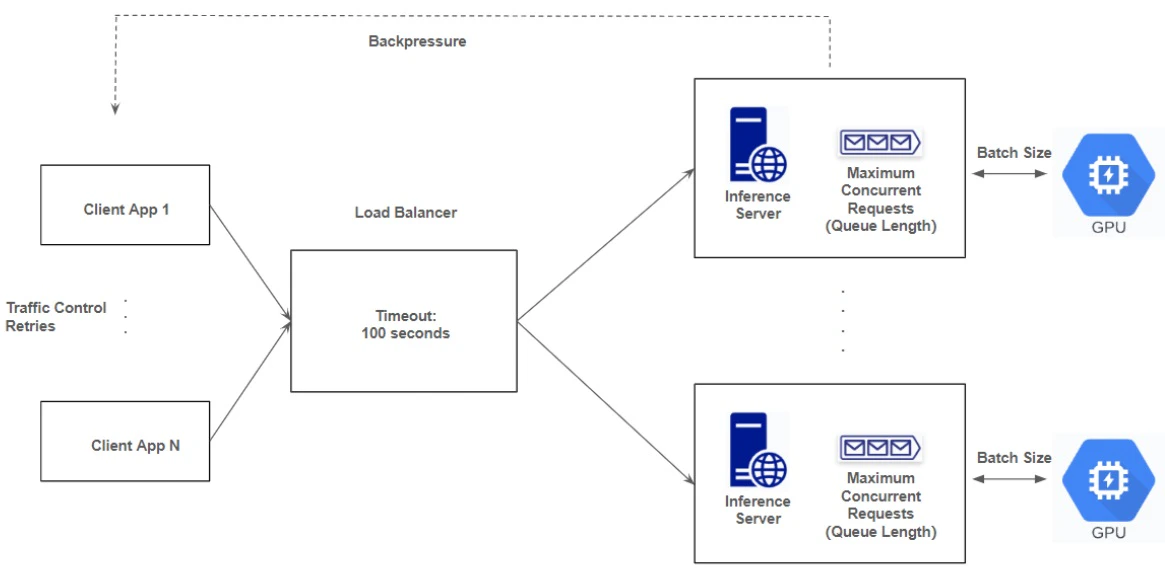
Many inference servers have a local queue to buffer requests and also support the continuous or dynamic batching. This
means that, upon completing a request within a batch, the server can automatically add a new request from the queue to
the batch and continue the inference process. These configurations can be managed using parameters such as
MAX_CONCURRENT_REQUESTS (the number of requests handled simultaneously, or the queue length) and MAX_BATCH_SIZE
(the number of requests grouped together for a batched inference).
These parameters must be carefully planned, tested and configured to increase throughput, enhance user experiences and
avoid system errors. Typically, MAX_CONCURRENT_REQUESTS should be larger than MAX_BATCH_SIZE to effectively buffer the
burst traffic, but if set too high, it can cause more requests to accumulate in the local queue of the inference
servers, potentially increasing waiting time of users and leading to timeout errors at the load balancer due to
prolonged delays in responding to these requests. Requests exceeding the MAX_CONCURRENT_REQUESTS limit (or the local
queue length) will be rejected by the servers as a backpressure mechanism. Client applications interacting with the
inference servers should incorporate traffic control and retry logic to enhance resilience.
Container Gateway or Job Queue?
Container Gateway
Deploying a container group with a container gateway (load balancer) is the simplest approach for providing real-time
and on-demand services on SaladCloud. The inference server on each instance should listen on an IPv6 port, and the
container gateway can map a public URL to this IPv6 port. Optionally, you can enable authentication to access the URL
using an API token.
To support LLM inference efficiently, the container gateway can be configured to use the Least Connections algorithm and
forward concurrent requests to the inference servers in a container group. The server response timeout setting controls
how long the container gateway will wait for a response from an instance after sending a request, with a maximum limit
of 100 seconds. This timeout affects the maximum length of generated text (for non-streaming) and the number of requests
that can queue locally on inference servers. For more information on load balancing options and how to adjust these
settings to fit your needs, please refer to this guide.
To use this solution effectively, system requirements and capabilities should be clearly defined and planned to
properly configure the inference servers. Deploying the Readiness Probes is also essential to ensure that requests are
only forwarded to containers when they are ready. Additionally, the client applications should implement retries and
traffic control mechanisms to further enhance system resilience.
Currently, all container instances, regardless of their locations, are centrally exposed by the load balancer in the
U.S. While this setup is optimal for instances running in America, it may introduce additional latency for instances in
other regions. However, this is generally acceptable given that LLM inference normally takes much longer (tens of
seconds) than this. If applications are latency-sensitive and require local access, consider using open-source tools or
services like ngrok, and implementing your own load balancer in the relevant regions.
Job Queue
A container group integrated with a job queue offers a more resilient and cost-effective solution for batch processing
systems where immediate responses are not required. You can submit millions of jobs to a job queue, which could be Salad
JQ or AWS SQS. Instances with an I/O worker and the inference server, will then pull and process the jobs, subsequently
uploading the generated texts to predefined locations, such as cloud storage or a webhook.
The job queue features a large buffer for queuing requests and includes built-in retry logic. If an instance does not
complete a job within a specified time, the job becomes available to other instances for processing. Each instance pulls
new jobs only after finishing the existing ones, eliminating the need for mechanisms like backpressure, retries, and
traffic control in both the inference servers and client applications.
To implement this solution, you need to build a wrapper image that adds an I/O worker to the inference server. This
worker will be responsible for pulling jobs, calling the inference server, uploading the generated texts and finally
returning job results or status to the job queue.
Build Your Own Queue
Several customers have successfully implemented a Redis-based, flexible and platform-independent queue for LLM
applications on SaladCloud, demonstrating the following advantages:
- Supports both asynchronous and synchronous calls, with results provided in streaming or non-streaming modes.
- Enables regional deployment to ensure local access and minimize latency.
- More resilient to burst traffic, node failures, and the variability in AI inference times, while allowing easy
customization for specific applications.
Please refer to this guide for more details.
Local Deployment To SaladCloud
Before deploying an image of these inference servers on SaladCloud, we recommend testing it in a local environment
first. Troubleshooting and fine-tuning parameters in the cloud can be time-consuming and complex.
For local deployment and testing, focus on the following objectives:
- Ensure everything is functioning as expected.
- Monitor resource usage, including CPU, RAM, GPU, and VRAM, to inform resource allocation on SaladCloud.
- Test system behaviors with different parameters and finalize the configuration settings.
An ideal testing environment is a Windows PC with an NVIDIA GPU, WSL2 and Docker Desktop installed. If you don’t have
access to this setup, you can perform a similar test on SaladCloud using the interactive shell (refer to Scenario 3)
before proceeding with a full deployment.
Let’s use LLaMA 3.1 8B Instruct and Hugging Face’s TGI inference server as examples to guide the deployment and testing
process for different scenarios. Once the local testing is complete, we can easily translate the local deployment
settings to the configurations on SaladCloud.
Scenario 1: Use environment variables to supply the working parameters to the TGI server.
# Define the environment variables in the host (WSL2).
# The token is needed for authorized users to download private models or those that require agreement to terms of use on Hugging Face.
# The volume is to map a host folder to the container, allowing the model to be stored persistently and preventing the need to download it every time the container is run.
ubuntu@server:~$ token=hf_XXXXXXXXXXXXXXXXXXXXXXXX
ubuntu@server:~$ volume=/home/ubuntu/.cache/huggingface
ubuntu@server:~$ model=meta-llama/Meta-Llama-3.1-8B-Instruct
# Run the latest TGI image.
# Pass environment variables to the container.
# Map port 8080 on the host to the port 80 in the container.
# The '--shm-size' option is not required if using only one GPU.
ubuntu@server:~$ docker run -it --rm --gpus all -p 8080:80 -v $volume:/data \
-e HF_TOKEN=$token \
-e HF_HUB_ENABLE_HF_TRANSFER=0 \
-e MODEL_ID=$model \
-e HOSTNAME=0.0.0.0 \
-e PORT=80 \
-e MAX_TOTAL_TOKENS=4096 \
-e MAX_INPUT_TOKENS=2048 \
-e MAX_CONCURRENT_REQUESTS=8 \
-e MAX_BATCH_SIZE=4 \
ghcr.io/huggingface/text-generation-inference:latest
# Test the health check from the host.
ubuntu@server:~$ curl -i http://127.0.0.1:8080/health
HTTP/1.1 200 OK
vary: origin, access-control-request-method, access-control-request-headers
access-control-allow-origin: *
content-length: 0
date: Tue, 03 Sep 2024 02:30:38 GMT
# Test the inference from the host.
ubuntu@server:~$ curl http://127.0.0.1:8080/v1/chat/completions -X POST -d '{
"model": "meta-llama/Meta-Llama-3.1-8B-Instruct",
"messages": [
{
"role": "system",
"content": "You are a good guy!"
},
{
"role": "user",
"content": "How to learn AI and Machine Learning?"
}
],
"stream": false,
"max_tokens": 512
}' -H 'Content-Type: application/json'
# Test the inference (token streaming)from the host.
ubuntu@server:~$ curl http://127.0.0.1:8080/v1/chat/completions -X POST -d '{
"model": "meta-llama/Meta-Llama-3.1-8B-Instruct",
"messages": [
{
"role": "system",
"content": "You are a good guy!"
},
{
"role": "user",
"content": "How to learn AI and Machine Learning?"
}
],
"stream": true,
"max_tokens": 512
}' -H 'Content-Type: application/json'
# Enter the container and do some check.
ubuntu@server:~$ docker ps
CONTAINER ID IMAGE COMMAND CREATED STATUS PORTS NAMES
b9d7aeb218a8 ghcr.io/huggingface/text-generation-inference:latest "/tgi-entrypoint.sh" 4 minutes ago Up 4 minutes 0.0.0.0:8080->80/tcp infallible_dewdney
ubuntu@server:~$ docker exec -it b9d /bin/bash
root@b9d7aeb218a8:/usr/src#
root@b9d7aeb218a8:/usr/src# curl -i http://localhost:80/health
HTTP/1.1 200 OK
vary: origin, access-control-request-method, access-control-request-headers
access-control-allow-origin: *
content-length: 0
date: Tue, 03 Sep 2024 02:35:39 GMT
# To use the container gateway on SaladCloud, the server must be configured to listen on an IPv6 port.
# Change the HOSTNAME from '0.0.0.0' to '::' for using IPv6
ubuntu@server:~$ docker run -it --rm --gpus all -p 8080:80 -v $volume:/data \
-e HF_TOKEN=$token \
-e HF_HUB_ENABLE_HF_TRANSFER=0 \
-e MODEL_ID=$model \
-e HOSTNAME=:: \
-e PORT=80 \
-e MAX_TOTAL_TOKENS=4096 \
-e MAX_INPUT_TOKENS=2048 \
-e MAX_CONCURRENT_REQUESTS=8 \
-e MAX_BATCH_SIZE=4 \
ghcr.io/huggingface/text-generation-inference:latest
# Enter the container and test the inference and the health check.
# Both '[::1]' and 'localhost' can be used to access the local IPv6 port.
root@a4ecfb06bab4:/usr/src# curl -i http://[::1]:80/health
HTTP/1.1 200 OK
vary: origin, access-control-request-method, access-control-request-headers
access-control-allow-origin: *
content-length: 0
date: Tue, 03 Sep 2024 03:03:57 GMT
root@a4ecfb06bab4:/usr/src# curl -i http://localhost:80/health
HTTP/1.1 200 OK
vary: origin, access-control-request-method, access-control-request-headers
access-control-allow-origin: *
content-length: 0
date: Tue, 03 Sep 2024 03:04:40 GMT
root@a4ecfb06bab4:/usr/src# curl http://[::1]:80/v1/chat/completions -X POST -d '{
"model": "meta-llama/Meta-Llama-3.1-8B-Instruct",
"messages": [
{
"role": "system",
"content": "You are a good guy!"
},
{
"role": "user",
"content": "How to learn AI and Machine Learning?"
}
],
"stream": true,
"max_tokens": 512
}' -H 'Content-Type: application/json'
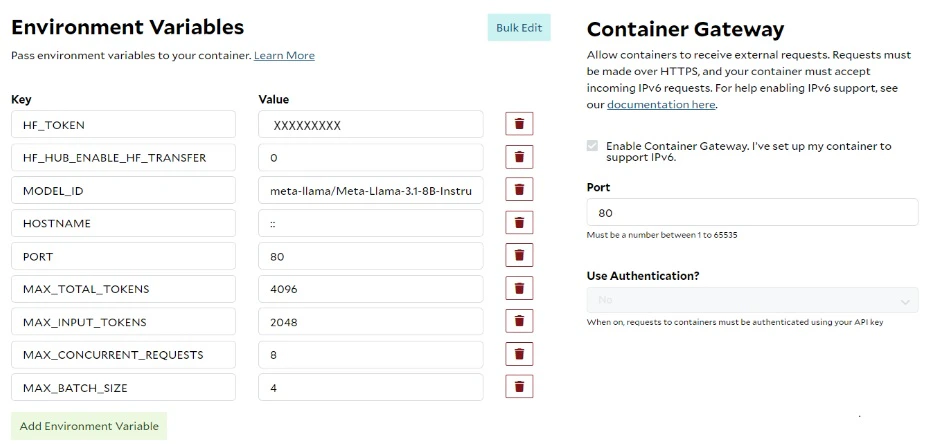
Here are the corresponding configurations on SaladCloud:
# Image Source
ghcr.io/huggingface/text-generation-inference:latest
# Replica Count
3+ for test and 5+ for production
# Resource
# Based the local test, 4 vCPUs and 12 GB of RAM are sufficient, and the GPU must have 24 GB of VRAM.
# You can choose multiple GPU types simultaneously.
4 vCPUs, 12GB Memory
GPU with 24GB of VRAM, RTX 3090/3090Ti/4090
# Environment Variables
HF_TOKEN ********************
HF_HUB_ENABLE_HF_TRANSFER 0
MODEL_ID meta-llama/Meta-Llama-3.1-8B-Instruct
HOSTNAME ::
PORT 80
MAX_TOTAL_TOKENS 4096
MAX_INPUT_TOKENS 2048
MAX_CONCURRENT_REQUESTS 8
MAX_BATCH_SIZE 4
# Container Gateway
# The port must match the IPv6 port used by the server.
Enabled, Port 80
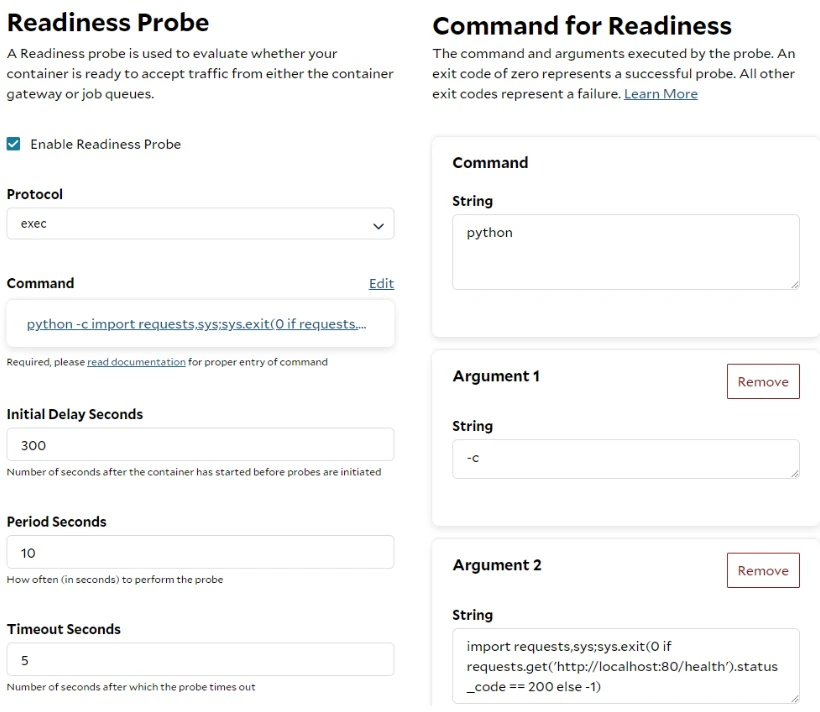
# Readiness Probe
# The probe is essential to ensure that requests are only forwarded to containers when they are ready.
# Both '[::1]' and 'localhost' can be used to access the local IPv6 port.
Enabled
Protocol: exec
Command: python
Argument1: -c
Argument2: import requests,sys;sys.exit(0 if requests.get('http://localhost:80/health').status_code == 200 else -1)
Initial Delay Seconds: 300
Period Seconds: 10
Timeout Seconds: 5
Success Threshold: 1
Failure Threshold: 3
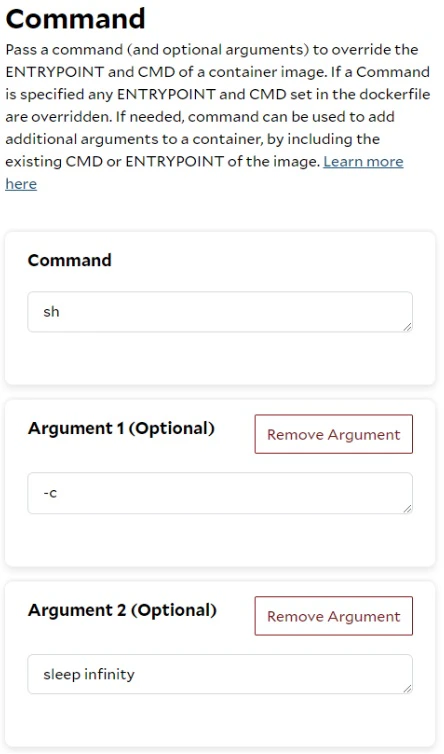
You don’t need to add double or single quotes in the Argument 2 of Command for Readiness on SaladCloud Portal:
After the instances are running and have passed the readiness probes, we can perform some test using the generated
access domain name:
# Test the health check
curl -i https://pomelo-turnip-ztmw72fai31is8bp.salad.cloud/health
# Test the inference
curl https://pomelo-turnip-ztmw72fai31is8bp.salad.cloud/v1/chat/completions -X POST -d '{
"model": "meta-llama/Meta-Llama-3.1-8B-Instruct",
"messages": [
{
"role": "system",
"content": "You are a good guy!"
},
{
"role": "user",
"content": "How to learn AI and Machine Learning?"
}
],
"stream": false,
"max_tokens": 512
}' -H 'Content-Type: application/json'
# Test the inference(token streaming)
curl https://pomelo-turnip-ztmw72fai31is8bp.salad.cloud/v1/chat/completions -X POST -d '{
"model": "meta-llama/Meta-Llama-3.1-8B-Instruct",
"messages": [
{
"role": "system",
"content": "You are a good guy!"
},
{
"role": "user",
"content": "How to learn AI and Machine Learning?"
}
],
"stream": true,
"max_tokens": 512
}' -H 'Content-Type: application/json'
Scenario 2: Override both the ENTRYPOINT and CMD in the image to start the TGI server.
Sometimes, we can configure the TGI server to start with additional parameters using specific values without needing to
pass many environment variables. SaladCloud offers the option to override the ENTRYPOINT and CMD in the image, which
easily accommodates this requirement.
# Override both the ENTRYPOINT and CMD in the image.
# Start the TGI server with additional parameters using specific values and environment variables.
# The environment variables MAX_TOTAL_TOKENS and MAX_INPUT_TOKENS can be removed, because these parameters are explicitly provided when starting the TGI server.
ubuntu@server:~$ docker run -it --rm --gpus all -p 8080:80 -v $volume:/data \
-e HF_TOKEN=$token \
-e HF_HUB_ENABLE_HF_TRANSFER=0 \
-e MODEL_ID=$model \
-e HOSTNAME=:: \
-e PORT=80 \
-e MAX_TOTAL_TOKENS=4096 \
-e MAX_INPUT_TOKENS=2048 \
-e MAX_CONCURRENT_REQUESTS=8 \
-e MAX_BATCH_SIZE=4 \
--entrypoint 'sh' \
ghcr.io/huggingface/text-generation-inference:latest -c 'text-generation-launcher --model-id $MODEL_ID --max-total-tokens 4096 --max-input-tokens 2048'
Here is the corresponding configuration to override both the ENTRYPOINT and CMD in the image on SaladCloud:
# Command
Command: sh
Argument1: -c
Argument2: text-generation-launcher --model-id $MODEL_ID --max-total-tokens 4096 --max-input-tokens 2048
# The other configurations remain the same as in Scenario 1.
You don’t need to add double or single quotes in the Argument 2 of Command on SaladCloud Portal, but you do need to add
them when running the ‘docker run’ command locally:
Scenario 3: Run the TGI server interactively.
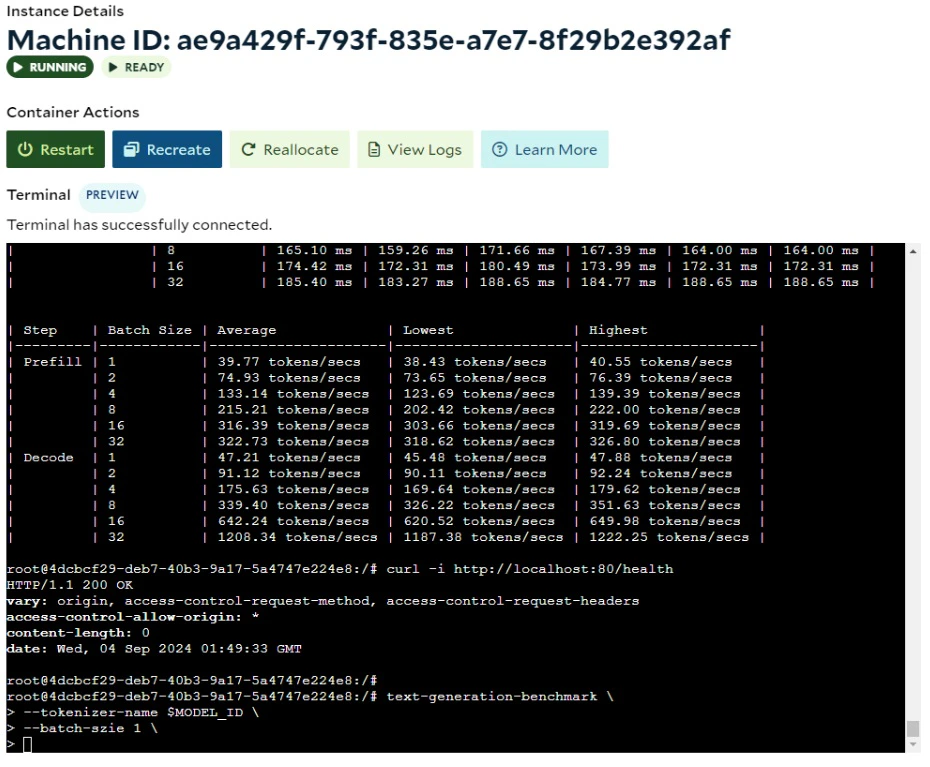
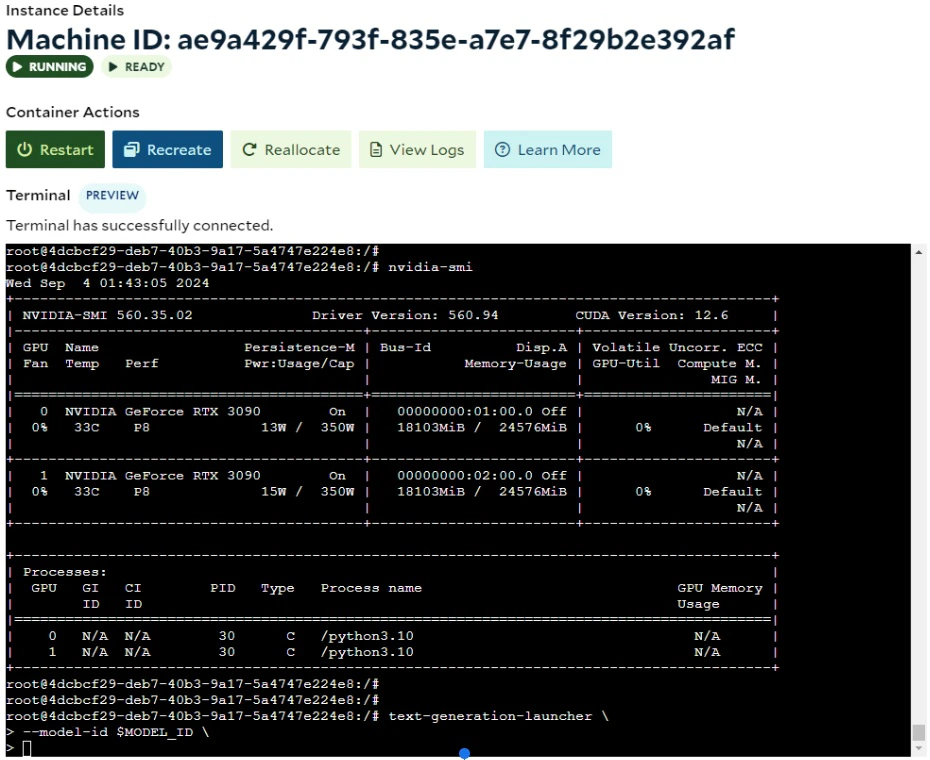
SaladCloud Portal provides an interactive terminal for each instance in SCE deployments, allowing you to interact
directly with each instance to troubleshoot issues or reconfigure your application after deployment.
If you don’t have access to a local test environment with a GPU, you can use the interactive terminal on SaladCloud to
test your image, check its resource usage, fine-tune and finalize server settings. Keep in mind that this is just a
complement and cannot fully replace your local R&D environments for daily tasks, as SaladCloud nodes are interruptible
and may experience cold starts and occasional downtime.
# Override both the ENTRYPOINT and CMD in the image.
# Make the container sleep while running.
ubuntu@server:~$ docker run -it --rm --gpus all -p 8080:80 -v $volume:/data \
-e HF_TOKEN=$token \
-e HF_HUB_ENABLE_HF_TRANSFER=0 \
-e MODEL_ID=$model \
-e HOSTNAME=:: \
-e PORT=80 \
-e MAX_TOTAL_TOKENS=4096 \
-e MAX_INPUT_TOKENS=2048 \
-e MAX_CONCURRENT_REQUESTS=8 \
-e MAX_BATCH_SIZE=4 \
--entrypoint 'sh' \
ghcr.io/huggingface/text-generation-inference:latest -c "sleep infinity"
# Enter the container and start the TGI server manually.
root@5693c4212042:/usr/src# text-generation-launcher
root@5693c4212042:/usr/src# text-generation-launcher --model-id $MODEL_ID --max-input-tokens 2048 --max-total-tokens 4096
# Enter the container with another terminal and run the TGI benchmark.
root@5693c4212042:/usr/src# text-generation-benchmark --tokenizer-name $MODEL_ID
root@5693c4212042:/usr/src# text-generation-benchmark --tokenizer-name $MODEL_ID --batch-size 1 --sequence-length 2048 --decode-length 2048 --runs 1
Here is the corresponding configuration to override both the ENTRYPOINT and CMD in the image on SaladCloud:
# Command
Command: sh
Argument1: -c
Argument2: sleep infinity
# The other configurations remain the same as in Scenario 1.
You don’t need to add double or single quotes in the Argument 2 of Command on SaladCloud Portal, but you do need to add
them when running the ‘docker run’ command locally:
Once the instances are running (sleeping), you can use the interactive terminal to manually run tasks, perform various
tests, and troubleshoot issues:
Recommendation for Production
The official images of these inference servers may not be sufficient for production. You can enhance your application by
building a custom wrapper image with the following features:
- Install the necessary softwares and tools, such as monitoring, troubleshooting and logging.
- Add an I/O worker to the inference server for pulling jobs, uploading generated texts and returning job results,
especially if you’re building a batch processing system.
- Pre-load the model parameters into the image to reduce costs, as there’s no charge when nodes are downloading your
images.
- Implement initial and real-time performance checks to ensure that nodes remain in an optimal state for application
execution, as the performance of SaladCloud nodes may fluctuate over time due to their shared nature. If a node’s
performance falls below a predefined threshold, the code should exit with a status of 1, triggering a reallocation.
These functions can also be achieved by deploying Startup Probes and Liveness Probes.
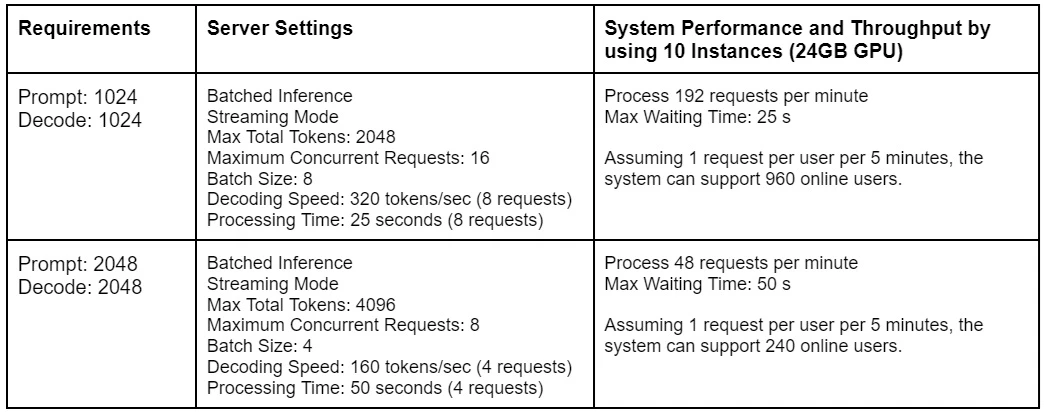
LLM inference is both VRAM-intensive and time-consuming and user experience is crucial for real-time services. Inference
time can also vary significantly depending on the length of the generated text and the performance of the node. To
successfully run LLM using the container gateway on SaladCloud, the system requirements, capabilities and parameters
must be clearly defined, planned, tested and deployed. Here are some examples:
Context length and batch size can significantly impact system performance, throughput, and cost-effectiveness. To
utilize resources efficiently, several container groups can be deployed for different scenarios, such as short and long
conversations.
Parameters such as Max Total Tokens, Maximum Concurrent Requests and Batch Size are crucial and affect every aspect of
the system.These parameters need to be thoroughly tested and deployed based on the specific system requirements.
Requests exceeding the limit on the inference servers will be rejected as a backpressure mechanism. To use the load
balancer efficiently, client applications should implement traffic control and retry logic to enhance resilience. This
includes resending requests to the load balancer for occasional errors and stopping the acceptance of new requests from
users early during congestion, rather than allowing them to be dropped within the system.
The system capacities need to be carefully calculated and provisioned, or adjusted as needed, to adequately support the
system requirements. Since instances require time to download images and start up, we recommend adjusting the container
group to the expected capacity 30 minutes before peak traffic.