Documentation Index
Fetch the complete documentation index at: https://docs.salad.com/llms.txt
Use this file to discover all available pages before exploring further.
Last Updated: February 28, 2025
By running JupyterLab over SaladCloud, college students and professionals in the AI and Data Science industry can access
the world’s most affordable GPU-accelerated platform to learn CUDA and PyTorch/TensorFlow programming, as well as to
test and research various AI models for training, fine-tuning and inference. This not only contributes to cost reduction
by eliminating the need to purchase expensive hardware but also saves time and effort associated with building dedicated
development environments. Additionally, it fosters collaboration by providing a platform for sharing insights and
collaborating with peers.
SaladCloud offers several pre-built JupyterLab container images in Docker Hub, designed to fulfill general requirements.
You have the option to run these images directly on SaladCloud for your AI/ML tasks. Alternatively, you can customize
them to meet specific needs by utilizing the Dockerfile templates available on our GitHub repository.
Docker Hub repository
GitHub repository
| Container Image | Features |
|---|
| saladtechnologies/jupyterlab:1.0.0-pytorch-tensorflow-cpu-aws-azure-gcp | JupyterLab; Hugging Face transformers and datasets; AutoAWQ 0.1.6; PyTorch 2.1 GPU; Python 3.10; CUDA 11.8 and cuDNN 8.7; Integration with AWS S3, Azure Storage Account and GCP Cloud Storage |
| saladtechnologies/jupyterlab:1.0.0-pytorch-gpu-aws-azure-gcp | JupyterLab; Hugging Face transformers and datasets; TensorFlow 2.13 GPU; Python 3.8; CUDA 11.2 (NVCC) and cuDNN 8.1; Integration with AWS S3, Azure Storage Account and GCP Cloud Storage |
| saladtechnologies/jupyterlab:1.0.0-tensorflow-gpu-aws-azure-gcp | JupyterLab; Hugging Face transformers and datasets; PyTorch 2.1 CPU; TensorFlow 2.15 CPU; Python 3.10; Integration with AWS S3, Azure Storage Account and GCP Cloud Storage |
The construction of the JupyterLab container images
SaladCloud is designed to execute stateless container workloads. To ensure data persistence while using JupyterLab, we
leverage storage services from public cloud platforms. The integration with major public cloud platforms, such as AWS,
Azure, and GCP, is already implemented into the pre-built JupyterLab container images. Initial setup involves
provisioning cloud storage in the chosen cloud platform, followed by using environment variables to pass the storage
resource name and its access credentials to the container during launch.
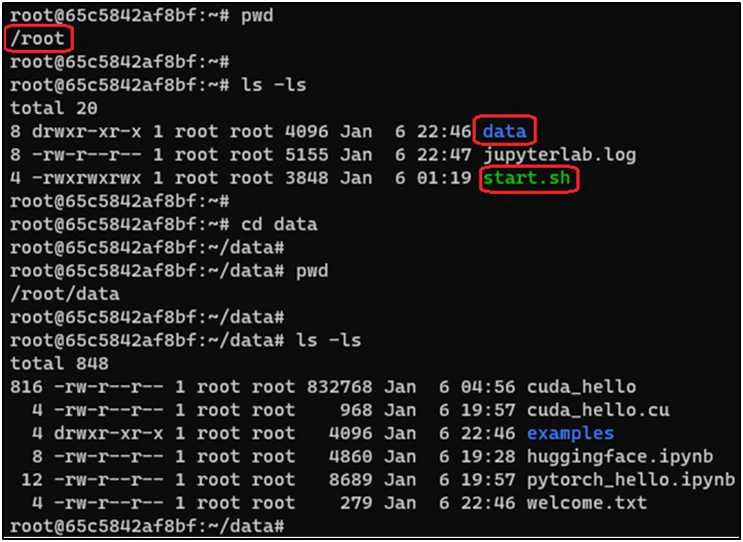
We create a folder named ‘data’ within the /root directory of the container, acting as the current working directory
that needs the data persistence. During the initial launch of the instance, a script file named ‘start.sh’ is executed,
and all data is synchronized from the chosen cloud platform to the /root/data directory by use of Cloud-specific CLIs,
the storage resource name and access credentials. Following this, the script continuously monitors the /root/data
directory, and any changes (create, delete or modify) in this directory or its subfolders trigger the synchronization
back to the cloud.
Under the hood, we employ the inotifywait command-line tool that uses the inotify Linux kernel subsystem to watch for
changes in the /root/data directory. Every time files are manually saved through the JupyterLab menu, or automatically
saved by the JupyterLab’s autosave feature, the inotifywait command captures events such as create, delete or modify.
Subsequently, the script triggers synchronization. All three public cloud platforms offer sync commands that can make
the contents under the source the same as the content under the destination by calculating and copying only the
differences instead of duplicating the entire directory. This integrated solution is highly effective, minimizing API
calls to the cloud and reducing data transfer to the cloud to the minimum.
Models and datasets that are dynamically downloaded from Hugging Face or TensorFlow Hub are stored in the /root/.cache
or /root/.keras hidden folders; and these data will be not synchronized to the cloud platform unless they are explicitly
saved into the /root/data directory. Given that cloud storage typically incurs a charge of around $0.02 per GB Month
(similar across all three cloud providers), the associated cost would be negligible if we mainly utilize the cloud
storage for storing code.
For utilizing the pre-built JupyterLab container images, specific environment variables are required to pass information
to containers. The Cloud-related environment variables can be omitted if data persistence is not required.
| Environment Variable | Description |
|---|
| JUPYTERLAB_PW | Define the password for JupyterLab. Can be omitted, and the default password is ‘data’. |
| AWS_S3_BUCKET_FOLDER; AWS_ACCESS_KEY_ID; AWS_SECRET_ACCESS_KEY | Provide the AWS-related info to access a folder within an AWS S3 bucket. |
| AZURE_CONTAINER_URL; AZURE_BLOB_SAS_TOKEN | Provide the Azure-related info to access a container within an Azure storage account. |
| GOOGLE_BUCKET_FOLDER; GOOGLE_APPLICATION_CREDENTIALS; GOOGLE_PROJECT_ID | Provide the GCP-related info to access a folder within a GCP Cloud Storage bucket. |
For the Dockerfile templates and the start.sh script file, please refer to our GitHub repository.
All major public cloud platforms, such as AWS, Azure, and GCP, offer the object storage service suitable for preserving
data for the JupyterLab containers. The integration methods with the three cloud platforms are similar: provision the
storage resource, obtain its access credentials, and then pass this information to launch a container.
If you are a business customer, such as a college, offering the JupyterLab service to numerous users, and each user
requires exclusive access their own data, we recommend AWS. It provides a straightforward and simple implementation that
allows multiple users to access their individual folders named with their usernames within the same bucket. In the event
that a user’s access credentials are compromised, the impact is confined to that specific user, safeguarding others from
any potential consequences.
For individual customers, there is little significant difference among the three cloud platforms, and you can choose the
cloud provider based on your preference.
Provision the cloud storage in AWS
Step 1: Create an AWS S3 bucket and a folder inside the S3 bucket
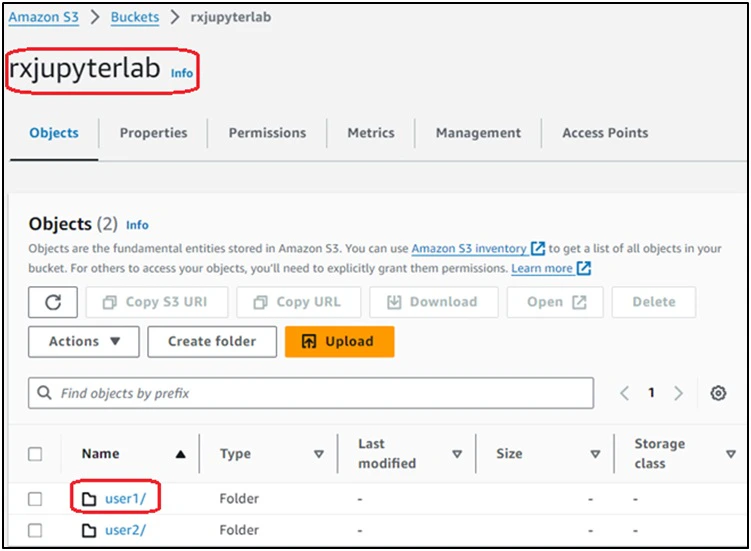
Log into the AWS Console, and create an AWS S3 bucket (‘rxjupyterlab’) with the default settings in one of the AWS
Regions, and create a folder named with an AWS IAM username (‘user1’) within the S3 bucket. This folder will be
synchronized with the /root/data directory inside a JupyterLab container running on SaladCloud. If an organization is
providing the JupyterLab service for numerous users and aims to ensure exclusive access to their own data, creating one
folder per user within the same bucket is a recommended approach in AWS.
Step 2: Create an AWS IAM policy for exclusive access
Create an AWS IAM policy (‘access_its_own_folder’) using the provided JSON file. This policy will be attached to AWS IAM
users, ensuring that each user can exclusively access their own folder in the same S3 bucket.
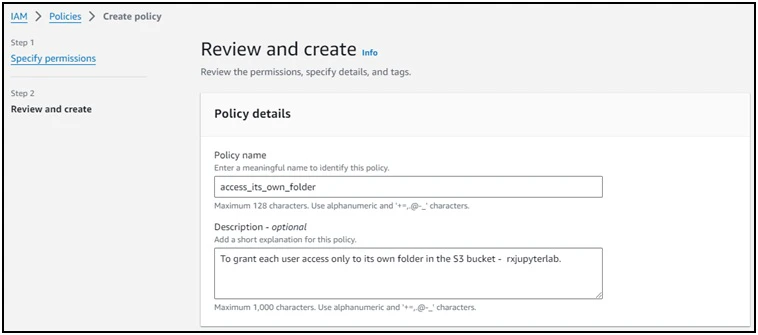
Replace ‘rxjupyterlab’ with your AWS S3 bucket name in the JSON file:
{
"Version": "2012-10-17",
"Statement": [
{
"Effect": "Allow",
"Action": ["s3:PutObject", "s3:GetObject", "s3:DeleteObject"],
"Resource": "arn:aws:s3:::rxjupyterlab/${aws:username}/*"
},
{
"Sid": "AllowListBucketOfASpecificUserPrefix",
"Action": "s3:ListBucket",
"Effect": "Allow",
"Resource": "arn:aws:s3:::rxjupyterlab",
"Condition": {
"StringLike": {
"s3:prefix": ["${aws:username}/*"]
}
}
}
]
}
Step 3: Create an AWS IAM user and generate its credentials
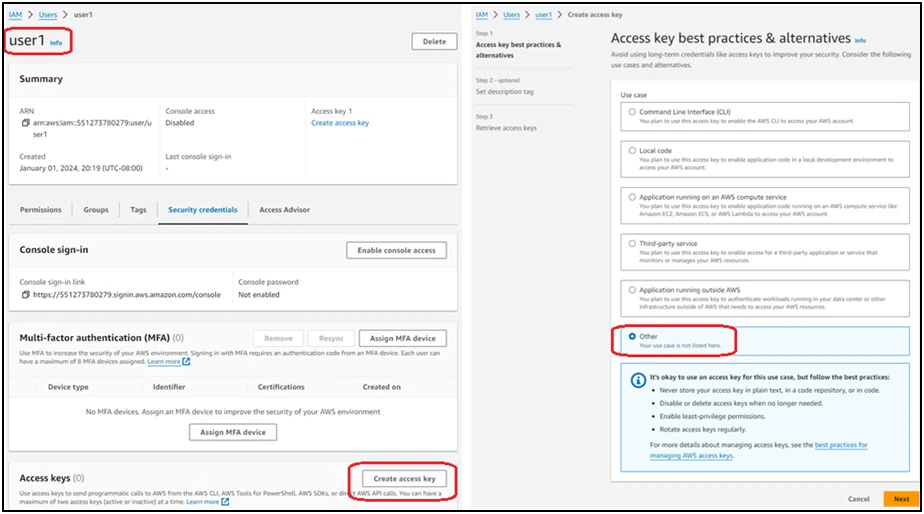
Create an AWS IAM user (‘user1’) without the AWS Console access and attach the customer-managed AWS IAM policy
(‘access_its_own_folder’) to the user.
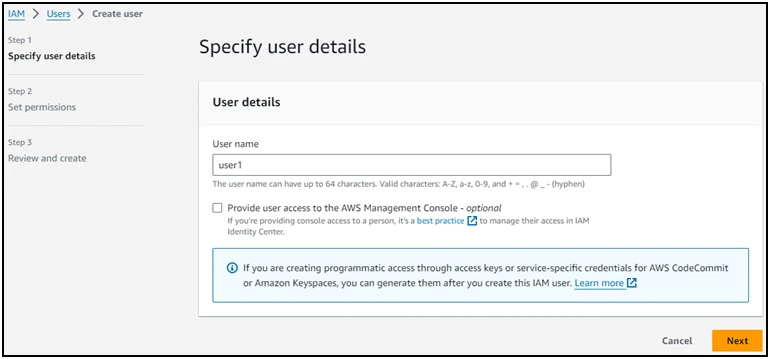
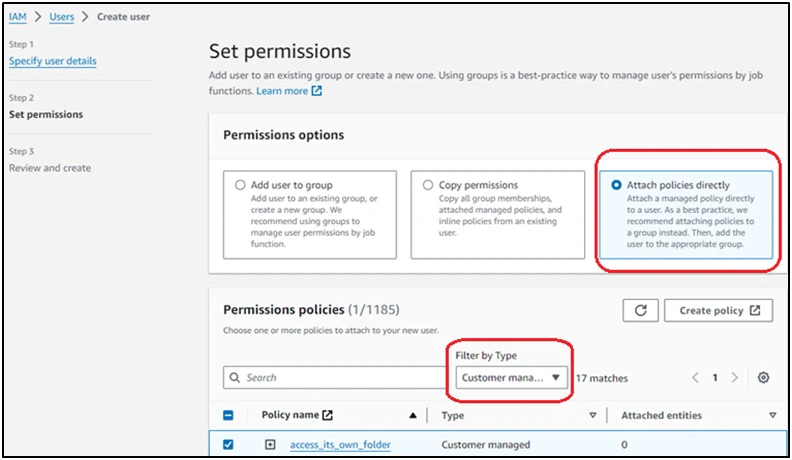
Generate the access key ID/secret access key for the AWS IAM user (‘user1’). Copy and securely keep the credentials in a
safe location.
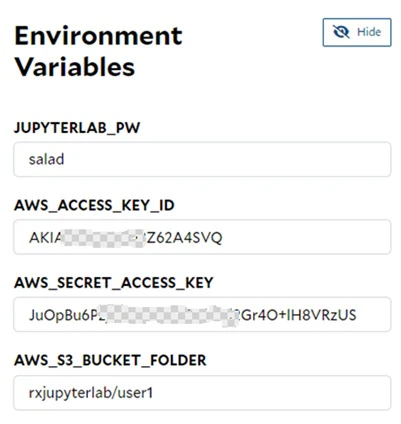
When running the JupyterLab containers on SaladCloud with AWS as the backend cloud storage, three AWS-related
environment variables are utilized to pass the access key ID/access key secret, as well as the bucket and folder name to
the container.
Provision the cloud storage in Azure
Step 1: Create an Azure storage account and a container inside the storage account
Log into the Azure Console, and create an Azure Storage Account (‘rxjupyterdata’) with the default settings in one of
the Azure Regions, and create a container (‘data’) within the storage account. This container will be synchronized with
the /root/data directory inside a JupyterLab container running on SaladCloud. If an organization is providing the
JupyterLab service for numerous users and aims to ensure exclusive access to their own data, creating one container per
user within the same storage account is a recommended approach in Azure.
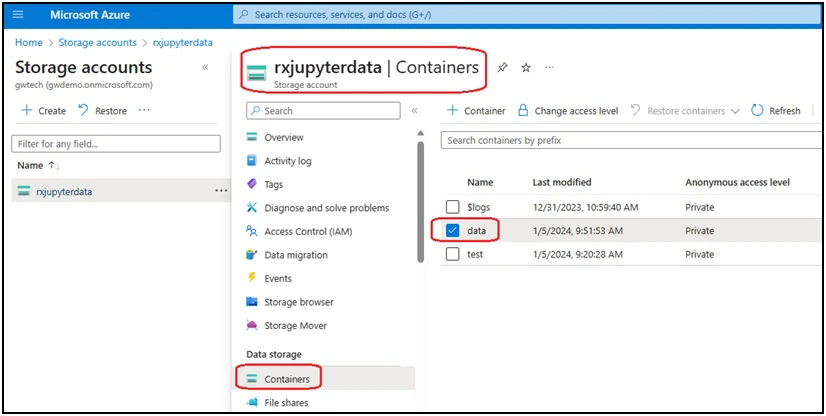
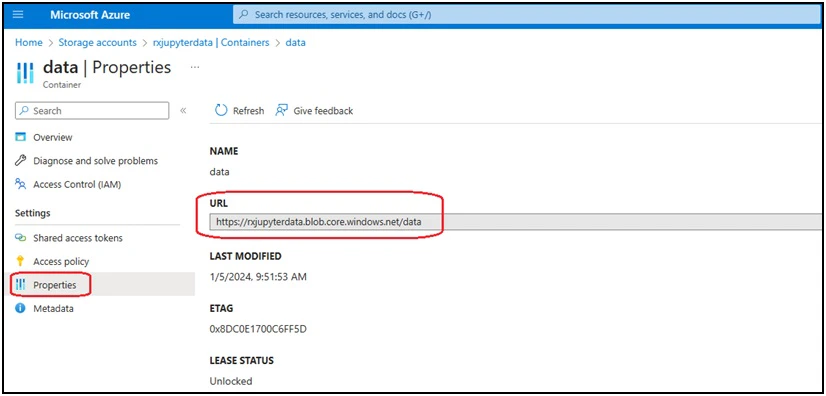
Navigate to the “Properties” menu on the left panel, and copy the container URL.
Step 2: Create an access policy and a shared access token for the Azure storage account container
For the access policy, you can define the start time, expiry time and permissions; all the 6 permissions are necessary
for the data persistence of JupyterLab containers.
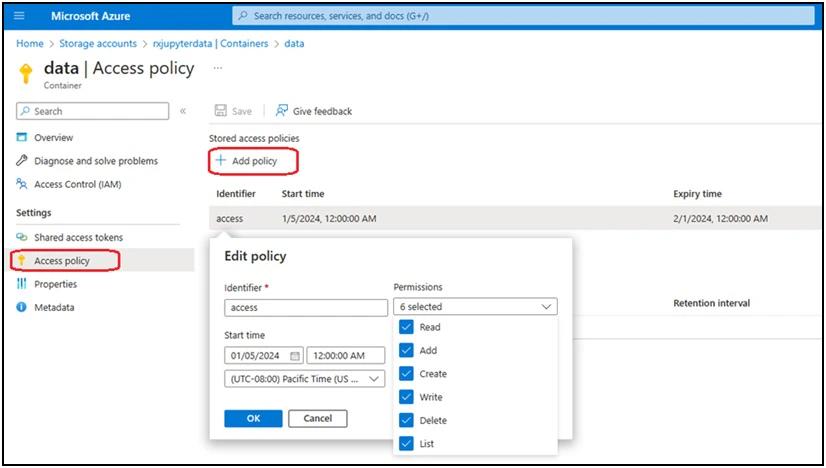
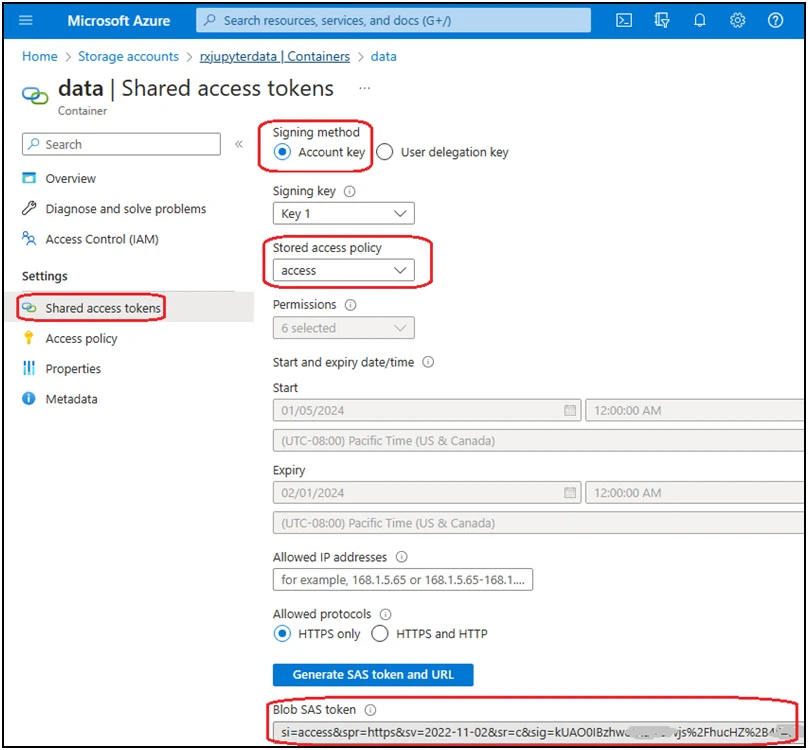
After creating the access policy for the Azure storage account container, generate the shared access token. Copy and
securely keep the Blob SAS token in a safe location.
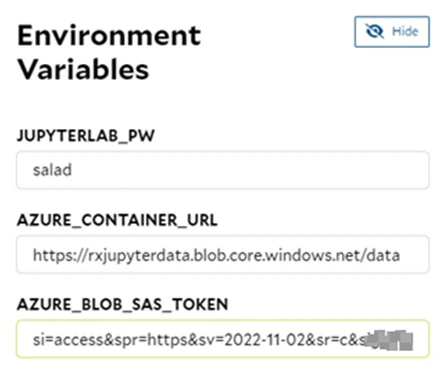
When running the JupyterLab containers on SaladCloud with Azure as the backend cloud storage, two Azure-related
environment variables are utilized to pass the container URL and Blob SAS token to the container.
Provision the cloud storage in GCP
Step 1: Create a GCP cloud storage bucket and a folder in the bucket
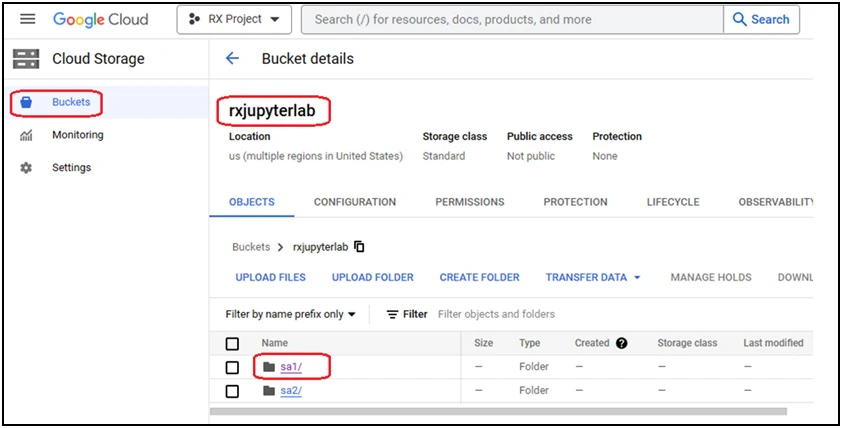
Log into the GCP Console, and create a GCP Cloud Storage bucket (‘rxjupyterlab’) with the default settings in one of the
GCP Regions, and create a folder (‘sa1’) within the bucket. This folder will be synchronized with the /root/data
directory inside a JupyterLab container running on SaladCloud. If an organization is providing the JupyterLab service
for numerous users and aims to ensure exclusive access to their own data, creating one bucket per user is a recommended
approach in GCP.
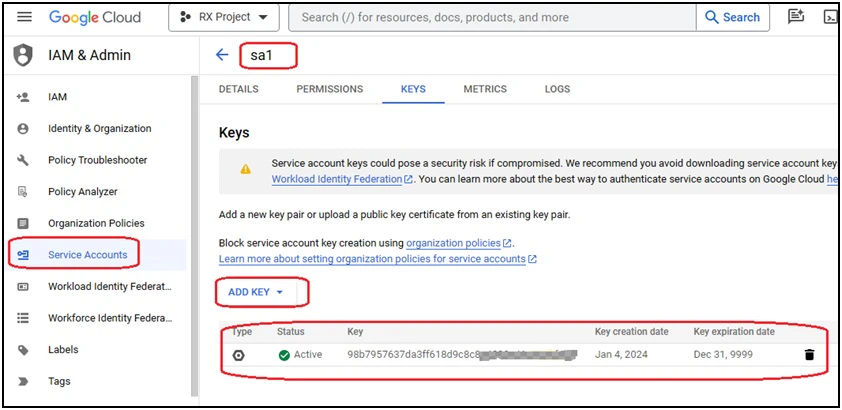
Step 2: Create a service account and generate its credentials
Create a service account (‘sa1’) without permissions, and add a key for the service account. Download the key’s JSON
file and securely keep it in a safe location.
Step 3: Grant access to the bucket for the service account
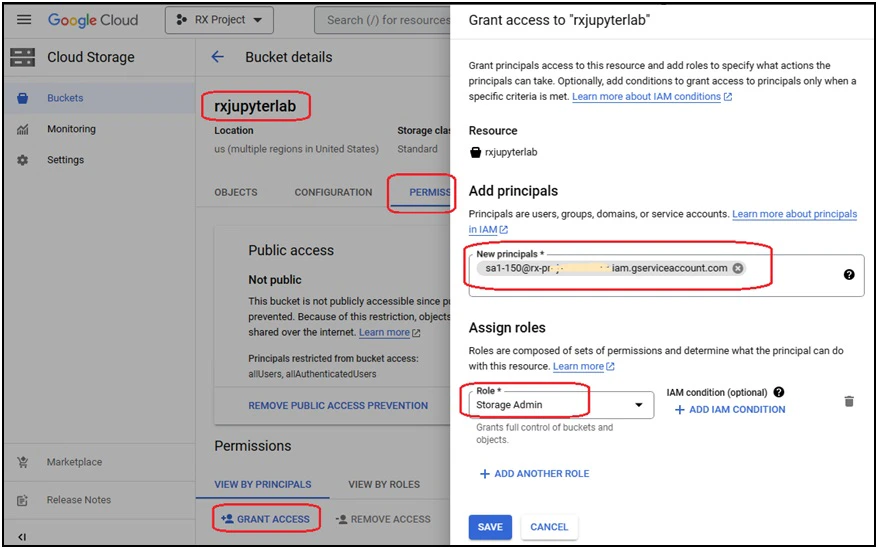
Navigate to the “rxjupyterlab” bucket again and grant the “Storage Admin” role to the sa1 service account. Unlike AWS,
GCP does not provide an easy way to grant access only to a specific folder inside the bucket. With the above role
assignment, the sa1 service account will have access to the entire bucket.
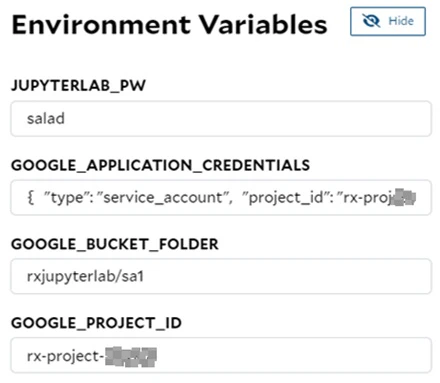
When running the JupyterLab containers on SaladCloud with GCP as the backend cloud storage, three GCP-related
environment variables are utilized to pass the credentials (content of the downloaded JSON file), the bucket and folder
name, and project ID to the container.
Run JupyterLab over SaladCloud
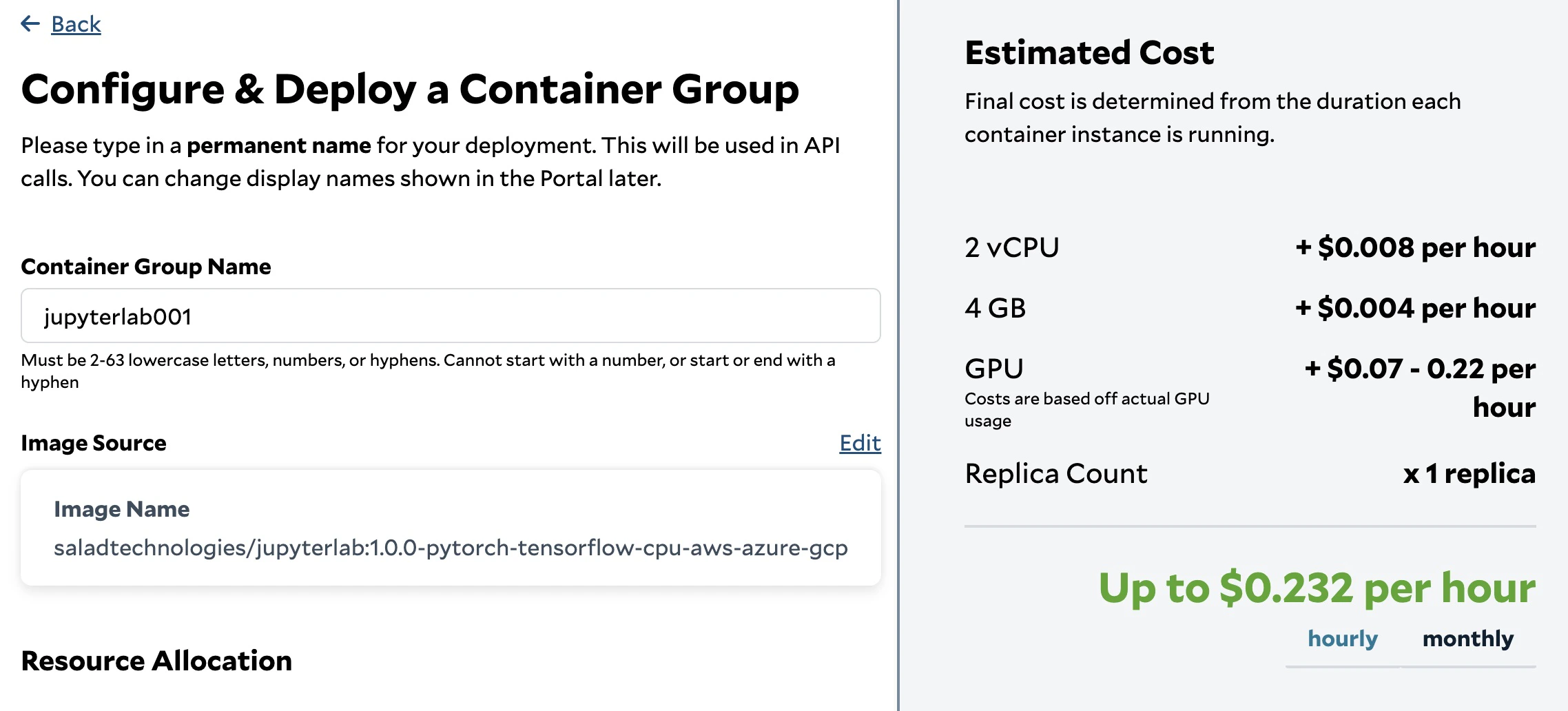
To run a JupyterLab instance on SaladCloud, you can log in the SaladCloud Console and deploy the JupyterLab instance by
selecting ‘Deploy a Container Group’ with the following parameters:
| Parameter | Value |
|---|
| Container Group Name | jupyterlab001, or any name you prefer. |
| Image Source | saladtechnologies/jupyterlab:1.0.0-pytorch-tensorflow-cpu-aws-azure-gcp, or your tailored JupyterLab image. |
| Replica Count | 1, can only be 1. |
| vCPU | 2, based on the task need. |
| Memory | 4, Based on the task need. |
| GPU | RTX 1650 (4 GB), RTX 2080 (8 GB), RTX 3060 (12 GB) or others. You can choose multiple GPU types simultaneously, and SaladCloud will then select a node that matches one of the selected types. |
| Container Gateway | Enable, Port:8000, Use Authentication: No; and make sure the option “Limit each server to a single,active connection” is not selected. |
| Environment Variables | Provide the corresponding environment variables based on your needs. JupyterLab Password:JUPYTERLAB_PW; AWS:AWS_ACCESS_KEY_ID,AWS_SECRET_ACCESS_KEY,AWS_S3_BUCKET_FOLDER; Azure:AZURE_CONTAINER_URL,AZURE_BLOB_SAS_TOKEN; GCP:GOOGLE_APPLICATION_CREDENTIALS,GOOGLE_BUCKET_FOLDER,GOOGLE_PROJECT_ID |
SaladCloud would take a few minutes to download the image to the selected node and run the container. Using the Console,
you can determine whether the JupyterLab instance is ready to use.
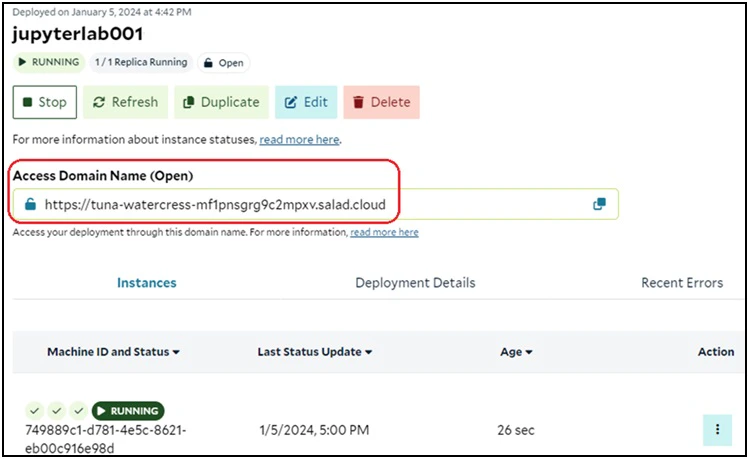
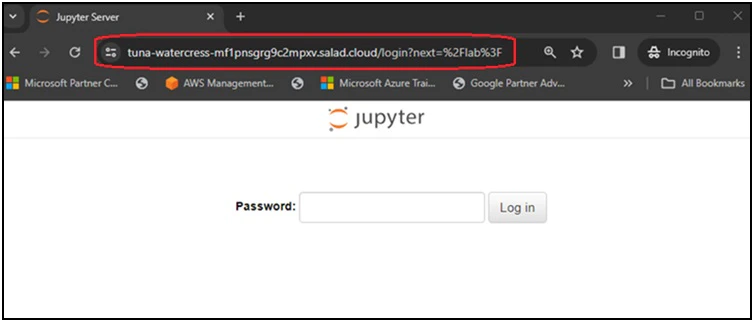
After the instance is running, you can type the generated Access Domain Name in the browser’s address bar, enter the
password provided by the JUPYTERLAB_PW environment variable, and begin using the JupyterLab service.
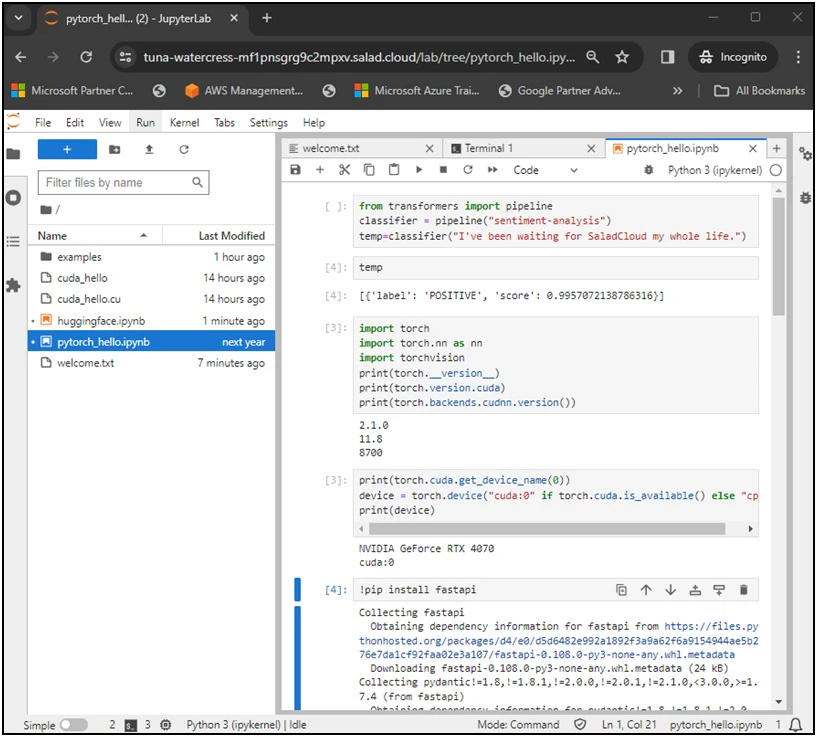
Now you can write Python code to learn, test, fine-tune or train the popular AI models from Hugging Face. In case any
libraries or dependencies are missing, you can install them online in the notebook or terminal. You may also build your
own container images to include specific libraries and dependencies based on the provided Dockerfile templates.
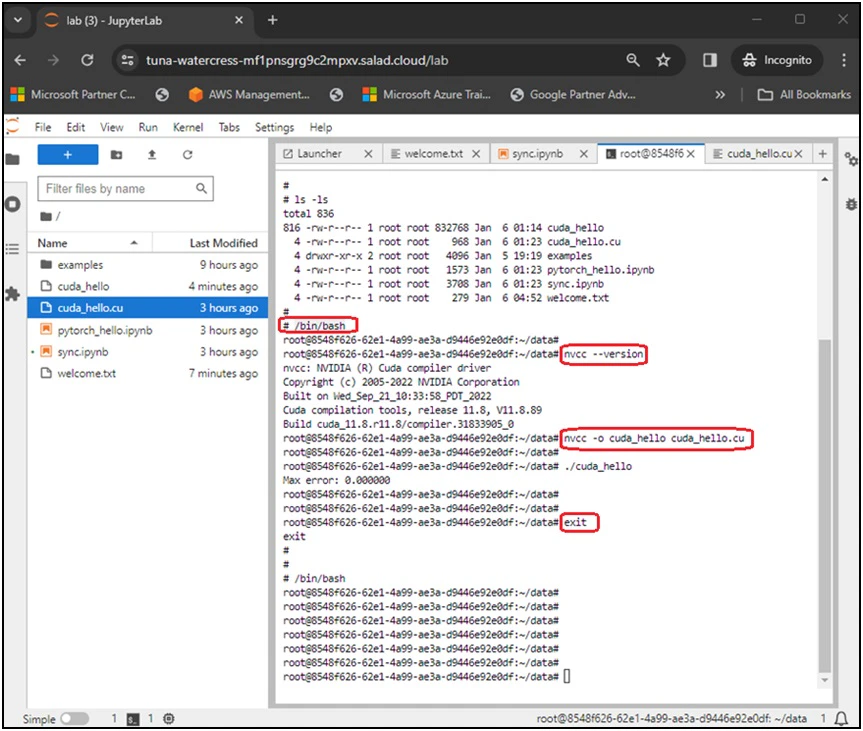
In the JupyterLab terminal, you have the flexibility to use SH and BASH, and switch between them. Additionally, you can
engage in C/C++ and CUDA programming by utilizing gcc and nvcc.
By sharing access to the JupyterLab instance, a team can collaborate on editing the same notebook or using the same
terminal from different locations. Regarding the the JupyterLab terminal, any modifications made by one team member in
the terminal will promptly reflect in another member’s browser and vice versa, similar to the screen sharing on WebEx or
Zoom.