Last Updated: October 15, 2024 Cog is an open-source tool that offers CLI tools, Python modules, and an HTTP prediction server, facilitating the development of AI applications. Some applications utilize only its prediction server, while others also leverage its CLI tools to manage container images. All Cog-based applications can be easily run on SaladCloud. Here are the main scenarios and suggested approaches:

Scenario 1: Deploy the Cog-based images directly on SaladCloud

All Cog-based images can directly run on SaladCloud without any modifications, and you can leverage a load balancer or a job queue along with Cloud Storage for input and output. To receive inbound traffic through a load balancer, containers running on SaladCloud need to listen on an IPv6 port. However, the Cog HTTP prediction server currently only uses IPv4 that cannot be configured via an environment variable. This issue can be easily addressed by executing an additional command when running an image on SaladCloud. Let’s take the BLIP and Whisper images, built by Replicate, as examples and walk through the steps to run these Cog-based images on SaladCloud. First, run the BLIP image locally to verify the location of the site-packages directory and check the source code of Cog HTTP predict server:
After locating the server code file named “http.py”, we simply need to execute an additional command ‘sed’ to modify the code for IPv6 by replacing ‘0.0.0.0’ with ‘::’.
Most Cog-based containers start by running “python -m cog.server.http” (defined by a ‘CMD’ within the Dockerfile) as PID 1, but let’s check the BLIP image:
Some Cog-based containers use Tini as the init process within the container. In this setup, Tini is specified as the first command (defined by an ‘ENTRYPOINT’) and runs as PID 1; ‘python -m cog.server.http’ is specified as its parameter (also defined by a ‘CMD’) and runs as its single child process. let’s check the Whisper image:
Regardless of whether Tini is used, we just need to override the original CMD in the image with a new one when running it on SaladCloud: execute ‘sed’ to modify the server code for IPv6, and then run the original command “python -m cog.server.http” to start the server.
Let’s conduct some tests locally to ensure the workaround works as expected. For the BLIP image without Tini:
For the Whisper image with Tini:
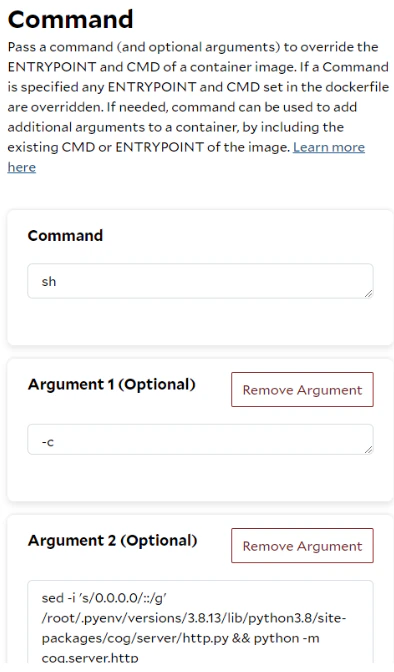
Now we can create a container group with the following parameters to run the BLIP image on SaladCloud:
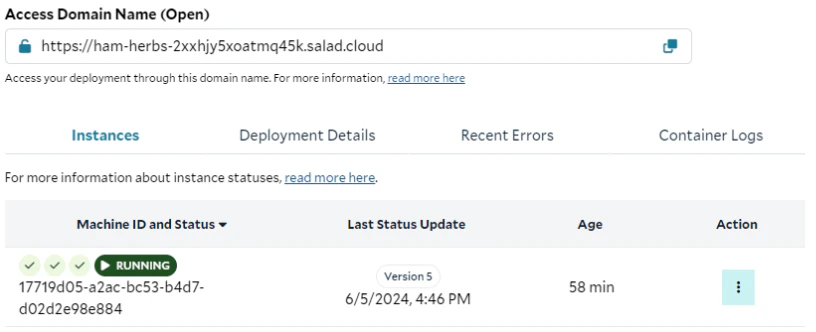
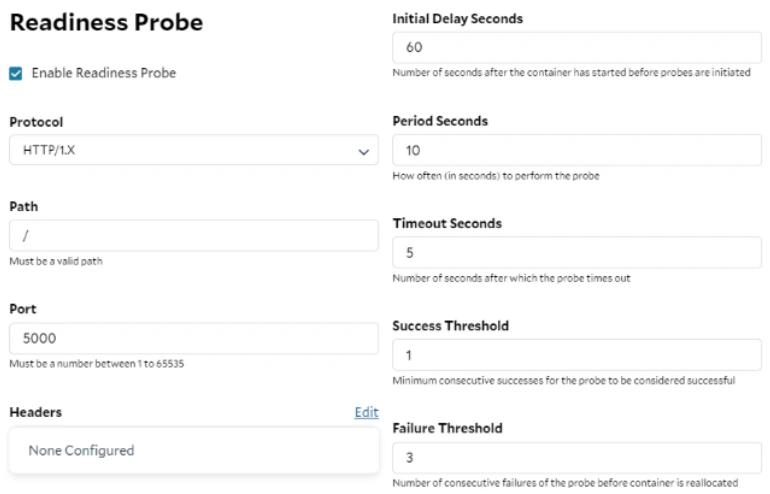
The provided command and its arguments override both the ENTRYPOINT and CMD of the original image, ensuring that the original first command ‘python -m cog.server.http’ is run only after the Cog HTTP prediction server code has been successfully modified to listen on an IPv6 port. The Readiness Probe evaluates whether a container is ready to accept the traffic from the load balancer. Specifically, the HTTP/1.X probe checks the health of an HTTP service running inside the container by sending an HTTP GET request and checking the response code. For the Cog HTTP prediction server in this BLIP image, it will be ready to answer requests only after downloading and loading models into the GPU. Since there isn’t a dedicated path operation function for health checks in this server version, the root path can be used instead. After the container group is deployed, an access domain name will be generated, which can be used to access the application. Let’s perform some inference tests using the Access Domain Name:
Let us create another container group with the following parameters to run the Whisper image on SaladCloud:
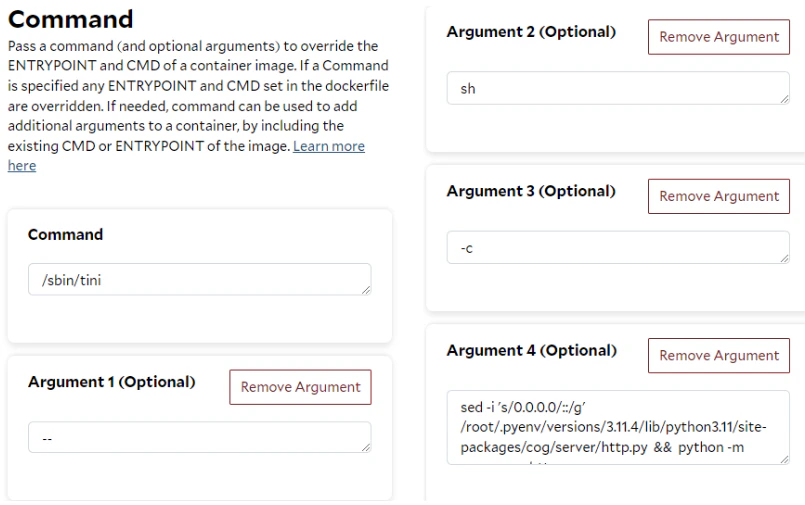
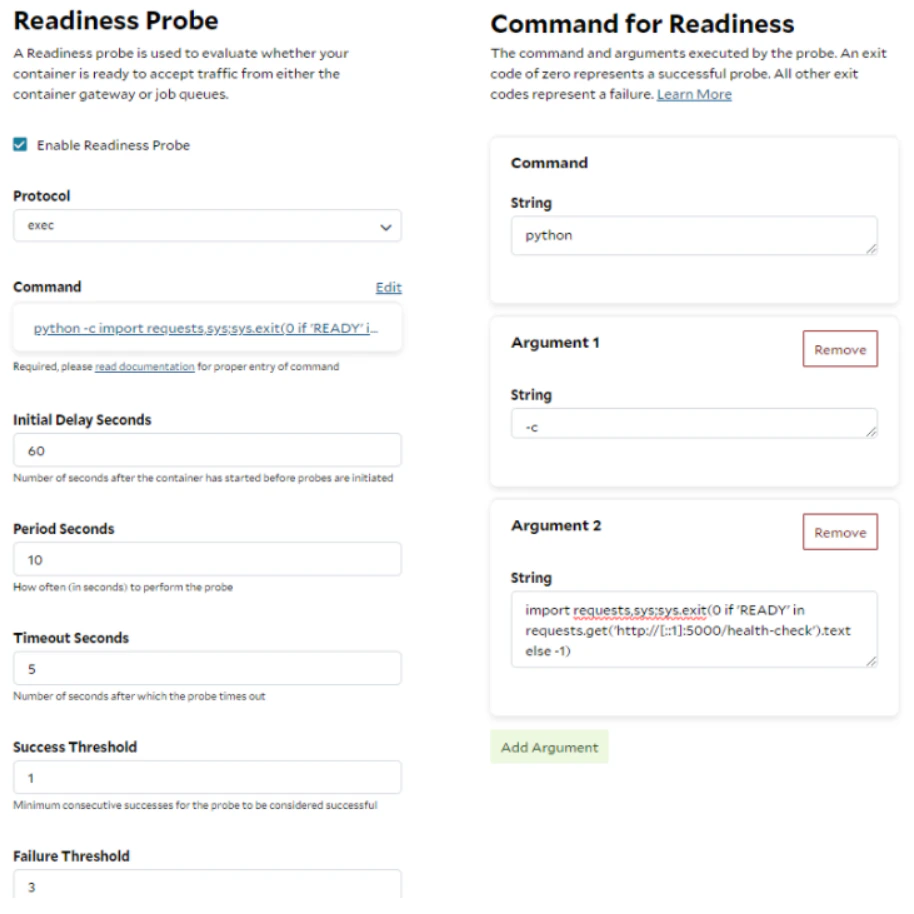
Because the command and its arguments override both the ENTRYPOINT and CMD of the original image, we need to specify ‘/sbin/tini’ for the ENTRYPOINT and the other four arguments for the CMD, as parameters of ‘/sbin/tini’. This ensures that Tini is still used as the init process within the container, and the original command ‘python -m cog.server.http’ is run only after the Cog HTTP prediction server code has been successfully modified to listen on an IPv6 port. The Cog HTTP prediction server in this Whisper image provides a dedicated ‘/health-check’ endpoint and an operation function for health checks, indicating different running statuses (STARTING, READY, BUSY and FAILED) within the server. The Readiness Probe with the protocol - exec, will run the given command inside the container, if the command returns an exit code of 0 ( by using ‘echo $?’ ), the container is considered in a healthy state. Any other exit codes indicate the container is not ready yet. A Python script is provided here and run regularly to determine whether the container is in the READY status, indicating the models have been loaded successfully and the Cog HTTP prediction server is ready to accept the traffic from the load balancer. By default, the functions for health checks and predictions in the Cog HTTP prediction server are declared with ‘async def’ and run within the same main thread. However, long-running synchronous predictions could potentially delay timely responses to readiness probes. To address this issue, we have two options: adjusting the ‘Timeout Seconds’ and/or ‘Failure threshold’ in the Readiness Probe based on specific context, or declaring the prediction function with ‘def’ in the server code. The latter approach spawns a new thread to handle predictions when a new request arrives.

Scenario 2: Build a wrapper image for SaladCloud based on an existing Cog-based image

If you want to introduce new features, such as adding an I/O worker to the Cog HTTP prediction server, you can create a wrapper image based on an existing Cog-based image, without needing to modify its original Dockerfile. In the new Dockerfile, you can begin with the original image, introduce additional features and then incorporate IPv6 support if a load balancer is required. There are multiple approaches when working directly with the Dockerfile:

Option 1: Run ‘sed’ command to modify the server code while building the image.

Create the Dockerfile for the BLIP wrapper image:
Build and test the image locally:
Because we don’t modify the CMD of the original image, the Command is not needed when running this wrapper image on SaladCloud. Below are the parameters for the deployment on SaladCloud:

Option 2: Add socat in the image to route IPv6 to IPv4.

Create the Dockerfile for the BLIP wrapper image:
Regardless of whether Tini is used in the original image, we just need to override the original CMD with a new one in the wrapper image: run a new shell ‘sh’ to execute ‘socat’ in the background, and then run the original command “python -m cog.server.http” to start the server. Build and test the image locally:
Because we don’t modify the CMD of the original image, the Command is not needed when running this wrapper image on SaladCloud. However, both the Container Gateway and the HTTP/1.X probe need to be configured to use Port 8888 because socat is listening on Port 8888 of IPv6; and the HTTP/1.x probe to socat on Port 8888 of IPv6 of won’t be successful until the Cog HTTP prediction server is ready on Port 5000 of IPv4. Below are the parameters for the deployment on SaladCloud:

Scenario 3: Build an image using Cog HTTP prediction server for SaladCloud

Only using the Cog HTTP prediction server without its CLI tools is feasible if you need flexible and fine-grained control over how the image is built. You can refer to this guide on writing a Dockerfile from scratch by leveraging the Pytorch image for your AI applications.

Scenario 4: Build an image using both Cog CLI tools and HTTP prediction server for SaladCloud

If you prefer to use Cog CLI tools to manage the Dockerfile and image, you need to modify the ‘cog.yaml’ and ‘predict.py’ files to add socat support in the image for running on SaladCloud. You can refer to this guide for more information. Alternatively, you can use the approaches in Scenario 1 or Scenario 2 to add IPv6 support later.