

Managing Long-Running Tasks on SaladCloud with RabbitMQ
Managing long running tasks, such as molecular simulations, LoRA training, and LLM finetuning, presents unique challenges on SaladCloud, due primarily to the interruptible nature of nodes. At the core of all solutions to this problem are a job queue, and progress checkpoints. The job queue is responsible for distributing tasks to workers, and detecting when a worker has been interrupted. Workloads should save checkpoints of their progress and upload it to cloud storage, so that they can be resumed from the last checkpoint in the event of an interruption. Workers should also upload completed artifacts to cloud storage.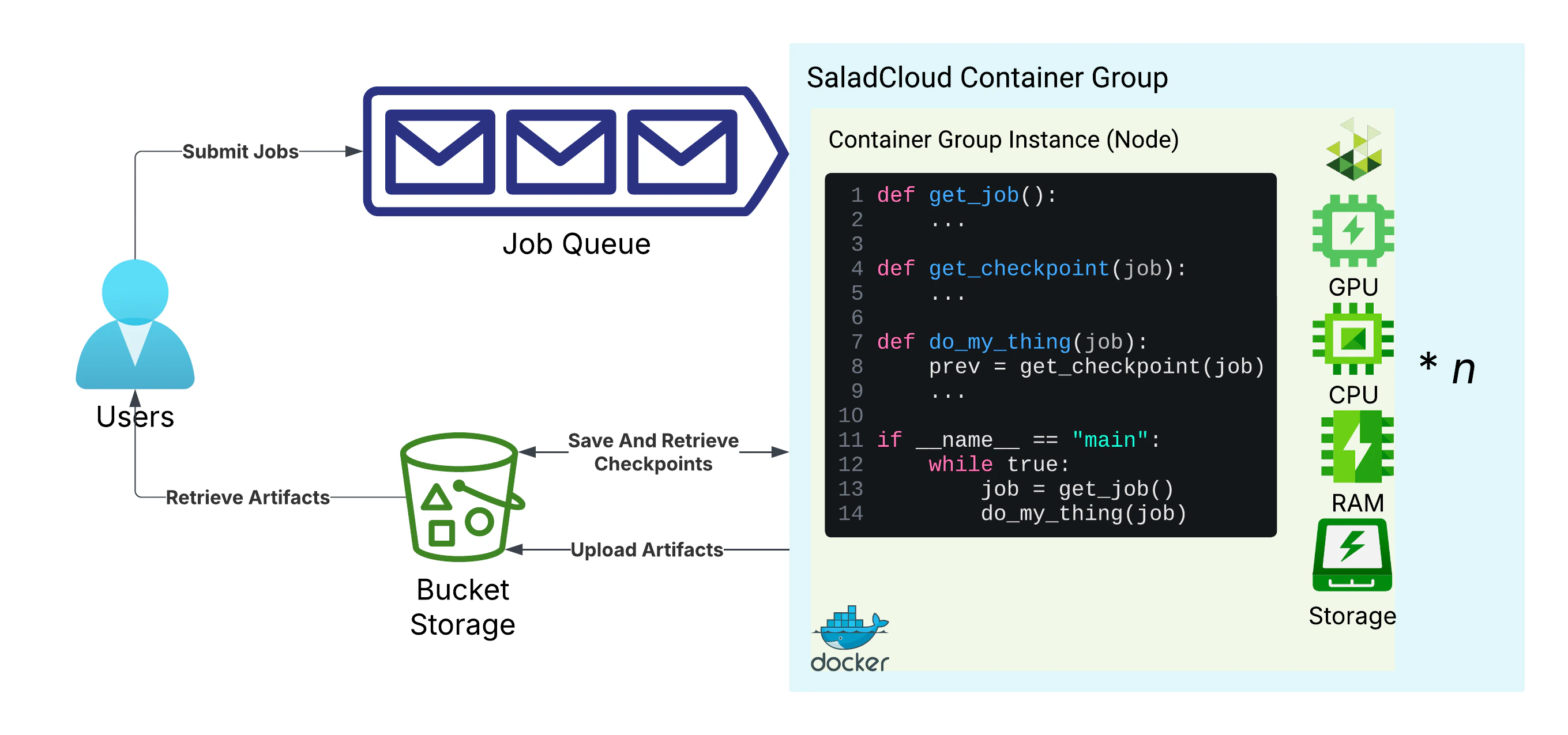
Basic architecture for long-running tasks on SaladCloud
The Job Queue: RabbitMQ
RabbitMQ is a highly configurable open-source message broker that implements the Advanced Message Queuing Protocol (AMQP) and has client libraries in many languages. It is a robust and scalable solution for job queues, and is widely used in the industry. You can self-host if desired, but for this guide we will be using CloudAMQP’s hosted RabbitMQ service.Relevant Limitations
- While RabbitMQ itself has no such inherent limitations, The “Sassy Squirrel” plan we’ll be using on CloudAMQP supports a maximum of 1.5k connections, and up to 500 messages per second. This will be more than sufficient for this guide, where we will only be scaling up to 250 workers.
- Maximum message size is 512MB, and further limited by the amount of RAM available on the host machine, as messages are held in memory, with optional persistence. The default max message size on CloudAMQP is 128MB. As is true for most job queues, it is recommended to keep large amounts of data in cloud storage, putting only references to the data location in the message itself.
- CloudAMQP’s default message timeout is 2 hours, but we can disable this limit entirely, allowing for extremely long-running tasks.
- RabbitMQ relies on long-lived connections between the message broker and clients, so it is important to handle reconnections gracefully in your code.
- Using RabbitMQ in python in a multi-threaded environment can be a little tricky, however it is required in order to
support long lived jobs and quick interruption detection. We will be using the
pikalibrary, which does have support for threaded workers.
Setting Up RabbitMQ on CloudAMQP
Once you have your account on CloudAMQP, it’s time to deploy a new instance. We will be using the “Sassy Squirrel” plan for this guide, which is $50/month (billed by the second). You can choose a different plan if you need more or less resources.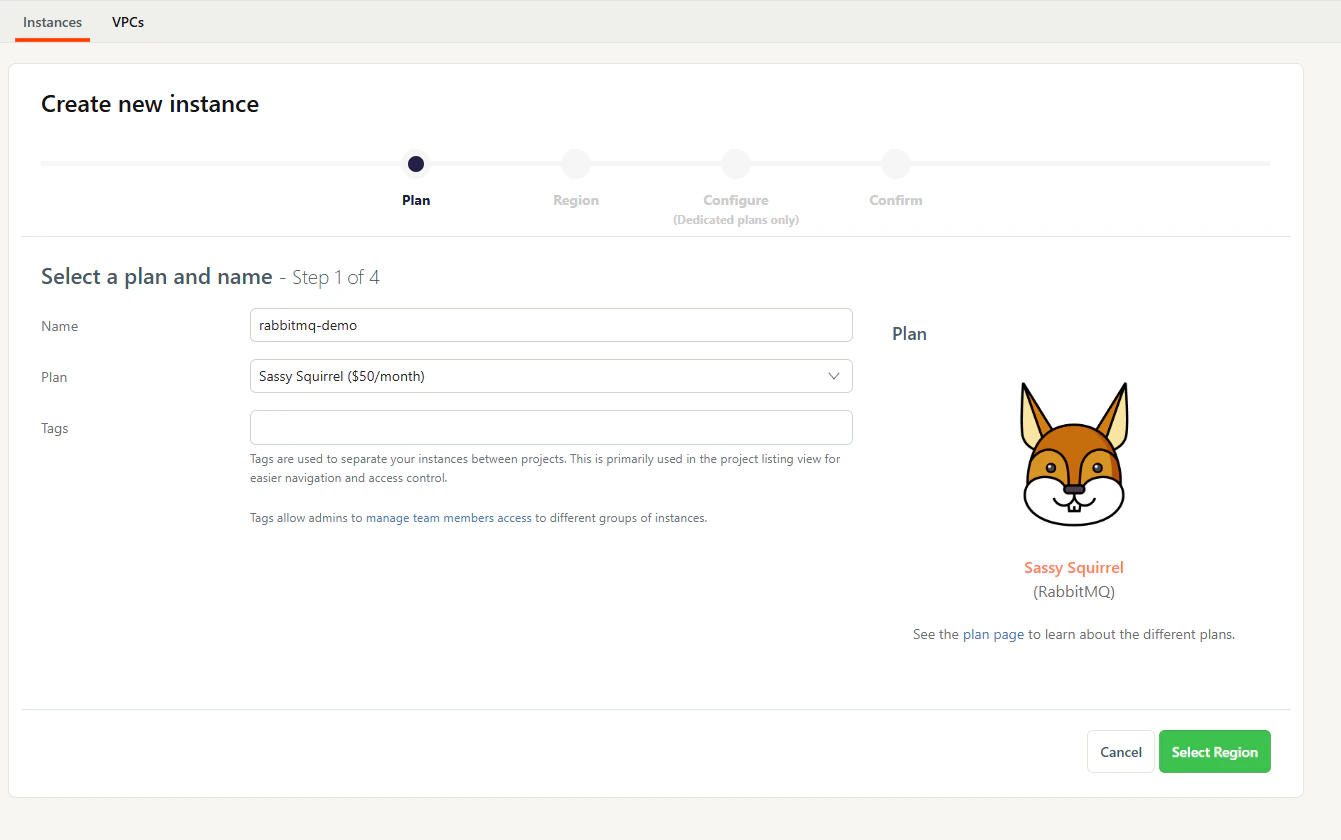
Creating a new instance on CloudAMQP
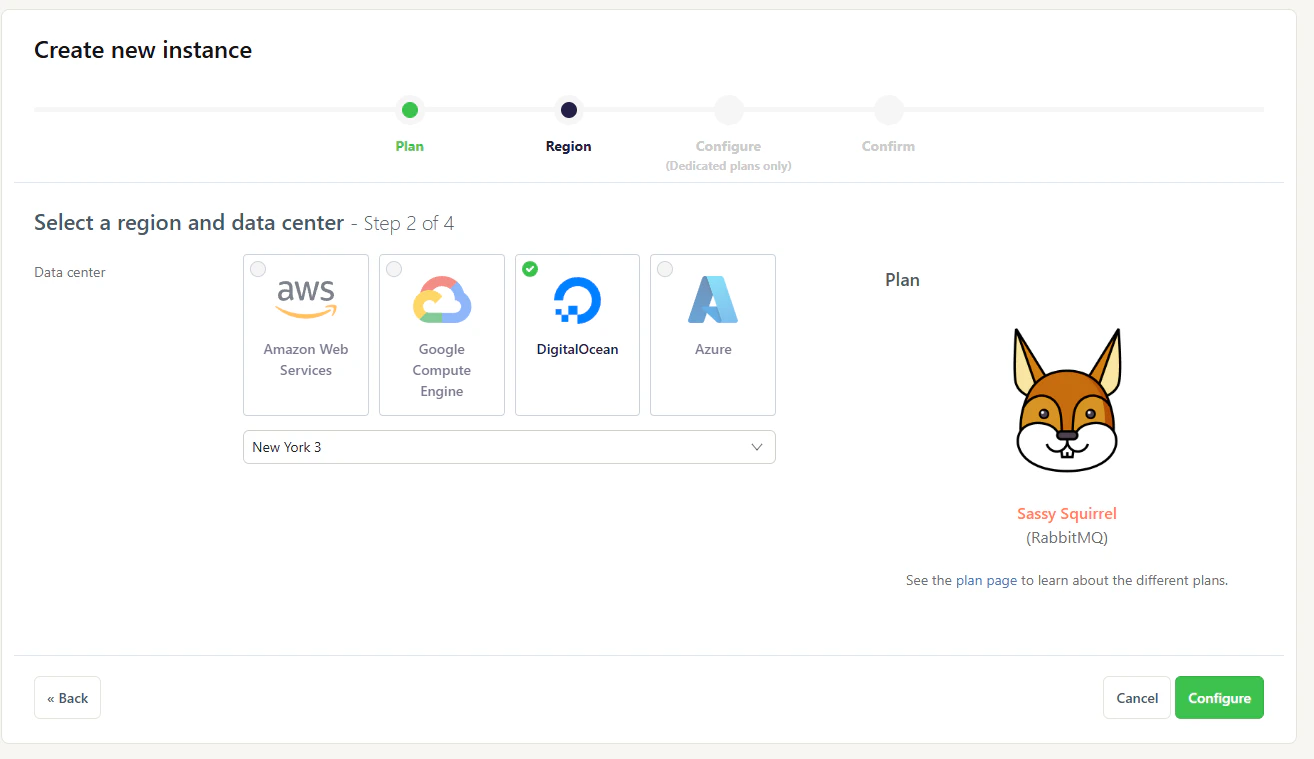
Choosing a Datacenter and Region
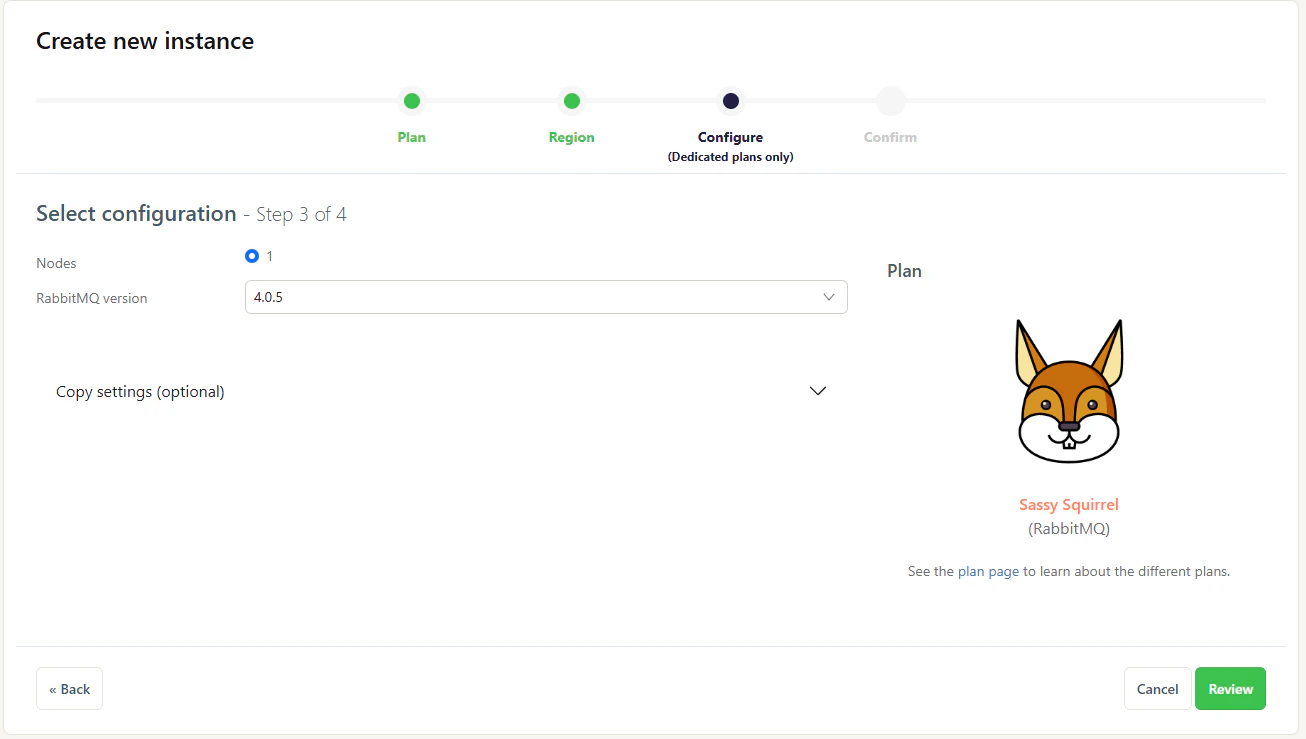
Choosing the number of nodes and RabbitMQ version
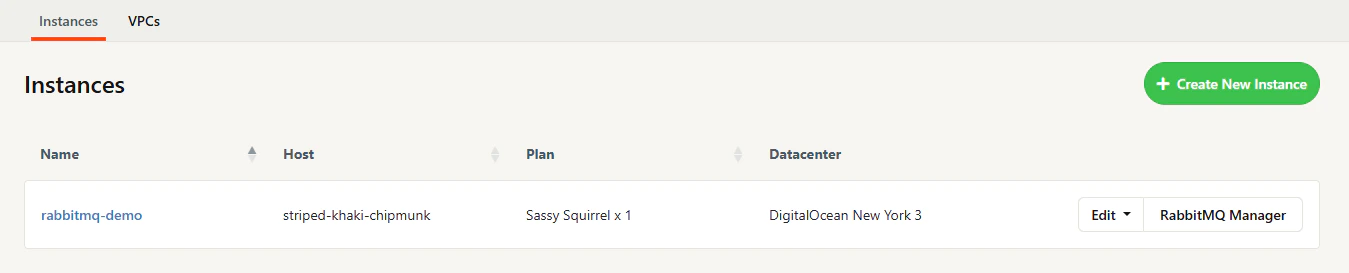
CloudAMQP Console
rabbit.consumer_timeout. This will allow us to have tasks run longer than the default 2-hour
timeout.
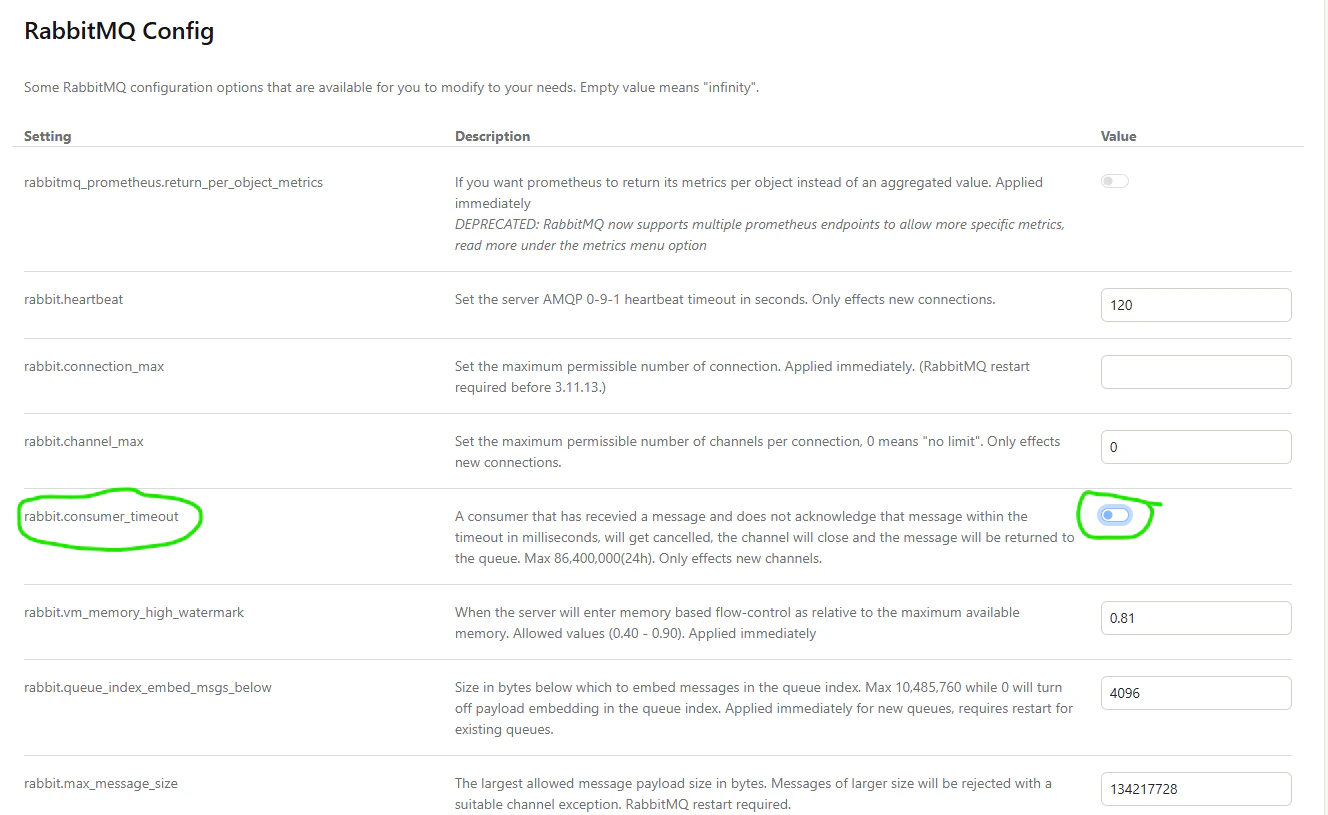
Disabling the consumer timeout
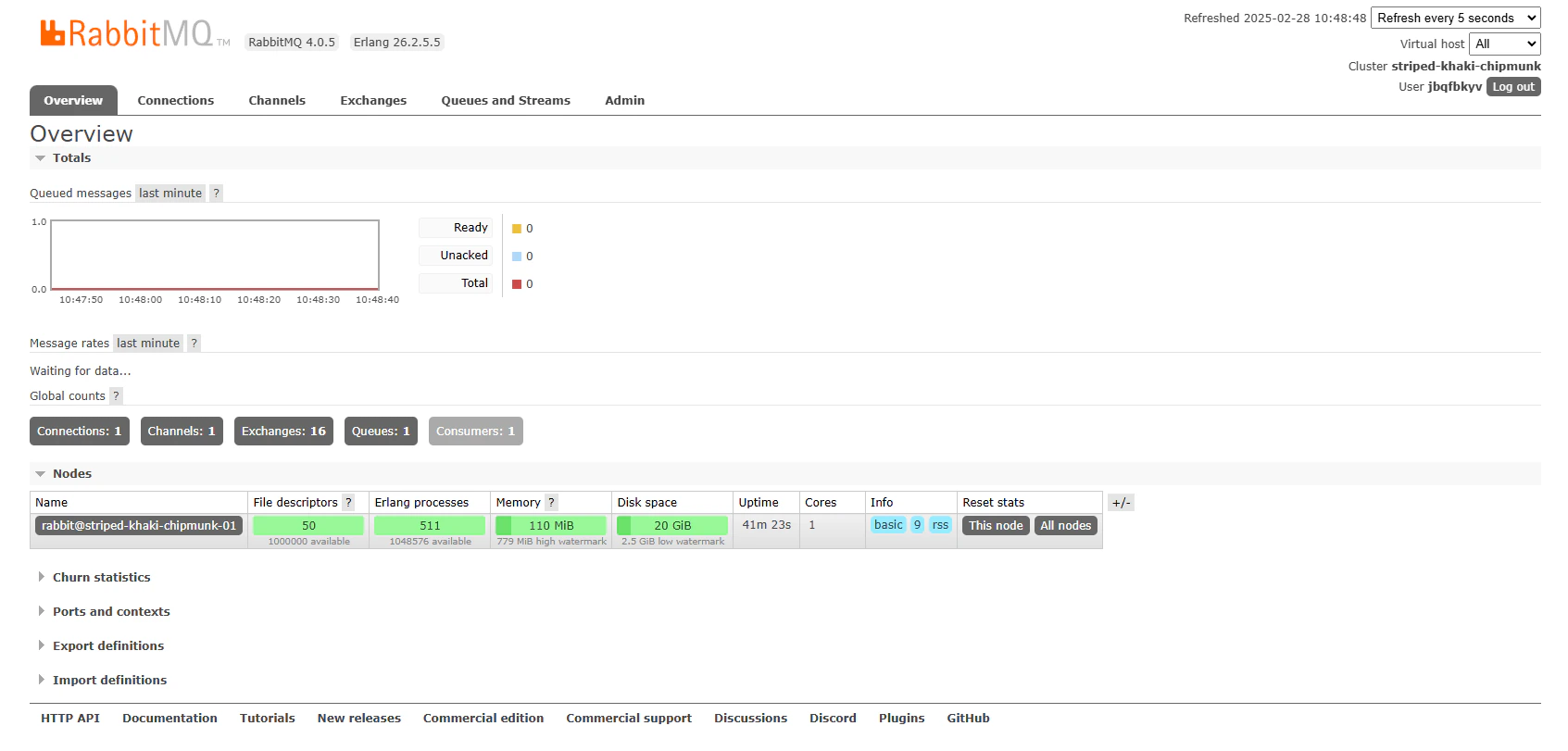
RabbitMQ Manager
Deadletter Exchange
A deadletter exchange is an exchange that messages are sent to when they are rejected by a queue. This can happen when a message is not acknowledged by a consumer, typically indicating that the consumer has gone offline, or the message is malformed. We will be creating a deadletter exchange and queue first, so that we can configure our main queue to send messages to it when they are rejected. This will allow us to inspect and requeue messages that have failed to be processed. From the RabbitMQ Manager, navigate to the Exchanges tab, and add a new exchange called “deadletter”.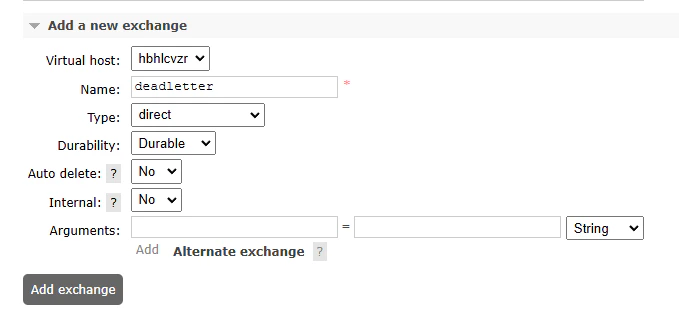
Adding a deadletter exchange
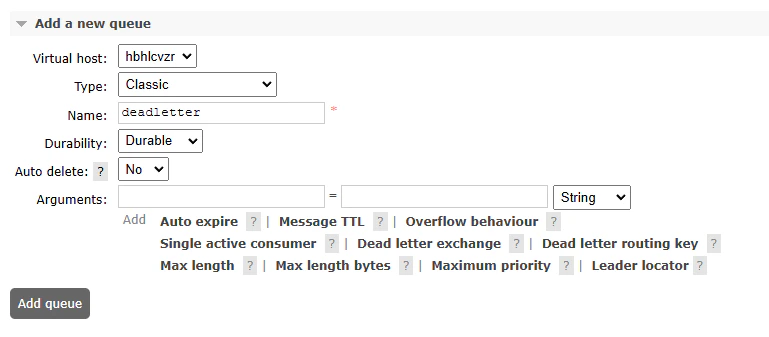
Adding a deadletter queue
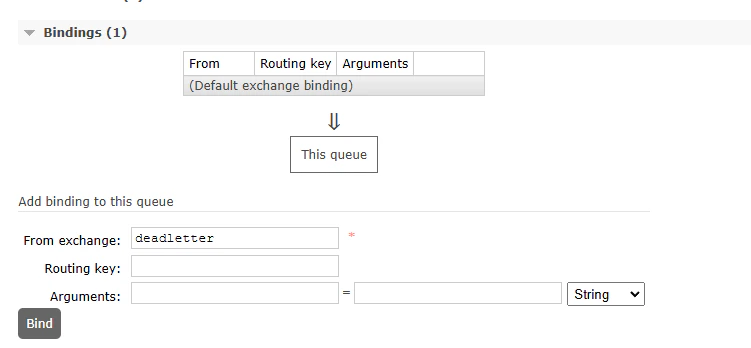
Binding the deadletter exchange to the deadletter queue
Main Job Queue
Next, we will create the main job queue. This queue will hold messages that represent tasks to be processed by workers. Navigate back to the Queues tab, and add a new Quorum queue called “my-job-queue”, and set the deadletter exchange to the exchange we created earlier, and setting the delivery limit to 3. This will allow a message to be retried 3 times before being sent to the deadletter exchange.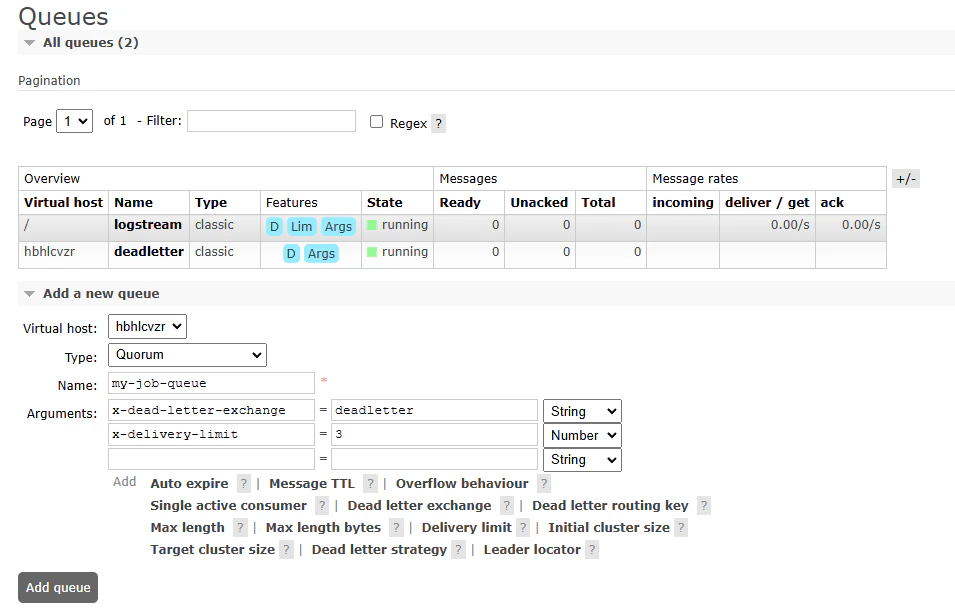
Creating the main job queue
Cloud Storage: R2
R2 is a cloud storage service from Cloudflare that is compatible with the S3 API. It is a great choice for SaladCloud workloads because it does not charge egress fees, which helps reduce costs when distributed workers fetch inputs and upload results. From the R2 console, navigate to “R2 Object Storage”, and click “Create Bucket”.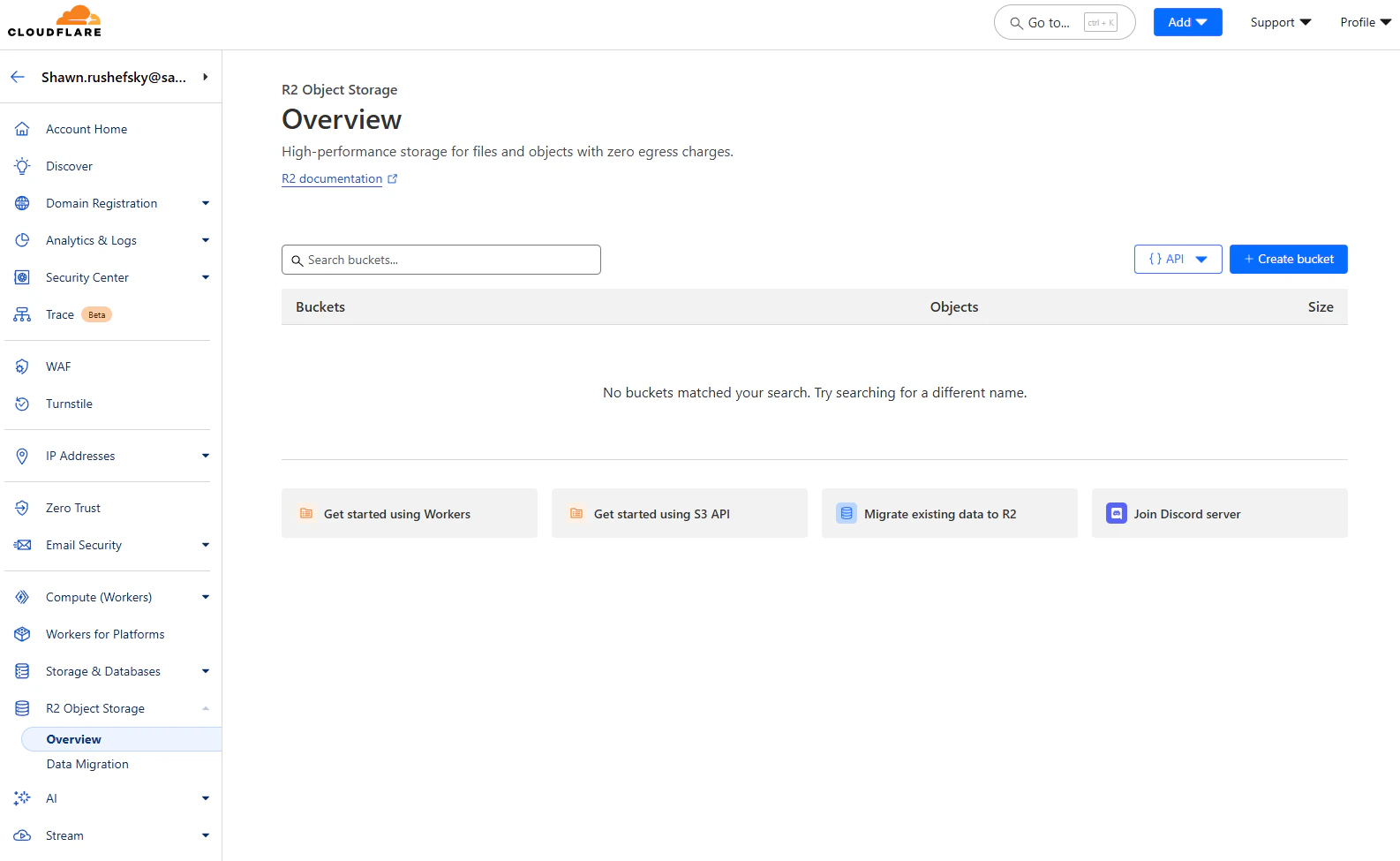
The R2 Object Storage Console
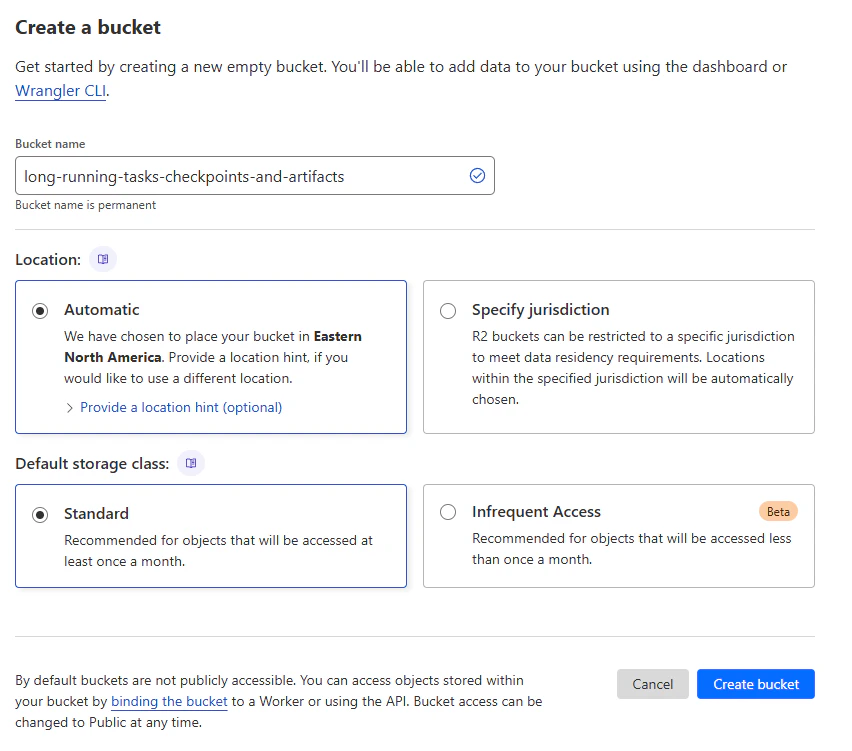
Creating a new bucket
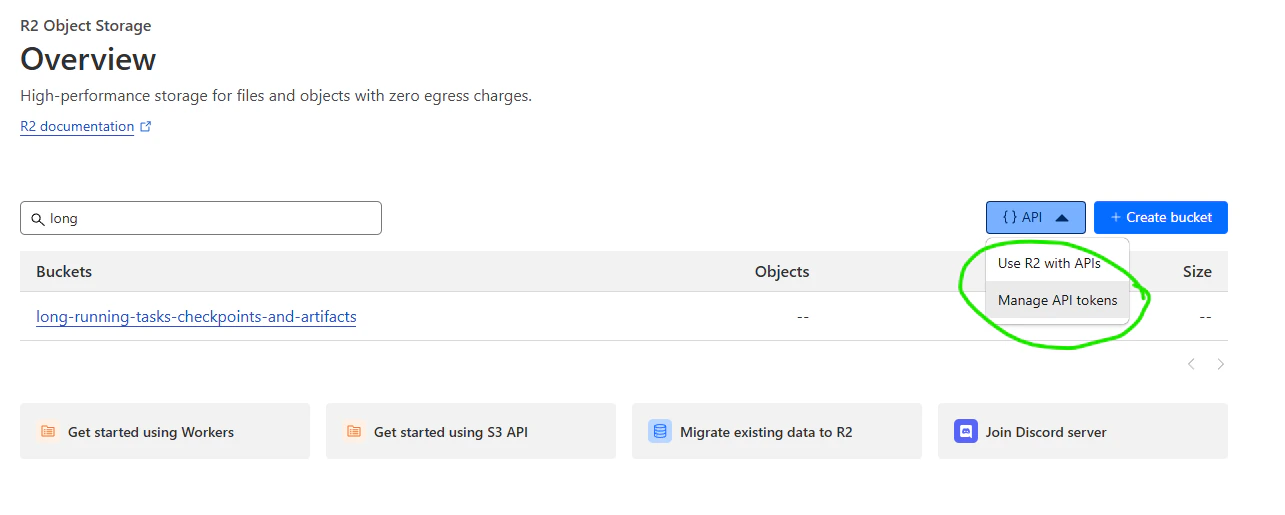
You still need an API token to access your bucket
Instrumenting Our Application
We’re going to use theboto3 library to interact with R2, and the pika library to interact with RabbitMQ. You can
install it with pip install boto3 pika.
First, we need to set up our environment variables. All of the following environment variables will be needed by the
application code.
There are several ways to do this, but what I’ve done for my development environment is create a file called
worker.env in the root of my project, and add the following lines:
*.env is in your .gitignore. You don’t want to commit your secrets to your repository.
Now, create a file called main.py in the root of your project, and add the following code:
process_job.
Completed Example
Submitting Jobs to the Queue
Next, we need a way to submit jobs to the queue. We’re going to use thepika library for this as well, with the same
AMQP_URL and JOB_QUEUE from worker.env. I’ve saved mine in a file called submitter.env, and I’m going to source
them into my environment with the following command:
Running the Job Submitter
Run the job submitter withpython submit-jobs.py. It will read the csv file and submit all the jobs to the queue.
Once that has run, we can see in the RabbitMQ management interface
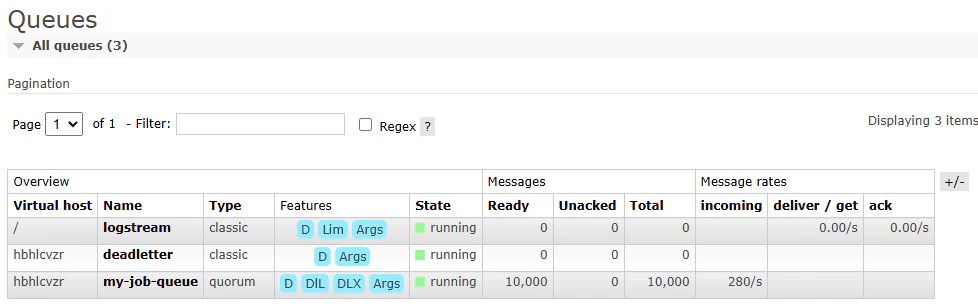
RabbitMQ Management Interface showing a full queue
Containerize the Worker Application
Now that we have our worker application and our job submitter, we can package our worker in a docker container, and run it on a SaladCloud Container Group. First, let’s make sure our dependencies are documented inrequirements.txt.
Dockerfile. Our application is simple, so a basic python base image should be fine.
Ctrl+C.
Now, we can push the image to Docker Hub.
Deploying the Worker to SaladCloud
To deploy our worker to SaladCloud, we need to create a new Container Group. This can be done via the API, SDKs, or the Portal. We’re going to use the Portal. We’re going to create a new Container Group, and we’re going to use the image we just pushed to Docker Hub. We’re going to request 100 replicas (the max via the portal), and we’re going to set all of our environment variables fromworker.env.
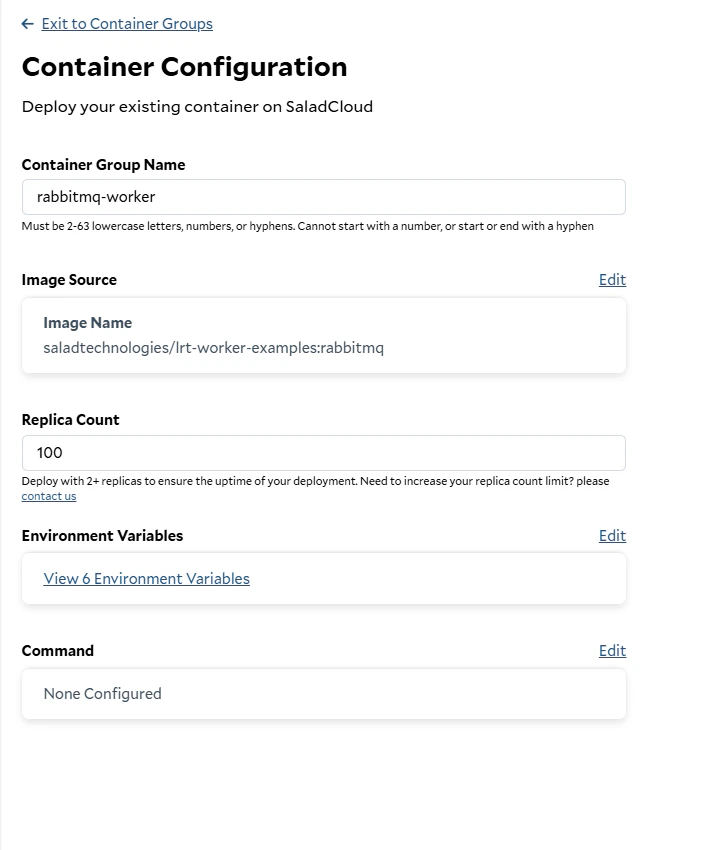
Creating a new Container Group
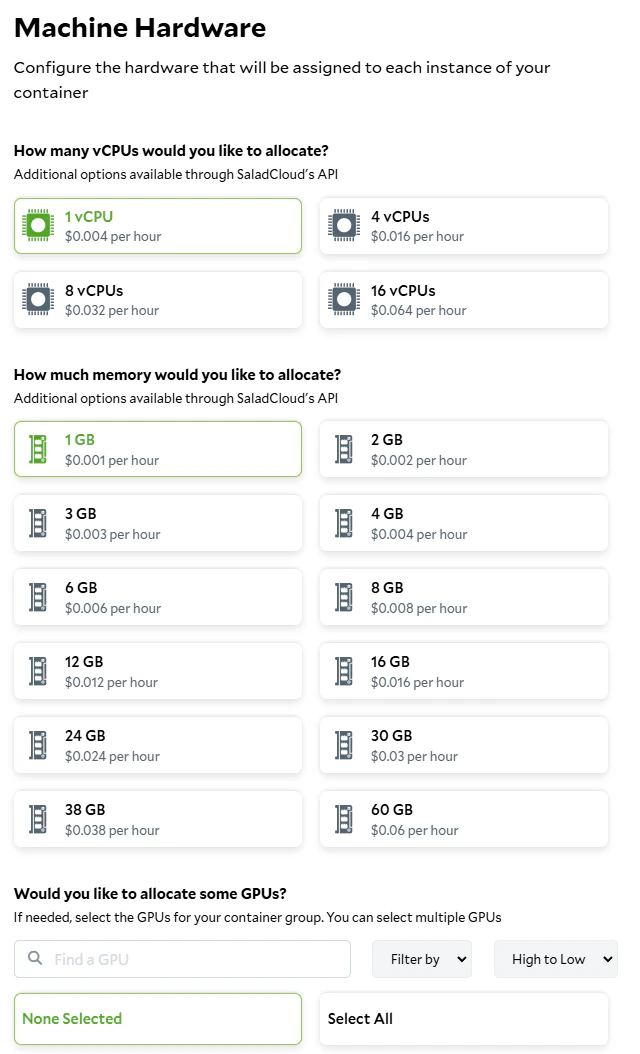
Setting the hardware requirements
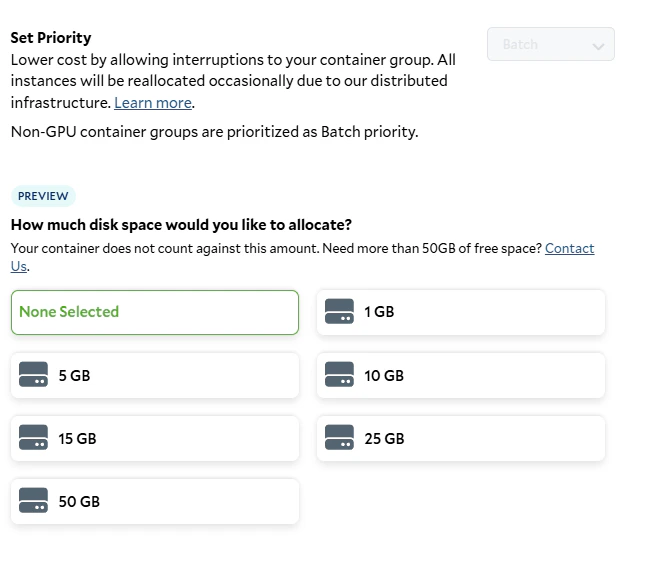
Setting the job priority and storage requirements
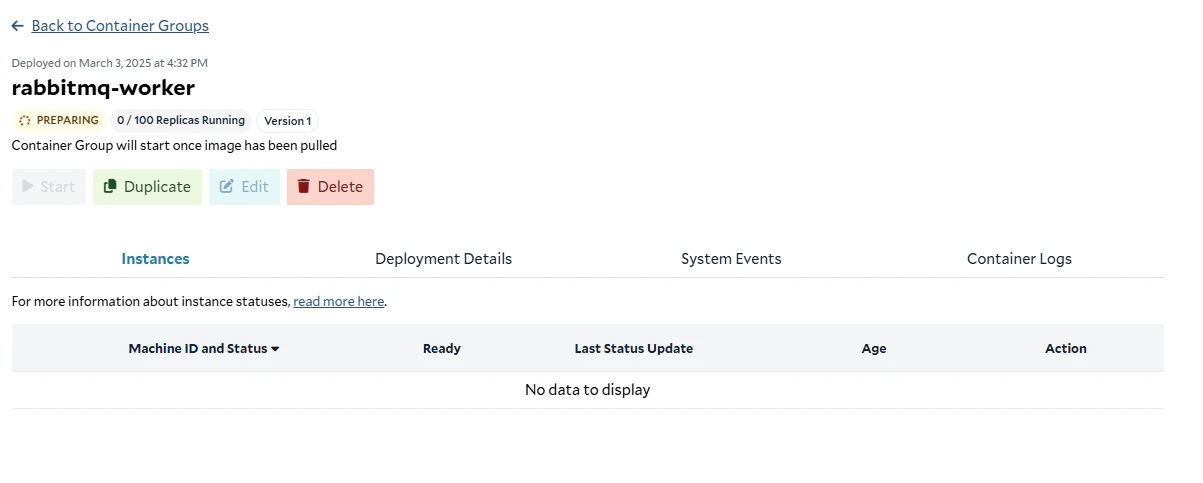
Preparing the container
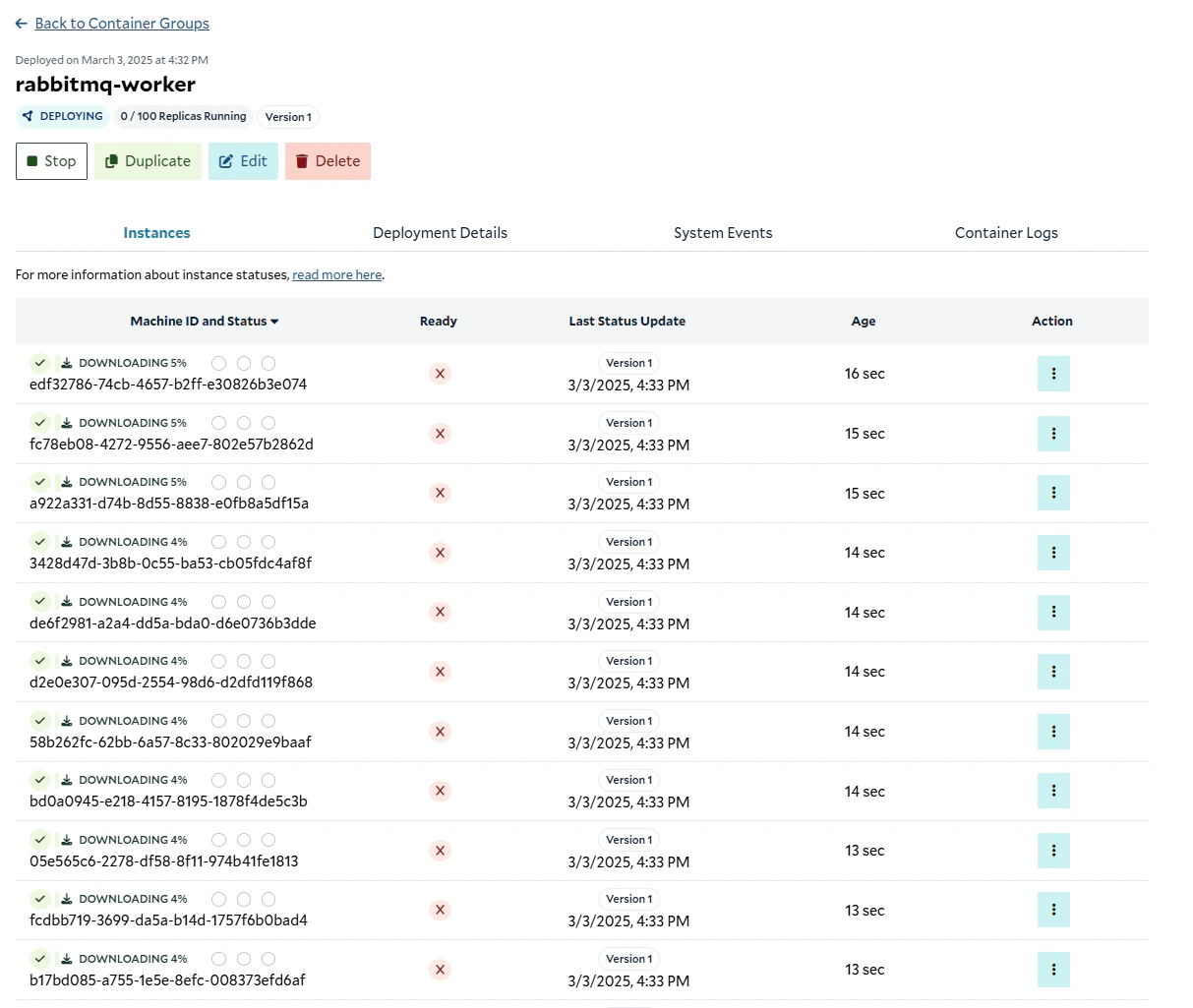
Downloading the images to the replicas
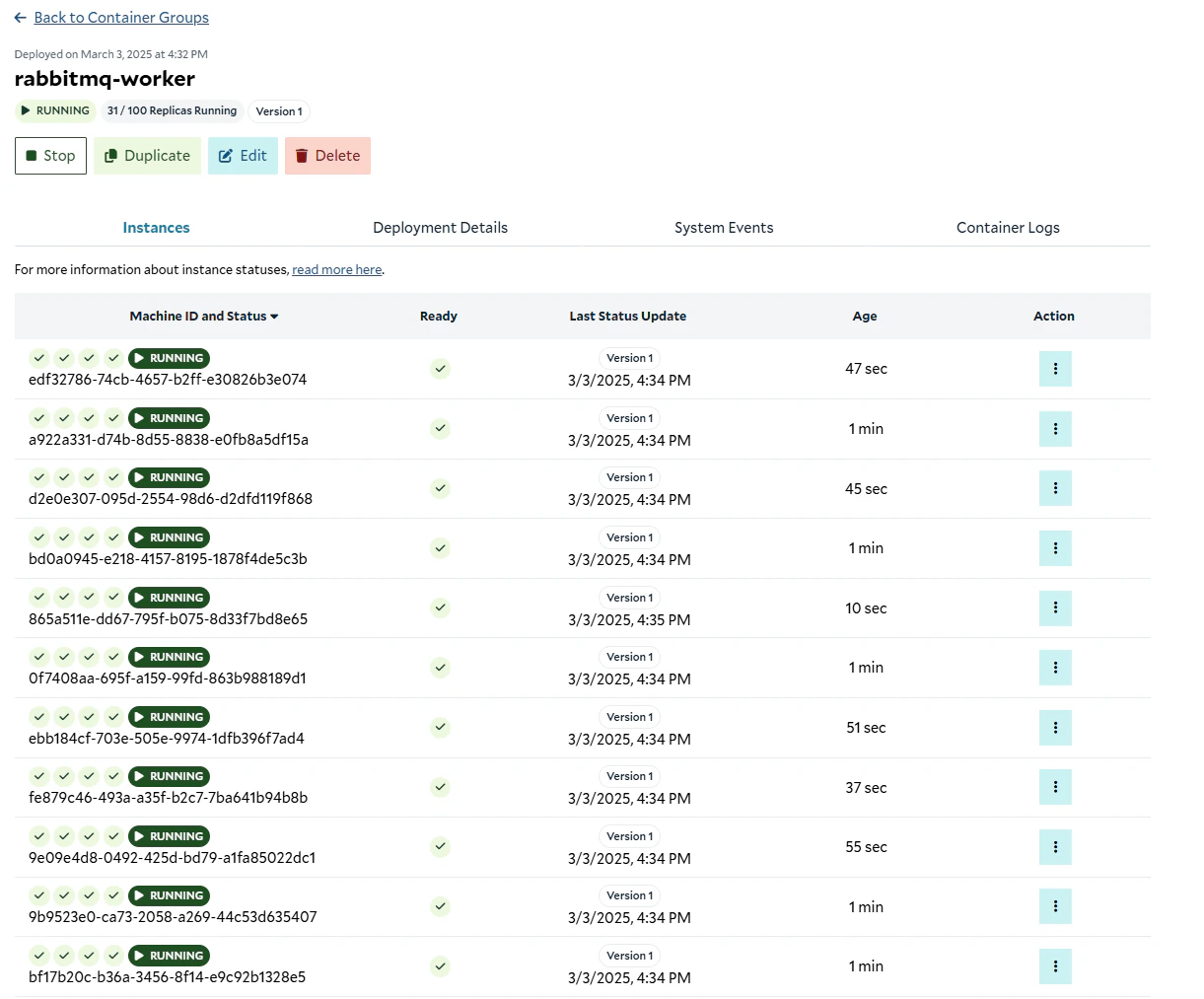
Instances up and running
Validating That It Works
Now that our cluster is up and running, we can go to the RabbitMQ management console, and see that we have in-flight messages now.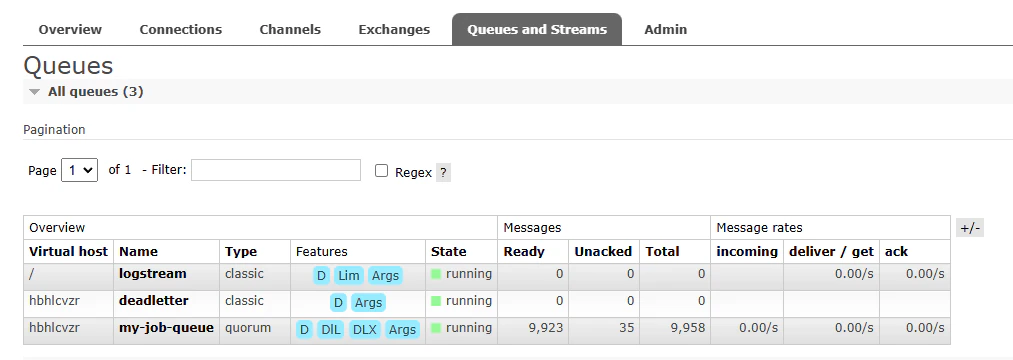
In-flight messages in our queue
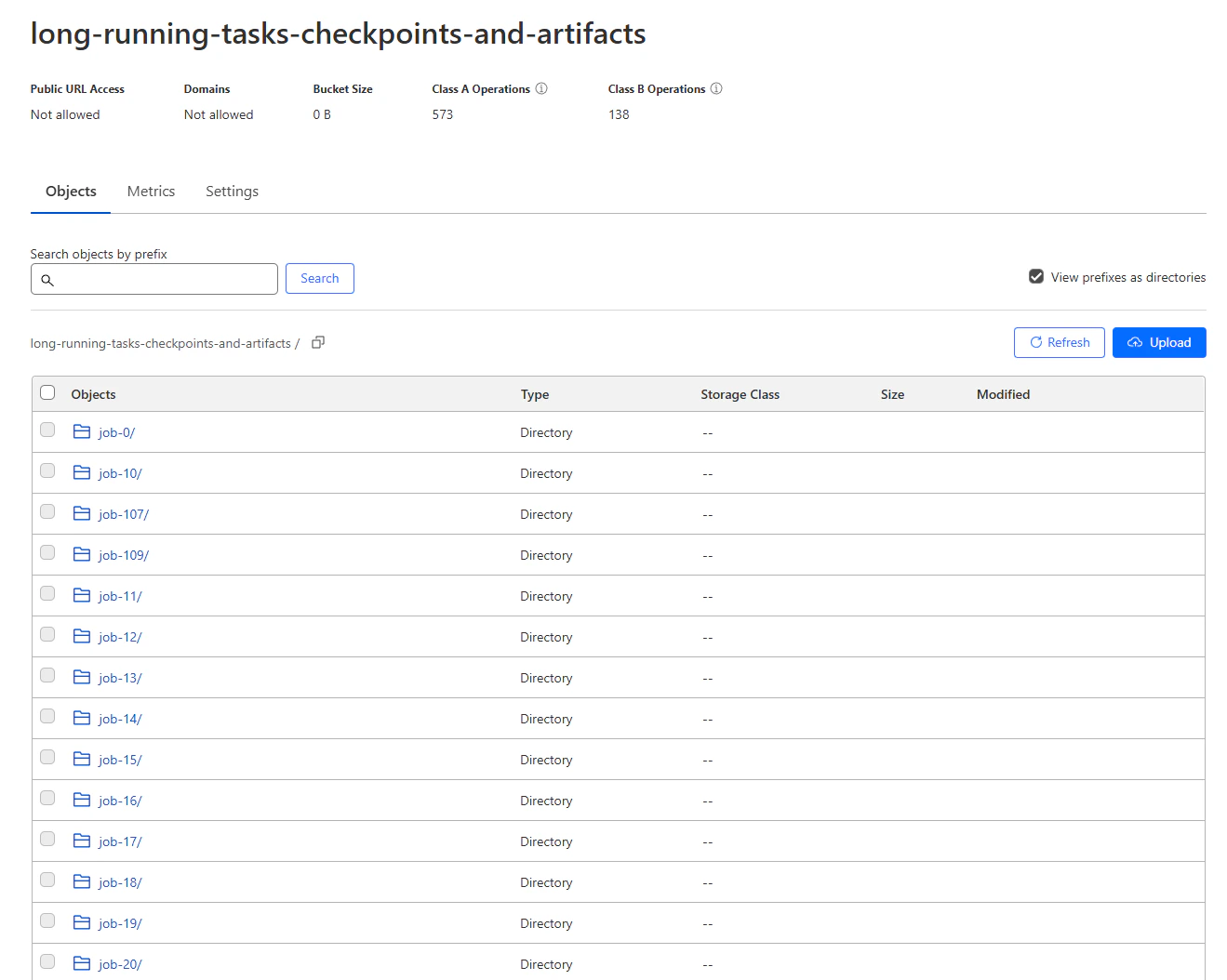
Checkpoints and results in the R2 bucket
Autoscaling
Now that we have our worker running, we can set up some simple autoscaling to automatically scale the number of replicas up and down based on the number of messages in the queue. There are many ways to implement autoscaling, but for simplicity, we are going to use a scheduled task that runs every 5 minutes, and sets the number of replicas to be equal to the number of messages in the queue, limited to 250 replicas (the maximum in the API). To implement this, we’re going to use Cloudflare Workers with a schedule trigger. Navigate to the Cloudflare portal, and select the “Compute (Workers)” tab from the left navigation bar. Click “Create”, and then choose the “Hello World” template. Go ahead and deploy the default, we’re going to edit it in the next step.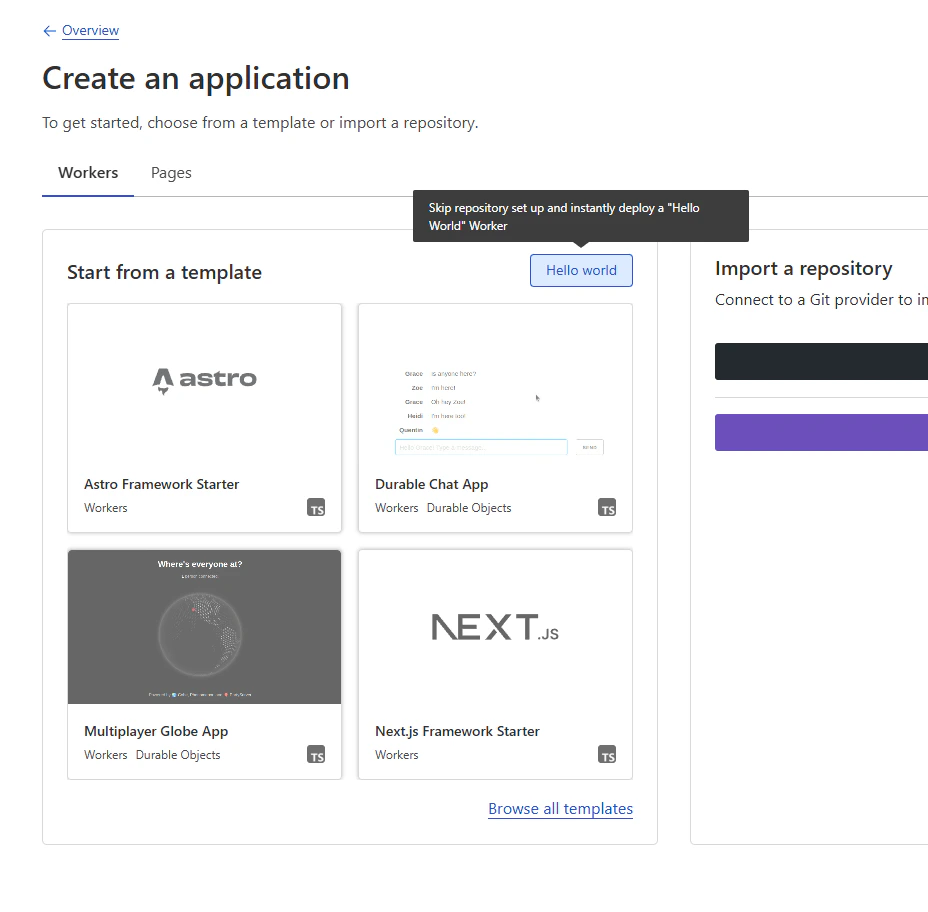
Creating a new Worker
scheduled event listener. Note all of the values that we will provide via
environment variables.
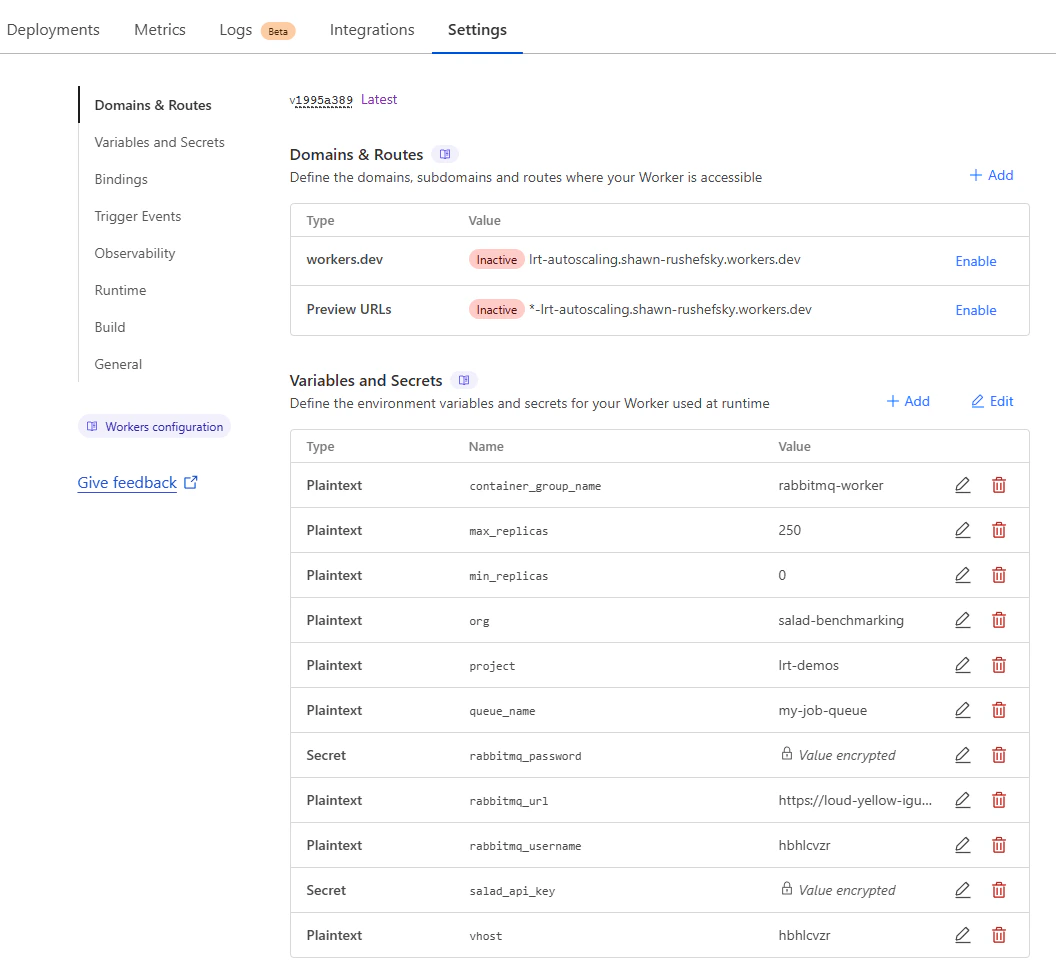
Disabling the domains and routes, and setting the environment variables
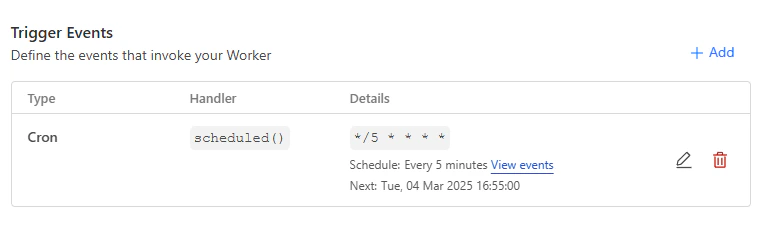
Setting the trigger to run every 5 minutes