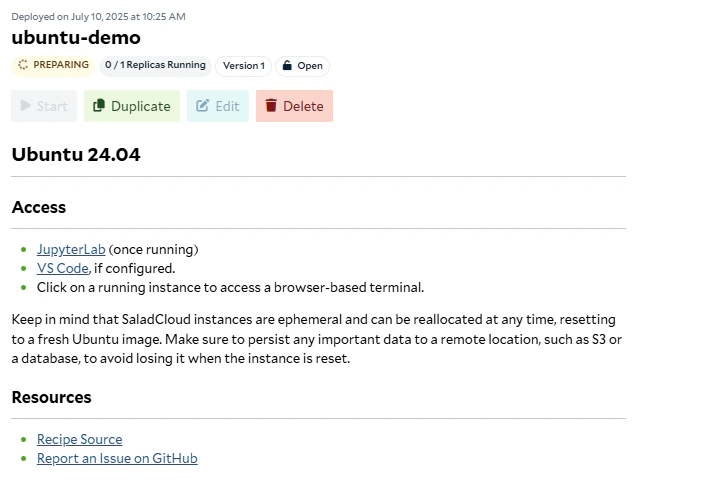
This recipe provides a complete Ubuntu 24.04 development environment designed specifically for exploring and learning
about the SaladCloud platform. It’s the perfect starting point for newcomers who want to understand how SaladCloud
works, experiment with deployments, and get hands-on experience with the platform’s features.The environment includes:
Ubuntu 24.04 LTS - Latest long-term support release
Development Tools - build-essential, git, curl, wget, and more
Python Environment - Python 3 with pip, venv, and JupyterLab
Node.js - Latest LTS version via nvm
VS Code Server - Optional remote development access
System Utilities - htop, nvtop, jq, zip/unzip tools
This recipe is ideal for:
Learning SaladCloud - Understanding how container deployments work
Platform Exploration - Testing SaladCloud features and capabilities
Getting Started - First-time users who want to experiment safely
Educational Purposes - Learning Linux, Python, and cloud computing concepts
Prototyping Ideas - Testing concepts before building custom applications
If you configure the VS Code tunnel settings during deployment, you can access VS Code at
https://vscode.dev/tunnel/your-container-group-id/workspace for full IDE functionality.
This recipe is designed to be your first step into the SaladCloud platform. Simply deploy it with the default settings
to get a fully functional Ubuntu environment where you can:
This recipe is configured to run on RTX 3090 GPUs with 24GB VRAM by default, providing you with powerful hardware to
explore SaladCloud’s capabilities. You can adjust the hardware requirements based on what you want to learn:
Basic Exploration: 2-4 vCPUs, 8-16GB RAM, no GPU required
GPU Learning: 4-8 vCPUs, 16-32GB RAM, RTX 3090 or better
Performance Testing: 8+ vCPUs, 32GB+ RAM, RTX 4090 or better
SaladCloud instances are ephemeral and can be reallocated at any time, resetting to a fresh Ubuntu image. Make sure to
persist any important data to a remote location, such as S3, Git repositories, or databases, to avoid losing work when
instances are reset.
Recommended practices:
Commit code changes to Git repositories frequently
Use cloud storage for data files (S3, Google Drive, etc.)
Save important configurations and scripts to external locations
Use environment variables for sensitive configuration
When deploying this recipe, we recommend against enabling authentication, as it can complicate accessing JupyterLab.
If you enable authentication, all requests to your development environment will need to include your SaladCloud API key
in the header Salad-Api-Key. See the documentation for
more information about authentication.
When you deploy the recipe, SaladCloud will find a qualified node and begin downloading the container image. The Ubuntu
image is relatively lightweight, so deployment should be faster than recipes that may include large model weights.Eventually, you will see instances enter the running state and show a green checkmark in the “Ready” column. Once at
least 1 instance is running, you can access JupyterLab and the web terminal immediately.You will find helpful links and information in the readme on the container group page once deployed.