

- ComfyUI - A highly modular user interface and inference engine for diffusion models.
- ComfyUI API - A RESTful API for ComfyUI.
- SaladCloud - A platform for deploying containerized GPU-accelerated applications at scale.
- Docker - A tool for developing, shipping, and running applications in containers.
- LTX Video - An open-source Apache 2.0 licensed video generation model capable of both text to video, and image to video generation.
- Typescript - A strongly typed programming language that builds on JavaScript that we can use to write a custom endpoint for our API.
- wget - A command-line utility for downloading files from the web. Optional, but useful for downloading model weights.
Step 1: Set Up Your Development Environment
Before we can start building our video generation API, we need to set up our development environment, and create a repository to store our code. We will be using Typescript to write our API, so we need to install Node.js and Typescript. If you don’t already have Node.js installed, I recommend using nvm to install and manage Node.js versions. You will also need Docker installed on your machine to build and run your API, as well as to deploy it to SaladCloud. First, let’s create a new directory for our project and initialize the git repo:video-generation-api directory:
This can be done with the following commands:
.gitignore and add the following content:
Step 2: Create a Docker Image
We’ll use a manifest file to download models at container startup rather than baking them into the Docker image. This keeps the image small and takes advantage of fast model registry downloads. Create a file calledmanifest.yaml:
manifest.yaml
Dockerfile. This file will contain the instructions for building your Docker
image. Add the following content to the file:
devel tag indicates that this image contains
the full CUDA toolkit, which is necessary for running the LTX Video model. The manifest file specifies the model weights
and custom nodes to install at startup.
For now, we’re going to build this docker image, and then run it to develop our workflow in ComfyUI.
http://localhost:8188 in your browser to access the ComfyUI user interface. You can use this interface to develop and
test your video generation workflow.
Step 3: Develop Your Video Generation Workflow
ComfyUI uses a node-based interface to compose and execute workflows. Each node represents a step in the workflow and the links between nodes represent the flow of data and resources between them. This workflow graph can be saved as a JSON file, which can be imported into ComfyUI to recreate the workflow.Example Workflow
For this example, we will create a workflow that generates a video of a cute fluffy husky puppy walking through the snow. The workflow will use the LTX Video model to generate the video. This video was created with the following workflow:Importing and Exporting Workflows
You an import the workflow to ComfyUI by saving the above JSON to a file, and then dragging and dropping the file onto the ComfyUI interface. You should see the nodes and links appear in the interface. Click “Queue” to run the workflow.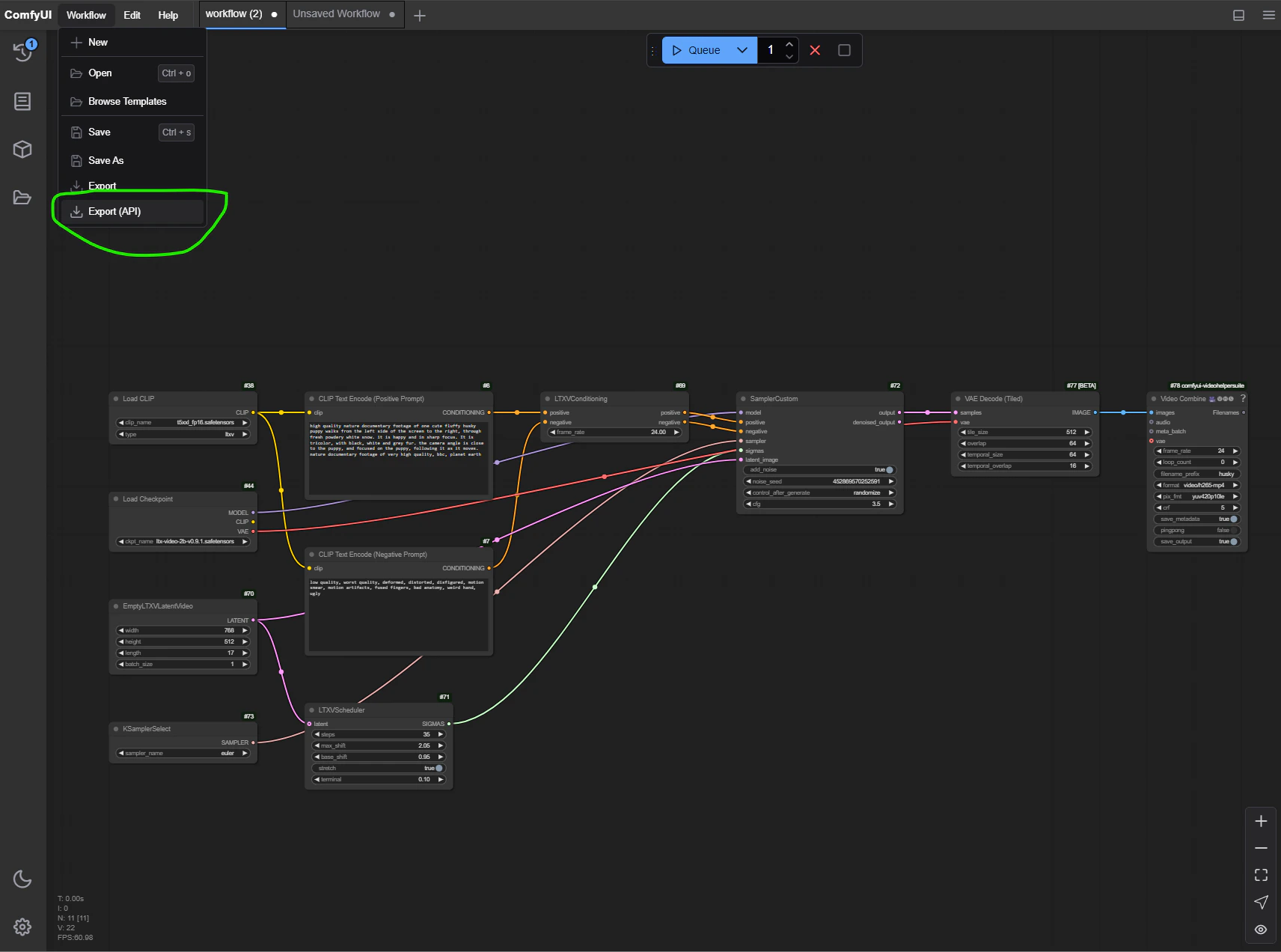
Setting A Warmup Workflow
ComfyUI API offers the ability to run a warmup workflow before the taking on normal traffic. This allows us to pre-Load the models in vram, and avoid the overhead of loading them on the first request. Save your workflow from the previous step to your project directory as a JSON file, and name itworkflow.json.
Find the parameter for steps, and decrease it to a smaller number, e.g. 10. This will make the warmup workflow run
faster.
Find the parameter for length, and decrease it to a smaller number, e.g. 17. This will make the warmup workflow run
faster. Note this value must be a multiple of 16, plus 1.
Add the following lines to your dockerfile:
/ready will return a 200 status code, and the ComfyUI API will be ready to accept requests.
Step 4: Create a Custom Endpoint
ComfyUI API allows us to easily add custom endpoints to our API. We can use these endpoints to expose a much simpler interface for video generation, as opposed to the node-based interface in ComfyUI. We will create a custom endpoint that accepts just a few parameters, including prompt, and length in seconds. Create a new directory in your project calledworkflows, and create a new file within it called video-clip.ts.
At the top, add the following imports and type definitions:
The Completed Endpoint
http://localhost:3000/docs in
your browser to see the Swagger documentation for your API. You should see a new endpoint called /video-clip that
accepts the parameters we defined in our custom endpoint.
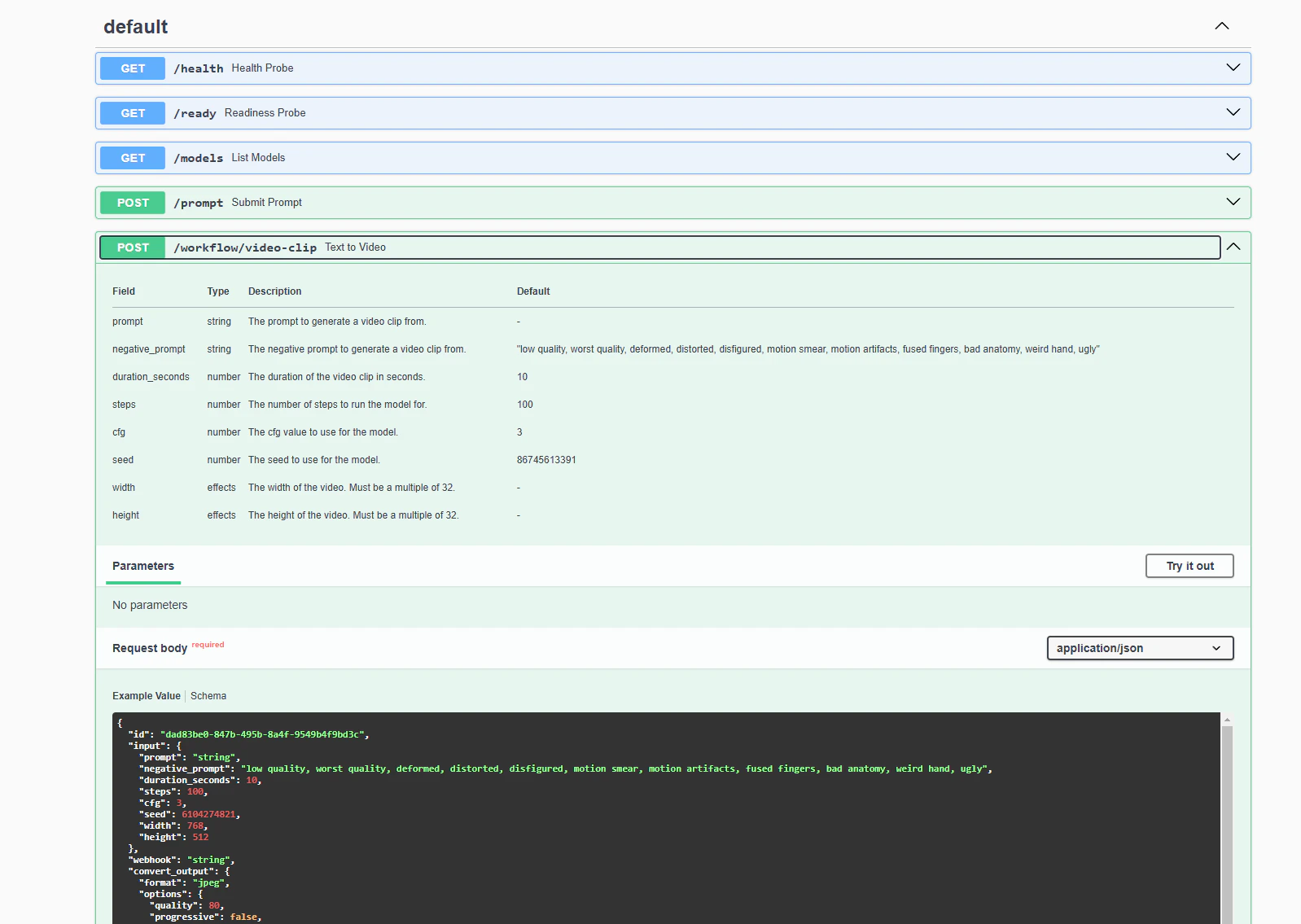
/video-clip endpoint with a prompt and negative prompt, and saves the resulting
video to a file. You can see this request structure is simpler and more intuitive than the full ComfyUI workflow graph.
You will also see that the video takes quite a while to generate. On my laptop RTX 3080Ti, it took almost 15 minutes to
generate a 10 second video. While this number is considerably lower on an RTX 4090, it could still easily exceed the 100
second ide request timeout that SaladCloud’s container gateway imposes.
Step 5: Add A Job Queue
To handle long-running requests like this, we can use SaladCloud’s Job Queue. With the job queue, we can submit our prompt, and then either poll for the result, or receive a webhook when the job is complete. Additionally, the job queue will automatically handle retrying failed requests, buffer overflow requests, and includes some basic autoscaling functionality. To use the job queue, we simply need to add the Job Queue worker binary to our Dockerfile:Step 6: Deploy to SaladCloud
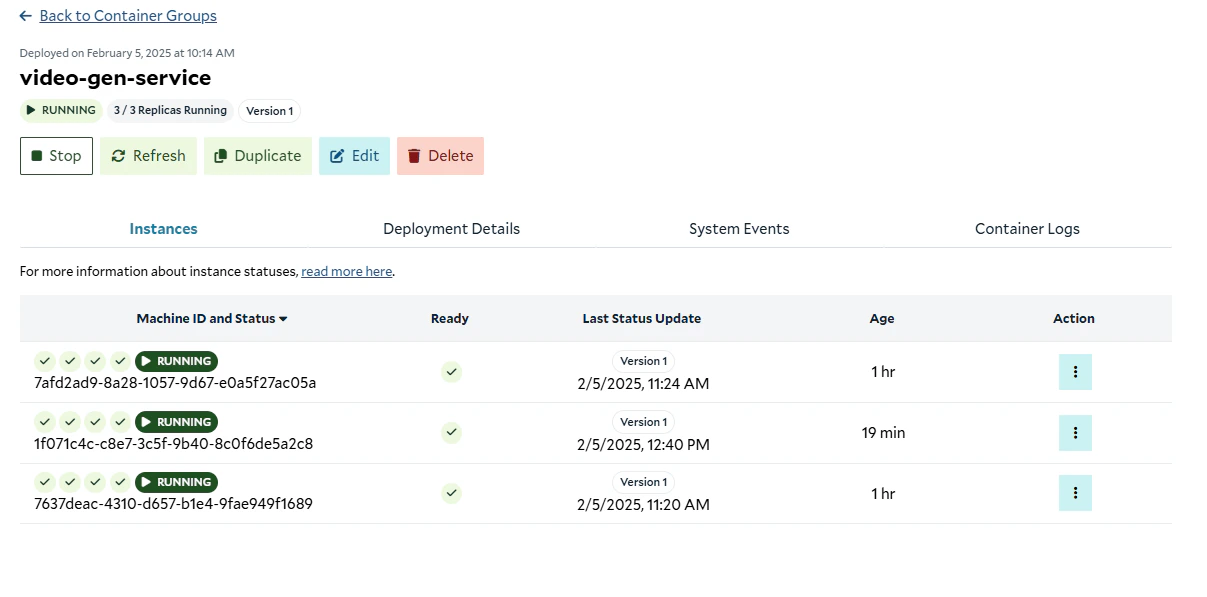
Now, it’s time to upload our container image, and deploy it to SaladCloud. First, we need to tag our image with a registry url. For us here at Salad, that looks like this:- We’re going to start with 3 replicas, and set the container image to the one we just pushed.
- We’re going to use 4 vCPU, 30GB of RAM, and an RTX 4090 GPU.
- We’re going to set the priority to “High”, although if your usecase is not time-sensitive, you can achieve significant cost savings by reducing the workload priority. Lower priority workloads can be preempted by higher priority workloads.
- Additionally, we’re going to reserve 1GB of additional storage, for the temporary storage of video files. ComfyUI API cleans up after itself, but it’s good to have a little extra space just in case.
- We’re going to connect the container group to the job queue we made in the previous step. Configure the job queue for
port 3000 (where our API is running), and set the path to
/workflow/video-clip, which is the endpoint we created. For this tutorial, we won’t enable autoscaling, but you can learn more about it here. - Finally, we will configure the readiness probe to check the
/readyendpoint - Finally, ensure
autostart_policyis set totrueso that the container group starts automatically once the image is pulled into our internal cache.
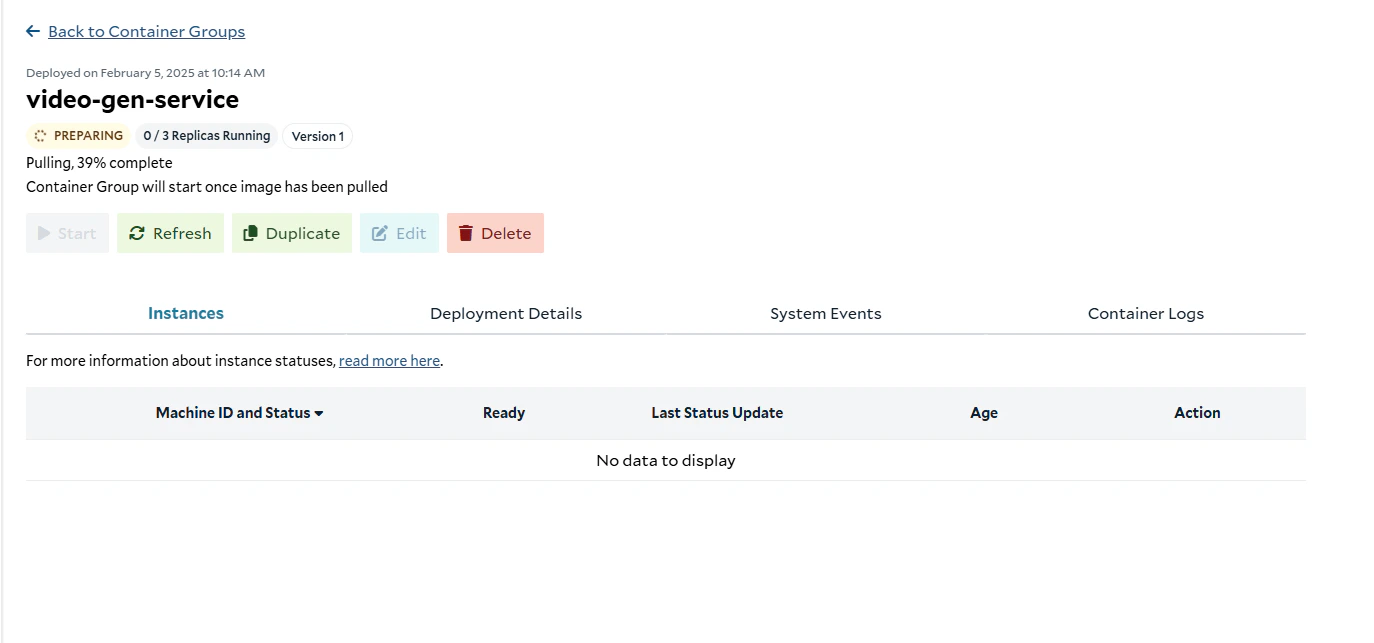
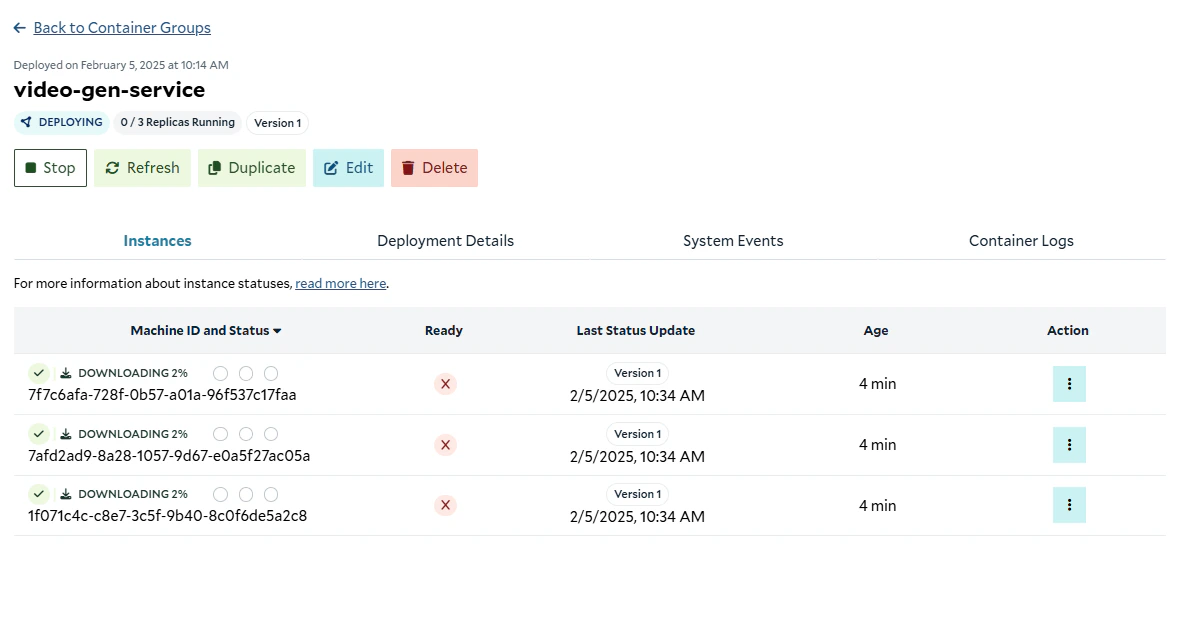
Step 7: Using the API
Now, we’re going to use the SaladCloud JavaScript SDK to create a function that submits a job to the job queue, and polls for the result. First, we need to initialize a javascript project and install the SDK:tsconfig.json:
example.ts, add the following code:
assert function
to ensure that these variables are set. Finally, we’ve created an authenticated instance of the SDK. Next, let’s define
an interface that matches our endpoint’s request schema:
Completed Example
Running the Example
Customize the request object inexample.ts to your liking, and copy the following script into a file
run-ts-example.sh, replacing the placeholders with your organization, project, and queue names. Make sure to set the
SALAD_API_KEY environment variable. For help finding your API Key,
see this guide.